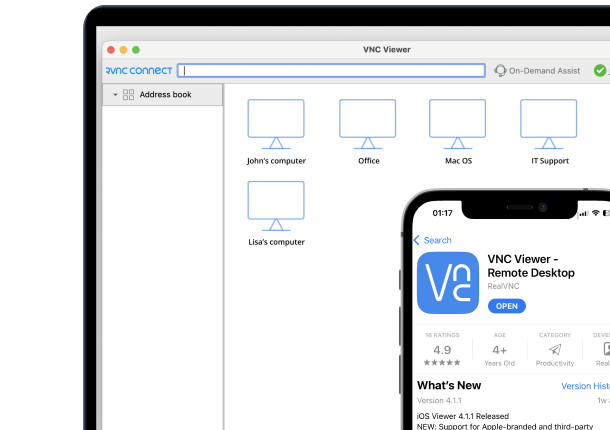




RealVNC Server comes built in to Raspberry Pi OS, so if you also run Linux on your everyday computer, reaching your Pi’s desktop from it takes only a few minutes of setup – no separate remote desktop tools required.
Why access a Raspberry Pi from Linux
A headless Raspberry Pi, or one running a project somewhere out of reach, is far easier to manage with a full graphical desktop than over SSH alone. Since RealVNC Connect works the same way across platforms, connecting from a Linux desktop is just as straightforward as from Windows or Mac. Working from a different desktop? You can also access your Raspberry Pi from Windows using the same steps. Need to go the other way? See how to access a Linux computer from a Raspberry Pi.
What you’ll need
- A Raspberry Pi running Raspberry Pi OS, connected to a network
- A Linux computer to connect from
- A RealVNC Connect account – a free trial is available
- About 10 minutes to complete setup on both devices
Step 1: Enable RealVNC Server on your Raspberry Pi
- Boot into the Raspberry Pi’s graphical desktop, then select Menu > Preferences > Raspberry Pi Configuration > Interfaces and make sure VNC is set to Enabled. (Alternatively, run sudo raspi-config, then choose Interface Options > VNC > Yes.)
- Sign up for a RealVNC account, if you don’t already have one.
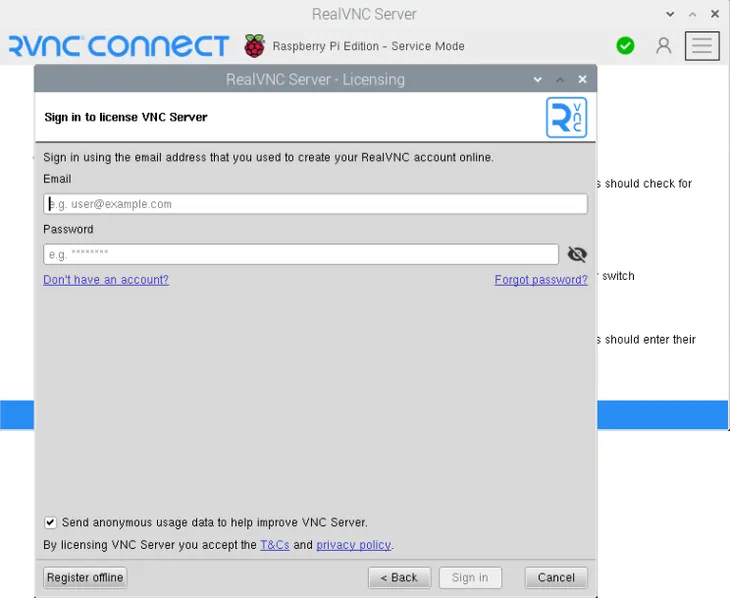
- On the Raspberry Pi, select Licensing from the RealVNC Server status menu, then enter your RealVNC account’s email and password and follow the on-screen instructions.
- Your Raspberry Pi will now appear automatically as a connection in RealVNC Viewer on any device signed in to the same RealVNC account.
Step 2: Install RealVNC Viewer on your Linux computer
On the Linux computer you’ll be connecting from:
- Download the RealVNC Connect setup app.
- Click Download for Linux.
- Extract the installer in your Downloads folder using your file manager, then run it by double-clicking the RealVNC Connect installer icon.
- Click Accept and Install, and follow the on-screen instructions. If prompted to disable Wayland, click Yes – this is required for RealVNC Connect to work correctly.
- Choose Start my free trial or Sign in to continue, using the same RealVNC account you used on the other device.
- Your browser will open automatically. Follow the on-screen prompts, then click Open to return to the RealVNC Connect Setup app.
- Review the settings shown, then click Launch.
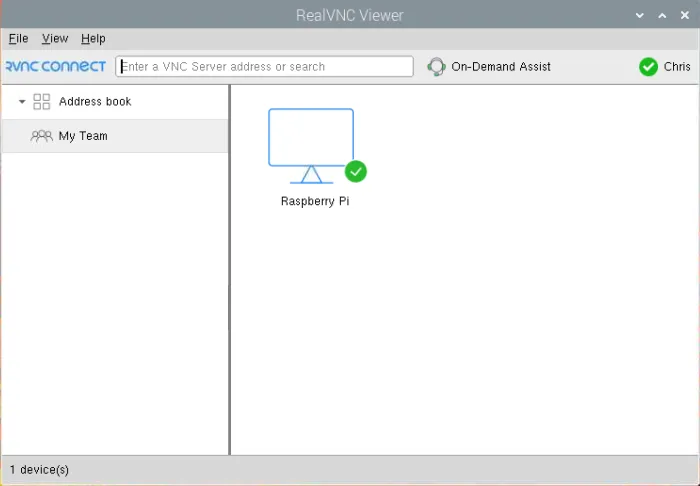
Your Raspberry Pi will now appear automatically as a connection in RealVNC Viewer, listed under your team.
Step 3: Connect to your Raspberry Pi for the first time
In RealVNC Viewer, double-click the Raspberry Pi you want to connect to.
Authenticating
Enter the username and password you normally use to log on to your user account on the Raspberry Pi – not your RealVNC account details.
Keeping your connection secure
RealVNC Connect encrypts cloud connections end-to-end, and cloud connections avoid the need to open any ports or reconfigure your router. For extra protection, turn on two-factor authentication on your RealVNC account and keep your Raspberry Pi’s own user password strong.
Troubleshooting common issues
- Raspberry Pi not listed in RealVNC Viewer: confirm VNC is enabled in Raspberry Pi Configuration, and that both devices are signed in to the same RealVNC account.
- Can’t authenticate: use your Raspberry Pi user account’s username and password, not your RealVNC account credentials.
- Blank or black screen: make sure the Raspberry Pi is booted into its graphical desktop and not just a command-line session.
Start controlling your Raspberry Pi from Linux with RealVNC Connect
RealVNC Connect offers a free trial with no credit card required, so you can test remote access between your Linux computer and Raspberry Pi before subscribing.
FAQs
Can I access a Raspberry Pi from a Linux computer?
Yes. Enable RealVNC Server in Raspberry Pi Configuration, install RealVNC Viewer on your Linux computer, then sign in with the same RealVNC account on both.
Does my Raspberry Pi need a monitor attached?
No, as long as it’s booted into its graphical desktop. Many Raspberry Pi setups run headless with RealVNC Connect providing the only screen.
Do I need a static IP address to connect?
No. A cloud connection through your RealVNC Connect account works over the internet without any router or firewall configuration.
Can I use RealVNC Viewer on the Raspberry Pi itself?
Yes. You can install RealVNC Viewer on a Raspberry Pi too, in case you want to use it to control another remote computer.