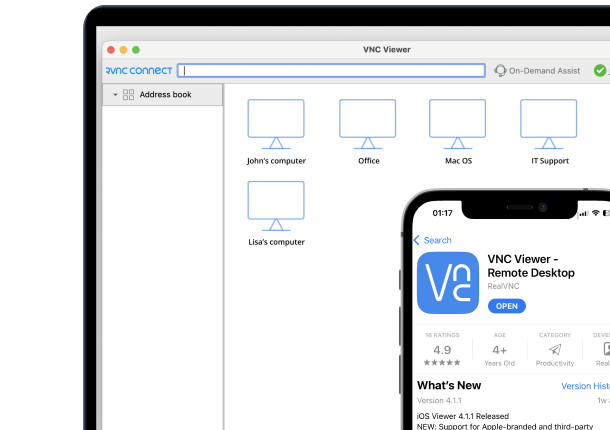




A Raspberry Pi makes a handy, low-power little desktop of its own – and with RealVNC Connect installed, it can also become a remote control for a Windows PC elsewhere on your network or the internet.
Why access a Windows PC from a Raspberry Pi
This comes up when a Raspberry Pi is set up as a lightweight kiosk or desk terminal but you still need occasional access to a full Windows machine, or when you’d rather leave power-hungry Windows software running on a PC and just view it from a Pi. RealVNC Connect works the same way regardless of which platform is on each end.
What you’ll need
- A Windows PC to control, either on the same network as your Raspberry Pi or reachable over the internet
- A Raspberry Pi running Raspberry Pi OS to connect from
- A RealVNC Connect account and licence – a free trial is available
- About 10 minutes to complete setup on both devices
Step 1: Set up RealVNC Server on your Windows PC
On the PC you want to control:
- Download the RealVNC Connect setup app from the RealVNC website.
- Click Download for Windows.
- Click Accept and Install.
- Once installation completes, choose Start my free trial if you’re new to RealVNC Connect, or Sign in to continue if you already have an account.
- Your browser will open automatically. Follow the on-screen prompts, then click Open to return to the RealVNC Connect Setup app.
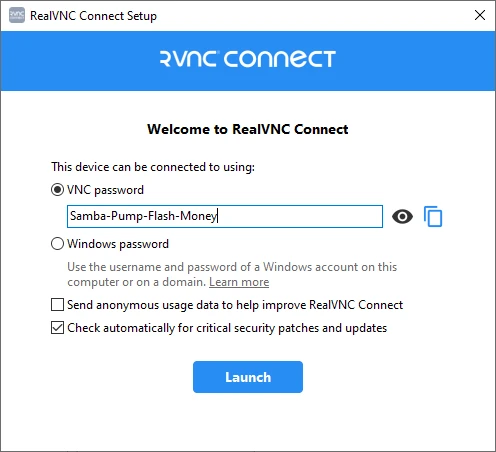
- Review the settings shown, then click Launch. If you keep the default VNC Password, make a note of it – you’ll need it when you connect from another device.
Step 2: Install RealVNC Viewer on your Raspberry Pi
- On the Raspberry Pi, install RealVNC Viewer using the Recommended Software tool, or open a terminal and run: sudo apt install realvnc-vnc-viewer
- Open RealVNC Viewer from the applications menu and sign in using the same RealVNC account you used on the other device.
Your Windows PC will now appear automatically as a connection in RealVNC Viewer, listed under your team.
Step 3: Connect to your PC for the first time
In RealVNC Viewer, double-click the PC you want to connect to.
Verifying the connection with Identity Check
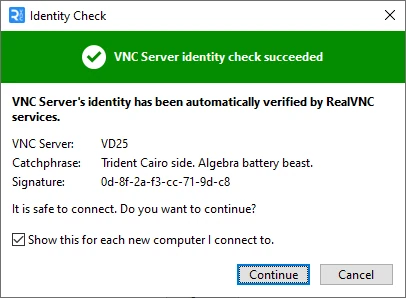
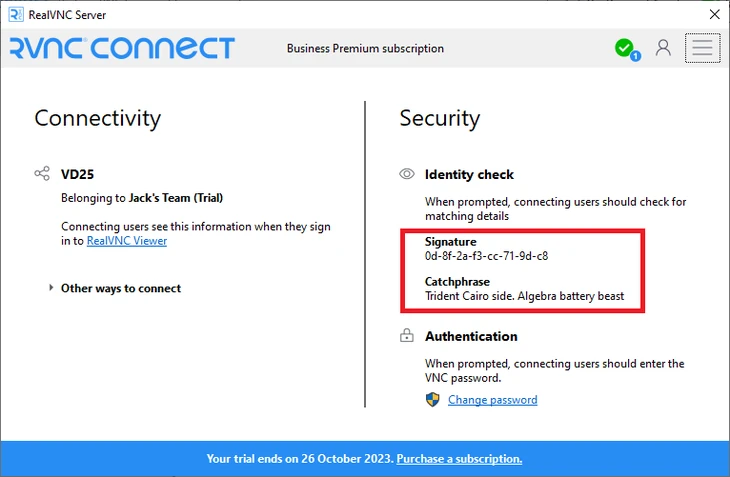
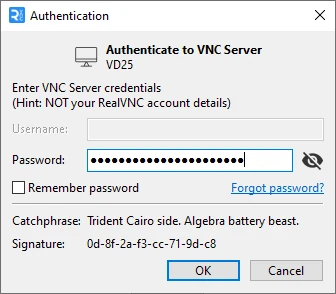
The first time you connect, RealVNC Viewer shows an Identity Check screen with a Catchphrase and Signature. Compare these against the values shown in RealVNC Server on the remote computer to confirm you’re connecting to the right machine. RealVNC Viewer remembers this identity and will warn you if it ever changes on future connections.
Authenticating
Enter the VNC Password you noted during setup. If you chose Windows Password authentication instead, use the username and password of a Windows user account.
Controlling who can connect to your PC
If you set up authentication using Windows Password, only members of the Administrators group can connect by default. To add other users, see Managing users and session permissions for RealVNC Server – otherwise they won’t be able to connect remotely, even with valid Windows credentials.
Troubleshooting common issues
- PC doesn’t appear in RealVNC Viewer: confirm both devices are signed in to the same RealVNC Connect account and team.
- Can’t authenticate: verify you’re using the VNC Password noted at setup, or valid Windows account credentials.
- Connection blocked on a corporate network: check with IT that outbound access for RealVNC Connect isn’t restricted by a corporate firewall.
Keeping your connection secure
RealVNC Connect encrypts cloud connections end-to-end, and every new connection is verified using the Identity Check described above. For extra protection, turn on two-factor authentication on your RealVNC account and use session permissions to control exactly who can view or control the PC.
Start controlling your Windows PC from Raspberry Pi with RealVNC Connect
RealVNC Connect offers a free trial with no credit card required, so you can test remote access between your Raspberry Pi and Windows PC before subscribing.
FAQs
Can I access a Windows PC from a Raspberry Pi?
Yes. Install RealVNC Server on the PC and RealVNC Viewer on the Raspberry Pi, then connect using your RealVNC Connect account or a VNC Password.
Does the PC need to be switched on?
Yes – the PC needs to be powered on with RealVNC Server running for you to connect to it.
Do I need a static IP address to connect?
No. A cloud connection through your RealVNC Connect account works over the internet without any router or firewall configuration.
Can I use RealVNC Viewer directly on the Raspberry Pi desktop?
Yes. RealVNC Viewer runs as a normal graphical application on Raspberry Pi OS, alongside your other desktop software.