



Your sales team wants to work from home, yet the VPN rollout keeps hitting snags. Someone needs a VPN client profile, someone else cannot reach the private network, and the helpdesk queue starts to overflow.
VPNs are proven, but many remote access VPNs add significant overhead. Traffic bottlenecks through gateways and performance drops, and every connected laptop can gain broad network access into the corporate network if access control isn’t tight.
RealVNC has spent more than 25 years building secure remote access solutions that focus on remote desktop control, rather than allowing access to the company’s internal network. RealVNC Connect can limit what a remote user can do inside a session, while keeping environments separated.
This guide does not treat the two technologies as mutually exclusive. In fact, most teams use both VPNs and remote access approaches in layers. The sections ahead cover the key differences in setup, security, performance, and fit by use case.
What is a VPN, and how does it work?
A virtual private network creates a secure tunnel from a remote device into a private network, usually your corporate network. After the handshake, the remote laptop behaves like it were inside the office, which offers convenience but can significantly increase the attack surface.
A VPN client, installed on a user’s remote machine, encrypts the device’s internet traffic and sends it through an encrypted tunnel to a VPN server. The server decrypts it, then routes it internally, often assigning an internal address and gateway so that the user can reach systems that are not publicly exposed. That’s the core value of remote access VPNs.
A VPN makes an ideal solution for businesses where remote users need to access internal resources that are too risky to expose to public networks. These typically include SANs, intranet resources, databases, and network printers. Implementing a corporate VPN comes with some significant trade-offs compared to using VNC for remote access. The largest being remote endpoints becoming an open door into your internal networks.
What is remote access software, and how does it work?
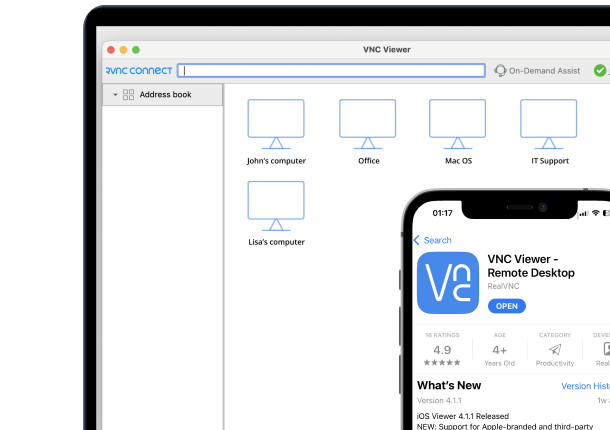
Remote access software gives a user direct control of a remote computer by streaming the screen to client software (viewer) and sending user input like keyboard strokes and mouse clicks to a target remote machine (server). It feels like sitting in front of the same remote system, minus the commute and the loud office printer.
With RealVNC Connect, the Viewer and Server can establish a secure connection using cloud-brokered connectivity, so you typically avoid inbound firewall changes and port forwarding. Both endpoints initiate outbound connectivity over the existing internet connection, which is why deployments tend to stay friendly with security teams and change control.
The key security distinction versus remote access VPNs is separation. A session exposes the remote desktop surface and the user inputs that drive it. The connecting device doesn’t gain general network access to the private network by default.
As such, malware doesn’t get a free ride into the corporate network just because someone opened a remote desktop connection.
Setup and configuration: VPN vs remote access
Set up work is where architecture meets operations. Most IT teams can map a clean design on a whiteboard. The real hurdles become apparent during rollout when packets start moving, and bottlenecks appear. Here’s what a VPN and remote access implementation looks like in real-world production environments.
VPN setup process
VPN deployment usually follows a predictable sequence, with much of the difficult configuration happening towards the end of implementation.
- Stand up the VPN server in the data center or cloud.
- Set up routing, DNS, and firewall rules to make sure that the tunnel connects to the services within the corporate network.
- Create and distribute credentials, certificates, or keys for VPN client software.
- Set up the VPN client on all endpoints, then verify access for each user group.
- Troubleshoot edge cases, usually tied to device posture, DNS resolution, split tunneling rules, or a changing user’s IP address.
- Arrange continuous upkeep, encompassing patch updates, credential changes, and regular access evaluations to make sure that permitted users maintain access.
Remote access setup process
RealVNC Connect installation is generally simpler since it emphasizes desktop management of comprehensive network connectivity.
- Install RealVNC Server on each target remote computer or jumpbox.
- Enable online licensing and associate devices with the correct team in the RealVNC Connect Portal.
- Verify that computers show up in the Portal device list, allowing admins to oversee access from a point.
- Add users to the team and assign permissions so access matches role and need.
- In Enterprise implementations, cloud connectivity tokens enable RealVNC Server to connect to cloud services without needing a login. Administrators create tokens in the Portal. Use them during MSI installation or via a command-line join, facilitating uniform, automated deployments.
- Connect using RealVNC Viewer to the intended device or jumpbox, keeping access scoped to a specific desktop session rather than broad network access.
Security comparison: encryption, authentication, and risk models
Security teams typically prioritize risk boundaries over labels. A VPN and remote access can both support a strong security posture, but each tool makes different tradeoffs in encryption scope, trust, and blast radius.
VPN network access security strengths and limitations
A virtual private network provides secure network access by encrypting internet traffic from the endpoint across untrusted networks. VPN client software builds an encrypted tunnel to a VPN server, which then routes traffic into the private network. That model is effective when authorized users need broad network access to many internal network resources.
The limitation is exposure. Many remote access VPNs effectively place the endpoint on a subnet with a private IP address. If the device is compromised, malware can reach internal services and move laterally. Configuration also matters. Poor configuration in routing, authentication, or patching can increase the risk of bad actors gaining access to your company’s network.
Remote desktop access security strengths and limitations
RealVNC Connect focuses on secure remote access to a remote computer through a remote desktop session. RealVNC’s sessions are secure and use end-to-end encryption with Perfect Forward Secrecy and AES-GCM 128 or 256-bit encryption. Cloud brokering supports connectivity, yet RealVNC cannot read session content.
The RealVNC VPN and remote access whitepaper highlights the specifics of this separation of environments. The connecting device doesn’t gain general network access by default, since session data includes screen updates and input events. Use both VPN and remote access when users need full traffic protection on hostile Wi Fi, plus scoped desktop control.
Performance and network impact
Performance debates get noisy fast, usually right after someone tries to host an HD video call through a tunnel built for small database queries. Use case matters more than the tool name.
A virtual private network is often efficient for network access because it protects internet traffic without rendering a full remote desktop. The bottleneck appears when multiple users push too much traffic through the VPN server, particularly when many remote access VPNs are online at once.
Remote access shifts the load. A remote desktop session sends screen updates and input events, so bandwidth and latency shape the experience. Modern remote access solutions like RealVNC Connect can reduce lag with approaches like high-speed streaming for responsive interaction.
Many teams use both VPN and remote access, so file work stays on the tunnel, while interactive desktop work stays smooth.
Use cases: when to use VPN vs remote access
Picking between a VPN and remote access usually comes down to what you need the user to access. The key differences between the two fall in the realm of scope. A VPN extends network access. A remote session extends control of a remote computer.
When VPN is the right choice
VPNs are most suitable when the job requires broad access inside the private network.
- Daily access to shared network resources like file shares, printers, and intranet sites, with minimal user effort once connected.
- Legacy tools that assume the device is on the internal network, including ERP and database clients.
- Always-on patterns, where a user needs multiple internal services at once.
When remote access is the right choice
Remote access is the best choice when you need desktop-level control but don’t want to extend the network to accommodate it.
- MSPs and in-house IT support teams who need to see a user’s full desktop and their actions in real-time.
- Remote staff who have their work on a specific office machine or jumpbox with the same apps, settings, and files.
- Organizations that need contractors and vendors to access local devices but don’t want to hand out broad network access each and every time.
The hybrid deployment model (recommended)
Many teams use both VPN and remote access. VPN protects the network path and keeps internal services off the public internet. RealVNC Connect then provides controlled desktop access to a specific machine inside that environment.
Compliance and regulatory considerations
VPN solutions help access secure networks by encrypting internet traffic, which supports baseline network security expectations. Again, this largely comes down to scope. A remote endpoint on the remote network can access resources broadly, so audits often focus on only authorized users and downstream security risks, plus patching and ongoing maintenance.
RealVNC Connect supports secure access to a specific remote computer over a remote desktop protocol-style session. Security features include end-to-end encryption with Perfect Forward Secrecy and AES-GCM 128- or 256-bit, so RealVNC cannot read session content.
Audit events can record team and cloud remote connections, which helps regulated teams. That model fits zero-trust network access goals for remote employees who need direct access to a desktop without widening network reach.
Ease of use and user adoption
Usability drives adoption, even in security programs that prefer to focus on controls. A VPN client can be simple to launch, but users still need to find the right file share, printer, or intranet site after connecting. That workflow often increases support demand, especially for remote employees who don’t work with internal paths every day.
Remote access removes much of that time wasted on adjusting to the new environment each time. From the user’s perspective, using RealVNC Connect is genuinely simple. Users open a remote desktop and continue work on the same remote computer interface, with the same applications and settings.
RealVNC Connect offers the same experience across major operating systems, which reduces training overhead and helps teams standardize access for contractors and rotating staff.
Cost and total cost of ownership
Cost rarely comes from licensing alone. Many VPN solutions add infrastructure and labor, plus a long tail of ongoing maintenance. Budget often includes a VPN server, endpoint rollout for the VPN client, certificate handling, patching, and support time when remote employees cannot access resources on the private network.
Enterprise VPNs can cost $500–$5,000+ per month, depending on scale, redundancy, and traffic volume.
Remote access typically avoids that infrastructure layer because it does not extend full network access to every endpoint. RealVNC Connect pricing is structured per computer and plan, which simplifies forecasting and reduces dependency on gateway capacity.
BYOD policies can also reduce overhead, since personal devices act as endpoints for a controlled remote desktop session rather than having to add yet another managed member of the remote network.
Getting started: which solution is right for you?
Start with the outcome you need. Then pick the control that matches the risk boundary, the user workflow, and the reality on the ground:
- Startups and small businesses (<25 employees): Lead with remote access. It gives secure access to a specific remote computer through a familiar remote desktop workflow. Add remote access VPNs later if your team grows into heavier network access patterns.
- Mid-market teams (25-100 employees): Run both VPN and remote access. Keep the VPN for accessing resources across the private network, then use RealVNC Connect when staff need direct desktop control, IT support, or contractor access.
- Enterprises (500+ employees): Assume a layered model from day one. Scale controls for remote employees with least privilege, clean separation, and strong network security governance.
- MSPs and IT service providers: Prioritize remote access plus RealVNC Connect On-Demand Assist for attended support sessions where the user runs a small app and provides a one-time session code.
A practical next step is a RealVNC Connect 7-day trial to validate how it works in your unique environment, then a small pilot to confirm policy and support impact.
Conclusion
A VPN extends the private network to the endpoint. Remote access extends the remote desktop of a remote computer to the user. That difference is what drives the real decision. The key differences are scope and risk, not branding.
The choice between implementing a VPN or secure remote access is a false debate. Many organizations use both VPN approaches so users can access secure networks when needed, then take controlled desktop direct access for daily work.
RealVNC Connect supports secure remote access with end-to-end encryption and session control, which helps teams protect sensitive data without widening network access by default.
A short pilot or trial is usually the fastest way to confirm fit with real workflows. Download and install RealVNC Connect today. There’s no risk, and no credit card is required.
Frequently asked questions
Can I use RealVNC Connect without a VPN?
Yes. RealVNC Connect cloud connectivity can operate over the internet without VPN connections. A brokered virtual connection helps endpoints find each other while both sides initiate outbound traffic. The session data transmitted is limited to the remote session. In regulated environments, adding a VPN underneath can extend security measures by encrypting all device traffic when users work remotely on untrusted Wi-Fi.
How does RealVNC Connect’s security compare to VPN encryption?
Both can be strong when properly configured. VPNs protect a tunnel, then the VPN server decrypts traffic for routing into the network. RealVNC Connect uses end-to-end session encryption with Perfect Forward Secrecy and AES-GCM at 128- or 256-bit. RealVNC states it cannot read session content.
The practical difference is scope. VPNs can cover broader traffic. RealVNC secures the interactive session used to perform tasks on a remote machine.
Which is faster: VPN or remote access?
It depends. VPNs often provide fast access for file workflows since they avoid graphic rendering. Remote access is tuned for interactive desktop work, where responsiveness matters more than raw throughput.
What happens if I need to support a user’s computer behind a strict firewall?
Cloud connectivity is built precisely for that. Both endpoints initiate outbound connections over standard web traffic (HTTPS), which is rarely blocked on even strict networks. This reduces inbound rule changes and supports helpdesks, allowing employees to connect behind firewalls, proxies, or even CGNAT.