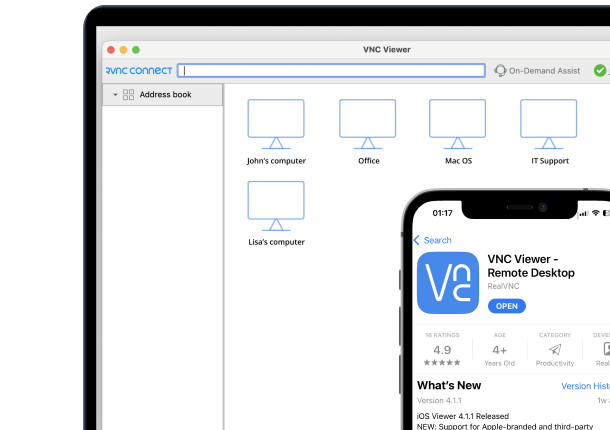




Remote access gives you powerful control over any machine from anywhere in the world. With that power comes the need to protect your connections with strong, secure passwords. If you manage IT infrastructure, provide remote support, or require access to your home computer from the office, you need to keep your RealVNC passwords secure.
A common question we get is: how to change VNC password? The answer depends on which password you need to change. RealVNC uses two separate authentication systems by design. This way, even if one credential is compromised, your remote computers stay protected.
With data breaches on the rise and human error behind a lot of security incidents, you can’t afford to make a mistake with your passwords. Let’s clear up everything you need to know about RealVNC passwords and the best way to manage them.
The Two RealVNC Passwords Explained
RealVNC Connect has two distinct password systems. This separation is intentional and adds an extra layer of security to your remote access setup. Here’s what you need to know about each one.
RealVNC Account Password
Your RealVNC account password is the credential you use to sign into RealVNC Connect across all your devices. Once configured, you enter this password when you:
Sign into RealVNC Viewer
Manage your subscription at manage.realvnc.com
Apply your subscription to RealVNC Server
This password, combined with your email address, controls access to your RealVNC account and subscription.
RealVNC Server Password
The VNC Server password is what you enter when you actually connect to a remote computer with RealVNC Viewer. This is separate from your account password and lives on each remote machine.
By default, RealVNC Server uses system authentication. This means you use the same username and password you normally use to log into that computer. However, you can also set up a separate VNC Password if you prefer.
Why Are They Separate?
This dual-password approach is a security feature by design. If someone gains access to your RealVNC account credentials, they still can’t connect to your remote computers without the separate server authentication. This layered security keeps your devices protected even if one credential is breached.
How to Change Your RealVNC Account Password
You can change your RealVNC account password through the online portal. It’s straightforward – just follow these steps:
Go to the Reset your password page at manage.realvnc.com
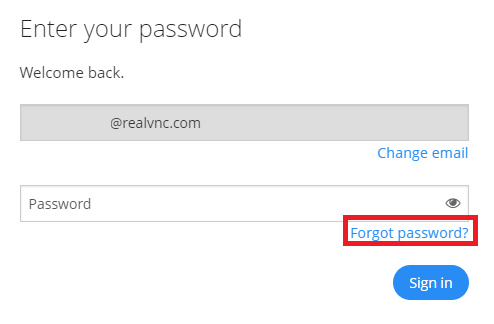
Write the email address linked to your RealVNC account
Click the Next button
Check your email for a password reset link from RealVNC
Click the link and follow the instructions to start setting your new password
Important: The reset link only works for a limited time. If it expires, just request a new one. You must have access to the registered email address to complete this process.
If you’re unable to find the password reset email, check your spam or junk folder. You may also need to add no-reply@realvnc.com to your safe senders list.
How to Change Your VNC Server Password
The process for changing your server password depends on which authentication method you use. RealVNC does not manage this password centrally, so you must change it on the remote machine itself.
System Authentication (Default)
System authentication is the default method. It uses your computer’s existing login credentials. To change this password:
Windows: Go to Settings > Accounts > Sign-in options, or press Ctrl+Alt+Delete and select ‘Change a password’
Mac: Go to System Preferences > Users & Groups, select your user, and click ‘Change Password’
Linux: Run the passwd command in terminal or use your distribution’s user settings
Domain accounts: Contact your IT administrator to reset your domain password
VNC Password
If you’ve set up RealVNC Server to use a separate VNC Password instead of system authentication, you need administrator access to the remote computer to change it.
To change an existing VNC Password:
On the remote computer, find the RealVNC Server icon in the system tray (Windows) or menu bar (Mac/Linux)
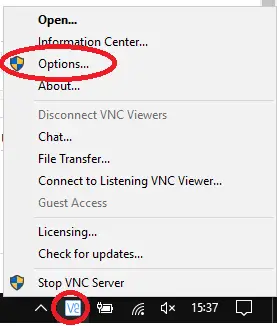
Right-click the icon and select ‘Open’
In the RealVNC Server dialog, click ‘Change password’
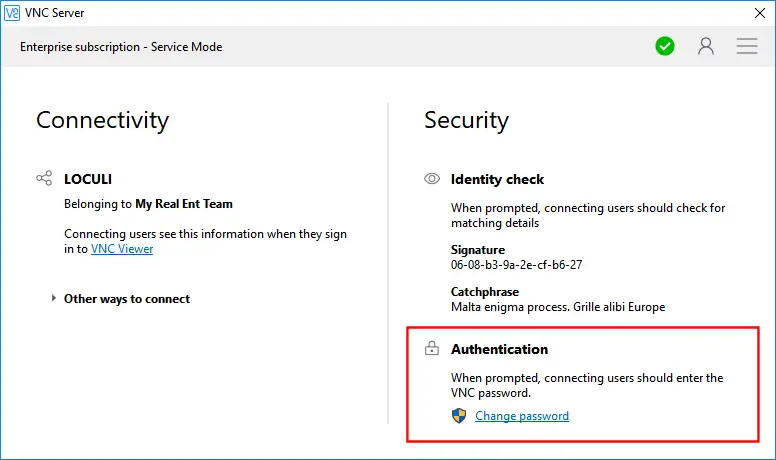
Enter and confirm your new password
Click OK to save
To set up VNC Password authentication:
Right-click the RealVNC Server icon and select ‘Options’
Click ‘Yes’ on the UAC prompt (Windows) or enter administrator credentials (Mac/Linux)
Go to the Security tab
Change the Authentication dropdown to ‘VNC Password’

Click OK and set your password when prompted
View Only Password and Multiple Users
Depending on your subscription, you can set up multiple user types with different permission levels. This includes a view-only password for users who need to observe but not control the remote machine:
Standard user (username: user) – Full remote control access
Administrator user (username: admin) – Can bypass accept/reject prompts
ViewOnly user (username: viewonly) – Can observe but not interact
To change passwords for these users, go to Options > Users & Permissions, select the user, and click the Password button.
Linux Command Line (vncpasswd)
On Linux systems, you can use the vncpasswd utility to set or change VNC passwords from the command line. This is useful for headless servers, scripted deployments, or when you need to work offline without a GUI.
Run these commands in server mode:
Service Mode: sudo vncpasswd -service
User Mode: vncpasswd -user
Virtual Mode: vncpasswd -virtual
You can also pass credentials via stdin for automated scripts. The password is stored in a password file at a specific location depending on your server mode. Passwords must be at least six case-sensitive alphanumeric characters.
Please note: vncpasswd is only required when you use VNC Password authentication. It has no effect if you use system authentication or SSO.
Coming from TightVNC or Other VNC Software?
If you’ve used TightVNC or other VNC solutions before, you’ll find RealVNC works in a similar way. The main difference is that RealVNC Connect offers cloud-based device discovery and more authentication options. Your experience switching over should be smooth, as the core concepts of VNC Server and Viewer remain the same.
Available Authentication Methods
RealVNC Connect supports multiple authentication methods to fit your security needs:
System Authentication – Uses your computer’s existing login credentials (default)
VNC Password – A separate password specific to RealVNC Server
Single Sign-On (SSO) – Authenticate via Kerberos without a password
Interactive System Authentication – Enhanced authentication with PAM modules (Linux/Mac)
Multi-Factor Authentication – Combine methods with Duo, RADIUS, smartcard, or certificate authentication
You can set these options in RealVNC Server’s Options > Security page. For business environments, we strongly recommend adding multi-factor authentication for maximum protection.
Password Security Best Practices
Strong password habits are essential for protecting your remote access. Here are our top tips:
Use a password manager
Password managers let you generate and store complex, unique passwords for every account. You only need to remember one master password. Popular options include Bitwarden, 1Password, and LastPass. These tools create random, highly secure passwords that attackers can’t guess, so you won’t be tempted to use weak, easy-to-remember passwords.
Turn on multi-factor authentication (2FA)
Even if your password is compromised, MFA provides an additional barrier. We strongly recommend you turn on 2-step verification for your RealVNC account and set up MFA for RealVNC Server connections where possible. Once enabled, the risk of a security breach drops significantly, with Microsoft reporting it can stop up to 99.99% of unauthorized login attempts. You can use any TOTP app, such as Google Authenticator, Microsoft Authenticator, or Authy.
Use unique passwords
Never reuse passwords across different accounts. Most importantly, make sure your RealVNC account password is different from your RealVNC Server passwords. This keeps the security benefit of the dual-password system intact.
Create strong passwords
A strong password should be at least 8 characters (longer is better) and include a mix of uppercase letters, lowercase letters, numbers, and symbols. Consider a memorable phrase that’s easy for you to remember but hard for others to guess.
Never share passwords
Password sharing is one of the most common causes of security breaches. If multiple people need access to a remote computer, set up individual user accounts instead of sharing credentials.
RealVNC’s Commitment to Security
At RealVNC, security is our core principle. All RealVNC Connect sessions use end-to-end encryption with AES-GCM 128 or 256-bit, so your data stays protected in transit. Our protocol includes Perfect Forward Secrecy, which means that even if encryption keys were somehow compromised in the future, past sessions can’t be decrypted.
We don’t just claim it. Our software goes through regular independent security audits by Cure53, a respected cybersecurity consultancy. We share these audit results publicly so you can verify our security claims yourself.
Our engineering team follows a Security Development Lifecycle, and we use software composition analysis to find and fix vulnerabilities in third-party components. Security is an ongoing commitment, not a one-time achievement.
Keep Your Remote Access Secure
Managing your RealVNC passwords well is a critical part of secure remote access. Remember to keep your account and server passwords separate, turn on multi-factor authentication wherever possible, and follow password best practices.
If you need more help with password management or security setup, visit the RealVNC Help Center or contact our support team. Your security is our priority.
Useful Resources
Here are some helpful links to learn more about RealVNC passwords and security:
How do I reset my password? https://help.realvnc.com/hc/en-us/articles/360003490991-How-do-I-reset-my-password
Setting up VNC Password: https://help.realvnc.com/hc/en-us/articles/7921930974237-Setting-up-VNC-Password
vncpasswd man page (Linux): https://help.realvnc.com/hc/en-us/articles/360002313698-vncpasswd-man-page
Set up 2-step verification for your RealVNC account: https://help.realvnc.com/hc/en-us/articles/360003110878-How-do-I-set-up-2-step-verification-for-my-RealVNC-account
Introduction to Multi-Factor Authentication: https://help.realvnc.com/hc/en-us/articles/360002250077-Introduction-to-Multi-Factor-Authentication
Create and use a secure password: https://help.realvnc.com/hc/en-us/articles/12458733353501-Creating-and-using-a-secure-password
Set up RealVNC Connect for maximum security: https://help.realvnc.com/hc/en-us/articles/360002253278-Setting-up-VNC-Connect-for-Maximum-Security
RealVNC Security and Privacy: https://www.realvnc.com/en/connect/security/