



Your Raspberry Pi runs in a closet as a home server, behind the TV as a media center, or mounted somewhere collecting weather data for an embedded project. You need to remotely access its screen and control it without hauling a monitor across the house every time.
VNC makes this possible. A VNC server on your Pi shares its actual desktop over the network. A VNC viewer client on your laptop or phone displays that desktop and sends your clicks back. You control the Pi as if you were sitting in front of it.
The technology has a long-standing reputation, as it started in 1998 at Cambridge’s Olivetti and Oracle Research Laboratory. That team founded RealVNC in 2002 and wrote RFC 6143, the official standard for the protocol that powers VNC even today. Their software comes pre-installed on Raspberry Pi OS and runs on devices at NASA, Intel, and IBM.
Picking a VNC viewer got more complicated in late 2023. The latest version of Raspberry Pi OS, called Bookworm, switched from X11 to Wayland as its display system. This broke compatibility with several VNC tools. Forums filled with users reporting black screens, servers that would not start, and viewers that stopped working after an update.
This guide sorts it out. Follow these instructions to set up VNC on both Wayland and X11, compare which viewer fits your situation, and fix the problems that catch most users.
What Is VNC and How Does It Work on Raspberry Pi
VNC stands for Virtual Network Computing. It lets you view and control one computer from another over a network connection.
The setup has two parts. The server runs on your Raspberry Pi, captures the screen, compresses the image data, and sends it across the network. The viewer client runs on your laptop, phone, or tablet, receives those screen updates, displays them, and sends your keyboard and mouse input back.
The protocol handling this exchange is called RFB, short for Remote Framebuffer. Published as RFC 6143 by the Internet Engineering Task Force in March 2011, RFB defines how the server and viewer authenticate, negotiate capabilities, and transmit data.
What makes VNC different from SSH? SSH gives you a terminal window with command line access. You can run text commands but cannot see graphical applications. VNC gives you the full graphical desktop. File managers, web browsers, code editors with visual interfaces, anything that runs on your Pi’s screen appears on your viewer. Many users enable both: SSH for quick terminal commands, VNC when they need the visual interface.
On Raspberry Pi, VNC runs on port 5900 by default. You can also connect via localhost if running a viewer directly on the Pi for testing. When you connect, your viewer contacts that port, completes authentication using your Pi user account credentials, and starts receiving screen data.
Why Raspberry Pi Users Need a VNC Viewer
Headless operation is the most common reason. Your Pi runs without a monitor attached, tucked away somewhere convenient for its purpose but inconvenient for physical access. A VNC viewer lets you manage it from your main computer whenever you need to change settings or run graphical applications.
Multiple Pi setups benefit too. If you run a cluster for learning or experimentation, switching between physical keyboards gets tedious. One viewer on your laptop gives you access to every Pi on your network.
Remote access over the internet extends this further. Check your home automation dashboard from work. Troubleshoot your media server while traveling. Monitor your weather station from a different city.
The situation changed in October 2023 when Raspberry Pi OS Bookworm arrived. Previous versions used X11 as the display server, and RealVNC Server came pre-installed and ready to enable. Bookworm switched to Wayland by default on Pi 4 and Pi 5, with Wayvnc as the bundled VNC server instead of RealVNC.
How to Set Up VNC on Raspberry Pi OS
Before starting, confirm you have a Raspberry Pi with Raspberry Pi OS installed on an SD card, a network connection through Ethernet or WiFi, and another device with a VNC viewer.
One decision shapes everything that follows. Raspberry Pi OS Bookworm on Pi 4 and Pi 5 uses Wayland as the default display server. Older versions and older Pi models use X11. Wayland works with Wayvnc, the VNC server bundled with Bookworm. RealVNC Server needs X11 to capture the screen properly.
If you want cloud-brokered connectivity, file transfer, and remote printing, switch to X11 and use RealVNC. If you prefer staying with Wayland, enable Wayvnc and connect with TigerVNC Viewer.
Enabling VNC via the raspi-config Tool
Open a terminal window on your Pi or connect through SSH. Run the following command:
sudo raspi-config
A blue menu appears. Navigate to Interface Options and press Enter. Select VNC from the list and press Enter again. Choose Yes when asked to enable the VNC server. Navigate to Finish and exit.
The VNC server now starts automatically every time your Raspberry Pi boots. On Bookworm with Wayland, this enables Wayvnc. On older systems or after switching to X11, this enables RealVNC Server.
From the desktop GUI, you can also click the Raspberry Pi menu, navigate to Preferences, select Raspberry Pi Configuration, click the Interfaces tab, and toggle VNC on.
Finding Your Raspberry Pi IP Address
Your VNC viewer needs to know where to connect. Open a terminal and run the following command:
hostname -I
The output shows your Pi’s IP address, for example 192.168.1.105. Your router’s admin page also lists other devices connected with their addresses.
For more reliable connections, consider setting a static IP address or using your Pi’s hostname with .local appended. On most networks, raspberrypi.local resolves to your Pi through mDNS.
Switching to X11 for RealVNC on Bookworm
RealVNC Server captures the screen through X11. On Bookworm’s default Wayland compositor, RealVNC cannot see the desktop and connections show a black or grey screen.
To switch, run the following command:
sudo raspi-config
Navigate to Advanced Options, select Wayland, choose X11, and reboot when prompted.
With X11 active, you may need to install RealVNC Server if it was removed:
sudo apt install realvnc-vnc-server
Enable VNC again through Interface Options in the raspi-config tool. RealVNC Server now handles the VNC service with all its features available.
Top VNC Viewers for Raspberry Pi Compared
The viewer client you install determines your experience. This comparison focuses on platform support, security, ease of setup, and how each handles the Wayland situation.
RealVNC Viewer
RealVNC has spent over two decades refining its implementation since founding the company in 2002. Their viewer connects to RealVNC Server, which comes pre-installed on Raspberry Pi OS and activates when you switch to X11 on Bookworm.
The viewer runs on Windows, macOS, Linux, iOS, Android, and Raspberry Pi itself. RealVNC Viewer includes GPU acceleration for smoother performance, making it suitable for beginners and graphically intensive sessions alike.
Security follows current standards. Connections use AES encryption at 128 or 256 bit strength with Perfect Forward Secrecy. Authentication requires your Pi user account credentials, and you can add multi-factor authentication through your RealVNC account. The company completed a Cure53 security audit, a white-box penetration test that examined the actual source code.
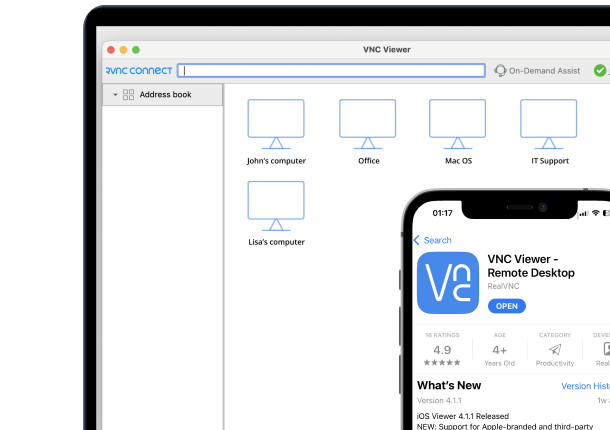
Cloud-brokered connectivity sets RealVNC apart from open source alternatives. Sign in to your RealVNC account on both the server and viewer, and your Pi appears in an address book automatically. No port forwarding on your router, no need to know your IP address, no firewall configuration. The connection routes through RealVNC’s servers but remains encrypted end-to-end.
Paid subscription plans include file transfer with a dual-pane interface, remote printing, session recording in WebM format, and in-session chat.
Pricing includes subscription plans for personal and business use. You can start a free 14-day trial from the RealVNC website to evaluate the service without waiting for approval.
The main limitation on current Raspberry Pi OS is the Wayland requirement. RealVNC Server needs X11, so Bookworm users must switch display servers.
TigerVNC
TigerVNC started in 2009 as a fork of TightVNC, itself derived from the original VNC codebase. The project focuses on performance and runs as open source software under the GPL license.
The viewer runs on Windows, macOS, and Linux. No mobile apps exist. TigerVNC uses libjpeg-turbo for accelerated JPEG encoding, squeezing more speed out of graphically intensive sessions.
On Raspberry Pi OS Bookworm with Wayland, TigerVNC Viewer works with Wayvnc out of the box. Enable VNC through the raspi-config tool, install TigerVNC Viewer on your computer, enter your Pi’s IP address, and connect. No need to switch to X11.
TigerVNC uses TLS for encrypted connections when configured properly. The setup requires more manual steps than RealVNC’s automatic encryption.
What TigerVNC lacks includes cloud-brokered connectivity, built-in file transfer, and remote printing. You connect by IP address only, which works on a localhost network but requires port forwarding for internet access.
The software costs nothing and requires no subscription. For users who prefer open source tools and work primarily on local networks, TigerVNC delivers solid performance without fees.
Raspberry Pi Connect
The Raspberry Pi Foundation launched its own remote access tool in May 2024. Raspberry Pi Connect runs entirely through a web browser with no viewer software to install.
Sign up for a Raspberry Pi ID account, install the rpi-connect package on your Pi, and link the device to your account. Then visit the connect.raspberrypi.com website from any browser, sign in, and click to access your Pi. Screen sharing displays the desktop. Remote shell provides a terminal.
The service works with Wayland natively. Screen sharing requires a Pi 4 or newer. Older models only get remote shell access. An internet connection is required even for local access.
Personal use is free. Organizations pay $0.50 per device per month.
For beginners who want browser-based access without learning VNC configuration, Raspberry Pi Connect offers a simpler alternative. Users who need file transfer, session recording, or offline local access will find RealVNC more capable.
Other Options
noVNC runs entirely in a web browser using HTML5 and WebSockets. Useful for shared access scenarios where installing software is restricted.
Remmina supports multiple protocols in a single application: VNC, RDP, SSH. Linux users managing mixed environments appreciate having one tool for everything.
TightVNC is lightweight and simple but lacks built-in encryption. Secure use requires tunneling connections through SSH.
Connecting to Your Raspberry Pi
With VNC enabled and a viewer installed, connecting takes a few steps.
Local Network Connection
Download RealVNC Viewer from realvnc.com/en/connect/download/viewer or your device’s app store. In the address bar, type your Raspberry Pi’s IP address and press Enter.
A security prompt appears the first time. Click Continue if the details look correct. Enter the username and password you use to log in to your Raspberry Pi. This is your Pi user account, not a RealVNC account.
Your Pi’s actual desktop appears in the viewer window. Move your mouse and the cursor moves on the Pi. You now have full control.
Direct connections over a local network are faster than cloud-brokered connections since traffic stays within your network.
For TigerVNC Viewer, the process works similarly. Open the viewer client, enter the IP address, accept any security warnings, enter credentials, and the desktop appears.
Remote Internet Connection
Your Pi sits behind your router with a private IP address. From outside your network, that address does not work.
RealVNC’s cloud-brokered service handles this. Both your Pi and your viewer make outgoing connections to RealVNC’s servers. No port forwarding or firewall changes needed.
Create a RealVNC account on their website. On your Raspberry Pi, click the VNC icon in the system tray, select Licensing, and sign in. On your laptop or phone, open RealVNC Viewer and sign in with the same account. Your Pi appears in the address book. Double click to connect.
The session encrypts end-to-end using AES-256. RealVNC’s servers route the traffic but cannot decrypt the content.
Optimizing VNC Performance
Lower the picture quality in your viewer settings if connections feel slow. RealVNC Viewer adjusts automatically, but you can force lower quality through Options. Less data per frame means faster transmission.
Screen resolution directly impacts performance. A 1920×1080 desktop contains four times more pixels than 960×540. Consider reducing resolution through the raspi-config tool under Display Options.
Wired Ethernet beats WiFi for remote access. Latency stays lower and more consistent.
For headless setups, your Pi may default to a minimal resolution. Fix this by editing the boot configuration:
sudo nano /boot/firmware/config.txt
Add these lines:
hdmi_force_hotplug=1
hdmi_group=2
hdmi_mode=82
Save and restart. Mode 82 sets 1920×1080 at 60Hz.
On Raspberry Pi Zero, Pi 1, or Pi 2, install an entropy generator to prevent startup delays:
sudo apt install haveged
Troubleshooting Common VNC Issues
Cannot connect: Confirm VNC is enabled via the raspi-config tool under Interface Options. Verify your IP address with hostname -I. Both devices must be on the same network for local connections.
Black or grey screen: On Bookworm with Wayland, this happens when using RealVNC Viewer with the default Wayvnc server. Either switch to X11 via raspi-config under Advanced Options, or use TigerVNC Viewer instead. For headless setups, set a fixed resolution through Display Options.
Slow or laggy: Lower picture quality in viewer settings. Reduce your Pi’s desktop resolution. Use Ethernet instead of WiFi. Close applications consuming CPU on your Pi.
Authentication failed: VNC uses your Raspberry Pi user account, not a RealVNC account. Check Caps Lock. If using cloud-brokered connectivity, remember two authentication layers exist: RealVNC account first, then Pi credentials.
VNC stopped working after Bookworm update: Bookworm changed the default display server from X11 to Wayland. Switch back to X11 via raspi-config, or use TigerVNC Viewer with Wayvnc. You can delete old VNC configurations and re-enable if problems persist.
VNC server does not start automatically: Install haveged for entropy. Check service status with sudo systemctl status vncserver-x11-serviced to see error messages. Avoid waiting indefinitely for the server to initialize by ensuring entropy sources are available.
Conclusion
VNC remains the most practical way to remotely access your Raspberry Pi’s graphical desktop. The technology has matured since its invention at Cambridge, and current implementations offer security and features for nearly any scenario.
For most users, RealVNC Viewer paired with RealVNC Server provides a comprehensive experience. Cloud-brokered connectivity solves remote access complexity. Encryption with AES-256 and Perfect Forward Secrecy keeps sessions private. File transfer, remote printing, and session recording add practical value for paid subscribers.
Users who prefer open source software or need Wayland compatibility without switching display servers will find TigerVNC capable. Those wanting the simplest setup may prefer Raspberry Pi Connect’s browser-based approach.
Download RealVNC Viewer from the official website and connect to your Raspberry Pi. A free trial lets you evaluate the full feature set.
Frequently Asked Questions
Is VNC free to use on Raspberry Pi? Several free options exist. RealVNC offers a Lite plan for non-commercial personal use. TigerVNC is open source and completely free under the GPL license. Raspberry Pi Connect costs nothing for personal use, with organizational pricing at $0.50 per device monthly. Paid subscription plans from RealVNC add features like file transfer, remote printing, and session recording.
Can I access my Raspberry Pi from my phone? Yes. RealVNC Viewer runs on iOS and Android. Download from the App Store or Google Play, sign in with your RealVNC account for cloud-brokered connectivity, or enter your Pi’s IP address for local connections. Raspberry Pi Connect also works in mobile browsers.
What is the difference between VNC and SSH? VNC displays your Raspberry Pi’s graphical desktop. You see windows, icons, menus, and can run visual applications. SSH provides command line access only. You type text commands and receive text output, with no graphics. Use VNC for graphical applications, SSH when terminal commands suffice. Both can run simultaneously.
Does VNC work with Raspberry Pi 5 and Bookworm? Yes, with one configuration step for RealVNC users. Bookworm defaults to Wayland, and RealVNC Server requires X11. Use the raspi-config tool, navigate to Advanced Options, select Wayland, choose X11, and restart. Alternatively, keep Wayland and use TigerVNC Viewer with Wayvnc, or use Raspberry Pi Connect.
How do I connect to my Raspberry Pi over the internet? RealVNC’s cloud-brokered service provides the simplest method. Create a RealVNC account on their website, sign in on your Pi and your viewer client, and your Pi appears in the address book. No port forwarding or firewall configuration needed. The connection encrypts end-to-end.
Is VNC secure enough for remote access? Security depends on your software and configuration. RealVNC uses AES encryption with Perfect Forward Secrecy, 2048-bit RSA keys, and supports multi-factor authentication. The company completed a Cure53 security audit. Always use a strong password for your Pi user account. TigerVNC supports TLS encryption when configured properly.