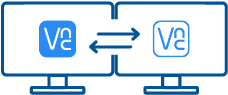



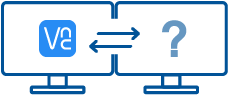
VNC® Connect consists of VNC® Viewer and VNC® Server
Download VNC® Viewer to the device you want to control from, below. Make sure you've installed VNC® Server on the computer you want to control.
SHA-256: 6d2637db19c0c57d9375dddc15d24dd72e461a45a47fd5c017d529b8b7135599
SHA-256: 738ab1fe2cc27de8a105b76f84175dee6c524f6a6382347cc40a4c4125261c3a
SHA-256: 4158a5e55cbd6a5a8f4ed38befe2a8c9fa0c7a7fbc91709a31592dda95110517
SHA-256: bb64af3ac5a502ad6707669f67beb1121c1bd7ffd67be23e0f05815a7ddee5d5
Important information
Frequently asked questions
How do I install VNC® Viewer?
Just run the installer on the device you want to control from and follow the instructions, or there's MSIs for remote deployment under Windows. If you don't have permission to install VNC® Viewer on desktop platforms, choose the standalone option.
How do I control a remote computer?
If you have a keyboard and mouse in front of you, use them as you would normally. If you're on a mobile device, then your touchscreen acts as a mouse trackpad, with gestures mapped to mouse buttons. See the on-board help!
Do I need to license the software?
No. VNC® Viewer is always free to use. Just accept the EULA the first time you run.
How do I connect?
Start with the FAQ.
Windows
macOS
Linux
Raspberry Pi
Solaris
HP-UX
AIX