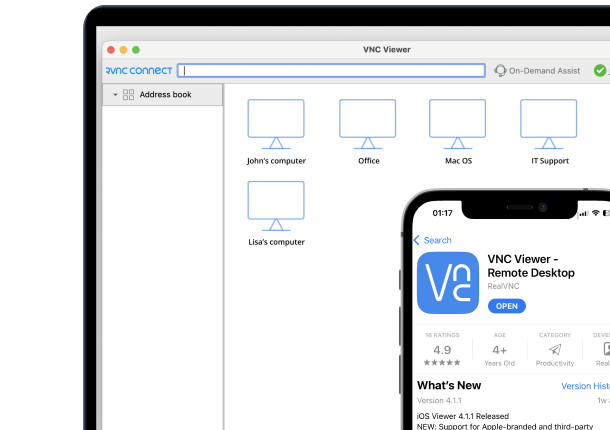




Businesses must ensure their remote workers have access to a remote desktop and are equipped with the right technology to perform their jobs effectively. That definitely includes screen-sharing tools powered by virtual network computing (VNC), which enable seamless communication and collaboration. But what exactly is remote VNC screen sharing, and how can it help your business? In this guide, we’ll explain how VNC screen sharing works, what it can do for your teams, and how to set it up.
What is screen sharing?
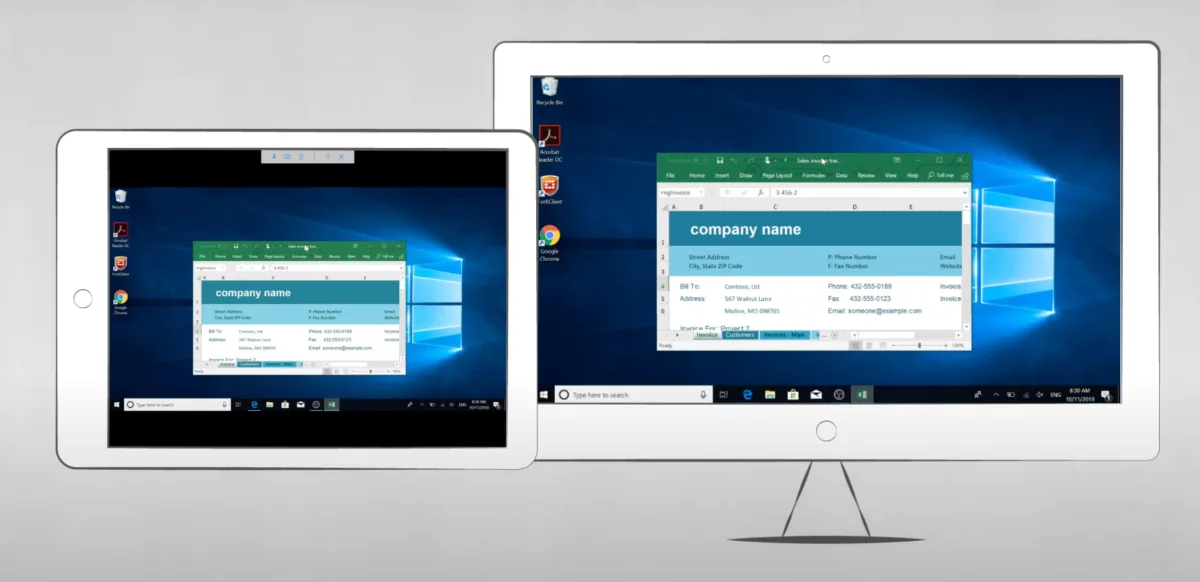
At its simplest, screen sharing is the ability to share what is appearing on the screen of one device with one or more other devices. It can be a useful tool for collaborative working, online learning, or video conferencing.

(Source)
As the chart illustrates, employees spend a notable portion of their workday collaborating, both in person and virtually, reinforcing the importance of tools like VNC screen sharing in enabling real-time, digital teamwork.
Remote desktop collaboration in action
For example, if one of your team was working on a sales forecast for the coming year, rather than sending the results of the work to other team members, they could participate in a conference call and share the results on other participants’ screens. This would enable your team to have an active discussion and ask questions about the data.
While some screen-sharing applications act differently from remote access technology and do not let viewers control the remote keyboard and mouse, RealVNC’s screen-sharing services offer a range of solutions to suit all users. As well as viewing remote screens, RealVNC users can access and remotely control systems. However, in this article, we’ll be focusing on screen sharing for remote viewing only, particularly using the VNC protocol.
What is VNC screen sharing?
VNC stands for Virtual Network Computing, a cross-platform remote-control technology for reaching one computer’s desktop from another. It was created in Cambridge in the late 1990s by RealVNC’s founders, working at the Olivetti & Oracle Research Laboratory. It works on a client/server model: a server component runs on the computer being shared, and a viewer connects to it from another device. The two communicate over RFB (Remote Frame Buffer), the protocol that governs how screen data, keyboard input, and mouse movement pass between them.
How virtual network computing works
Because RFB works at the level of the display rather than the operating system, VNC runs on Windows, Mac, Linux, and Raspberry Pi alike. That makes it a practical option for remote access across mixed environments, whether you’re sharing your screen with a colleague or giving support staff control of a machine to troubleshoot it.
What are the benefits of remote screen sharing?
Before you purchase VNC software or sign up to a service that enables screen sharing, you want to have a comprehensive idea of the benefits that remote screen sharing will bring to your business. Knowing the advantages of screen sharing means that any decision to move forward with this technology will be an informed one.

1. Better collaboration and productivity
If you have any staff that work remotely, you will want to promote better collaboration and boost productivity.
Sending a file to other team members is a static snapshot of the work they’re doing and doesn’t foster a high degree of collaboration. Screen sharing allows your teams to solve problems together in real-time and can help improve productivity rates.
For example, let’s say some of your marketing team is working in different locations. The lead on your new campaign wants to share their ideas. Using screen sharing, they can make changes as other members of the team suggest them. This can save you both time and money.

2. Online learning
Career development plays a major role in most organizations. Of course, in-person learning poses logistical and financial problems. Screen sharing makes the world a smaller place and lets anybody that can see the remote desktop screen being used by the learning provider participate in a session.
Participants can ask questions in real-time while the provider shares information from their device. Screen sharing can help streamline the learning process as well as save your business time and money. There are no travel or accommodation costs associated with the learning, as staff can join from wherever they’re located.

3. Better client/customer service
As with your staff, clients can be located anywhere. Therefore, sharing ideas and information with them can be fraught with problems if “traditional” methods are used.
Remote screen sharing simplifies sharing information with them and allows you to incorporate their own thoughts and ideas.
This is another benefit that can save both time and money. Rather than playing “ping-pong” with emails to get to a final decision, an agreement can potentially be reached with just one video conference.
By sharing your ideas or products using a remote link, you are also empowering your clients to make better decisions.

4. Customer support
You will know that customers sometimes experience issues. They may not understand certain functions of a software product or struggle with certain aspects of one of your tools or applications (or even with your own website).
Screen sharing allows your support staff to see what the customer is struggling with and diagnose any issues quickly.
For example, say a customer recently bought a SaaS product from you but is not able to set up certain features. Through screen sharing, one of your staff can see what the problem is and guide them to a successful solution. In comparison, verbal guidance over a phone call can take a much longer time.
Challenges of screen sharing
As with any new tool or process, screen sharing can present some challenges, especially in the initial period of implementation. Knowing in advance what those challenges are can prepare you, allowing you to mitigate or deal with them swiftly and easily.
1. Frozen screens
This can be a common problem during screen sharing. It’s usually caused by either a slow connection or insufficient bandwidth.
You should ensure that all screen-sharing participants have sufficient bandwidth, as well as a stable and strong internet connection. Something else that can cause this problem is other programs or applications using up bandwidth. Participants should close any unnecessary programs to help avoid this.
2. Audio issues
Seeing information is all very good, but if you can’t hear what the presenter is saying — or discuss pertinent points — then the process is inefficient.
Audio issues can happen due to low-quality microphones, poor-quality sound cards, or outdated audio drivers. You should have an audio test prior to any screen-sharing sessions to ensure that all components are up-to-date and working correctly.
3. Color
Another problem that may arise due to outdated drivers or related issues is poor color visibility on the shared screen. This could range from distortion to saturation, either of which can detract from the session’s quality.
As with audio issues, you should check all drivers are up to date. You can also check that the color profiles on all participants’ computers match up.
4. Flickering screen
There’s little worse than a screen that is constantly flickering during a screen-sharing session.
While this is another issue that may be caused by a poor connection or insufficient bandwidth, it can be due to some other factors. One major cause can be participants using different versions of the screen-sharing software. Make sure everyone in your team has the latest version of the software installed on their devices.
How to set up screen sharing
Before diving into the details, it’s useful to understand the basic setup process. Screen sharing typically involves:
- Making sure both the presenter and participants have the right software installed
- Creating or joining a session where sharing will take place
- Connecting to the right device or screen
From there, the process looks slightly different depending on the platform you use.
How does screen sharing work?
Screen sharing works by allowing one device (the sender) to share a mirror image of what they are seeing with another device (or devices), regardless of location. Depending on the software you’re using, as well as your browser type, you can choose what to share; an open window, an open application, or your entire screen.
Using dedicated software or applications, the sender can share any sort of file or application. You must ensure that any screen-sharing application you use has some form of data encryption, especially if your business deals with sensitive data, to protect yourself from cyberattacks.
Connecting to a remote computer using RDP
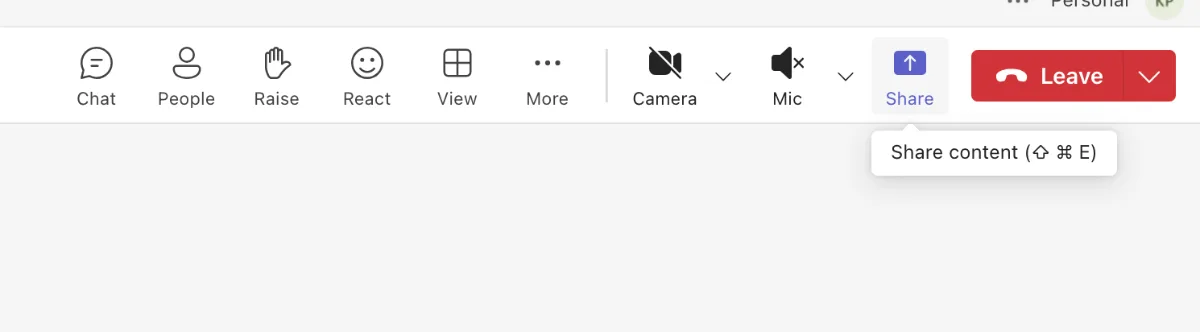
If you’re using Microsoft’s RDP, then screen sharing can be easily achieved using the Microsoft Teams application. You just need to follow these instructions:
- When you start a call or meeting, you will see call options at the top of the window.
- In the top right of that window, there is a “share content” button; select this.
- The system will then ask you to choose which window or program you want to share.
- By opting to share a screen, you will be sharing your entire remote desktop and can switch between open windows.
- If you choose to share a program, then only that program will be shared with other participants.
- When the session is finished, simply click the “stop sharing” button.
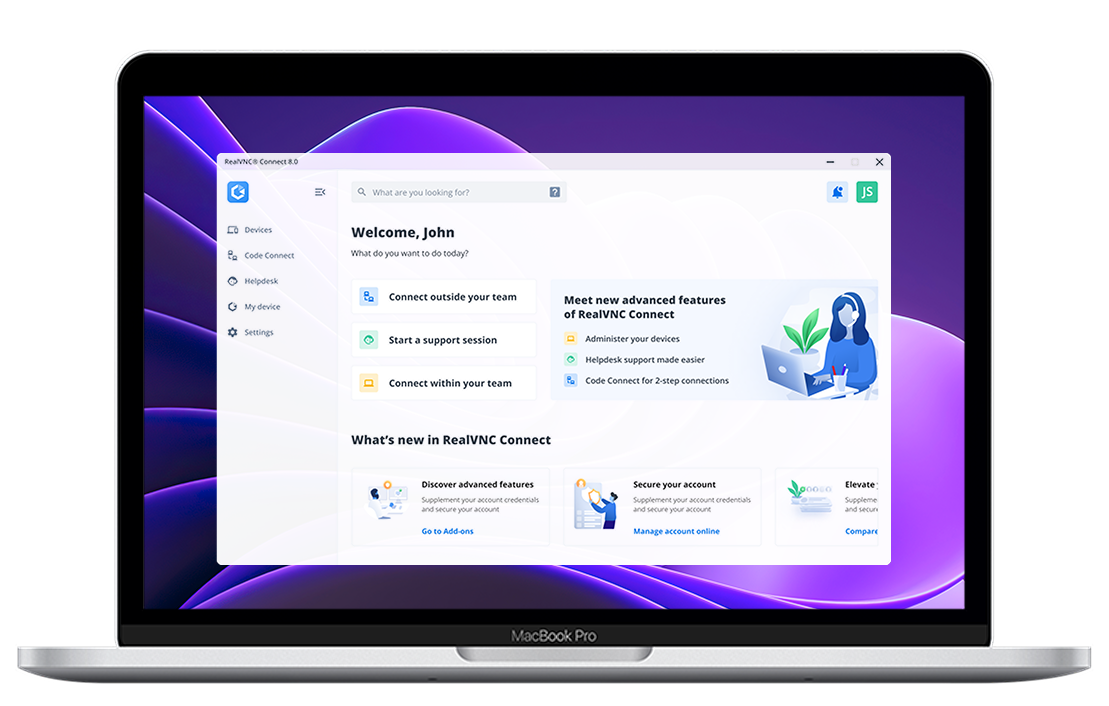
Connecting using RealVNC®
RealVNC Connect is an efficient way to enable desktop sharing. It can help your business achieve better productivity and collaboration by not only allowing teams to share screens between devices, but also to connect directly to any remote computer on the system.
To enable connections between devices, follow these steps:
- Download and install RealVNC Connect on the device you’re sharing from. Participants should also have RealVNC Connect installed. (Because the latest version includes a unified app, you no longer need to download separate RealVNC Server and RealVNC Viewer apps.)
- Create an account on the RealVNC website.
- Participants should also sign in to their RealVNC account. Once signed in, they’ll see the remote computer listed. Double-click the name and select Continue to start the session.
How to choose the best screen-sharing tool for your business
As with any screen-sharing or remote access tool, there are lots of choices—such as RealVNC and RDP—available on the market. Before choosing the tool that suits you and your business needs best, you’ll want to consider these different factors:
1. Security
There’s a good chance that at least some of the data and information that you share will be sensitive or confidential, whether it’s customer information or critical business data. This means that you will want your screen-sharing tool to have a high level of security and encryption, which will protect your data and guard against unauthorized access.
2. Compatibility
If you have remote workers, then it’s possible they use a mix of devices and operating systems such as Windows, macOS, Linux, or even Raspberry Pi. Others may connect from mobile platforms like Android or iOS. Any tool you choose should offer cross-platform compatibility so your teams can collaborate seamlessly, no matter what device they’re on.
3. Usability
You don’t want to spend a lot of time training all your team members on how to screen share. An intuitive and user-friendly tool with an easy-to-understand UI (user interface) will allow your teams to hit the ground running with screen sharing.
4. Quality
While some technical issues, such as low bandwidth, may be unavoidable (but solvable), it’s not something you want to encounter every time you use the tool. Look at how well a tool will perform and check that it offers both high-quality video and audio.
5. Affordability
Of course, budget will also play a part for the majority of businesses. There’s little point in investing in an expensive tool if you aren’t going to use it much.
Look at how much the tool will be used and, perhaps more importantly, how much it might save you from having to hold in-person meetings or training.
Why RealVNC is the right remote access choice for your business
Screen sharing is no longer a nice-to-have. It’s how teams collaborate, train, and solve problems in a workplace that’s increasingly remote and hybrid. To make it work, you need a remote access solution that’s secure, reliable, and easy for everyone to use.
That’s exactly what RealVNC Connect delivers:
- Enterprise-grade security with 256-bit end-to-end encryption and two-factor authentication by default
- Effortless scalability that works just as well for a small team as it does for a global business
- Reliable performance so every connection is smooth and consistent
- Compliance support for HIPAA, PCI-DSS, and GDPR, backed by ISO 27001 certification
- Unattended access to devices nobody is sitting in front of, with session logging and recording for a full audit trail
With RealVNC Connect, screen sharing becomes a simple, dependable part of how your business gets work done every day. Download RealVNC Connect and get started today.
FAQs about screen sharing
How can I start screen sharing?
If you want to start screen sharing, then you need to have your preferred tool (like RealVNC Connect) installed, and ensure that any viewers have the required software to see the screens you want to share. For detailed steps read our article, How to Screen Share Across Any Device.
Is screen sharing secure?
Screen sharing is as secure as the tool you’re using. RealVNC Connect offers end-to-end encryption and enterprise-grade security so that you can share screens with your teams with confidence.
Can you screen share across different operating systems?
Yes, tools such as RealVNC Connect allow you to share screens to different devices and across different operating systems, making collaboration easy.