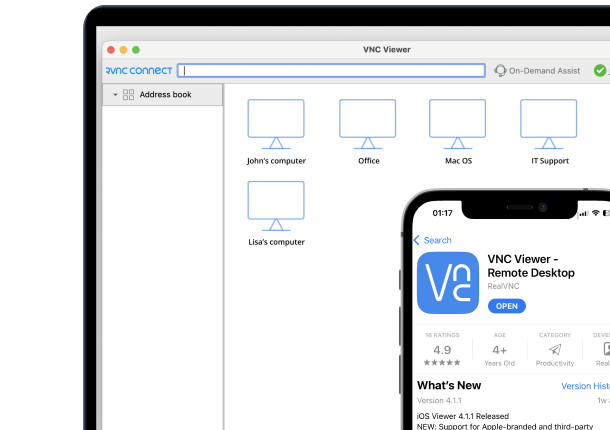




An iPad is light enough to carry everywhere, which makes it a convenient way to check on or control a Windows PC you’ve left behind at your desk. RealVNC Connect turns your iPad into a full remote control for that PC, so you can pick up a file, run a report, or fix something without sitting back down at it.
Why use an iPad to access a Windows PC
Common reasons include travelling light without a laptop, checking on a long-running task from another room, or giving a colleague a hand with their PC while you’re away from your own desk. Because RealVNC Connect isn’t tied to a single platform, the process works whether the PC is at home, in the office, or anywhere else with an internet connection.
What you’ll need
- A Windows PC with RealVNC Server installed and switched on
- An iPad running a supported version of iPadOS
- A RealVNC Connect account – a free trial is available
- An internet connection on both devices
Step 1: Set up RealVNC Server on your Windows PC
On the PC you want to control:
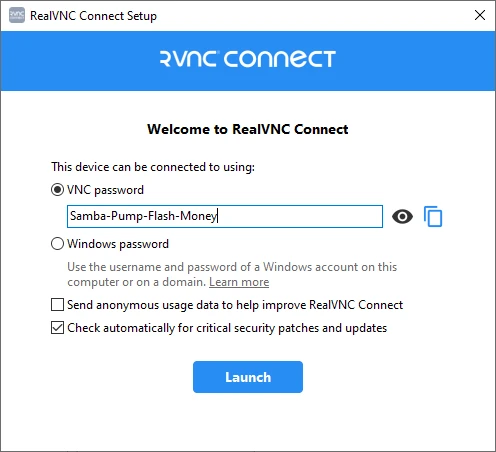
- Download the RealVNC Connect setup app from the RealVNC website.
- Click Download for Windows.
- Click Accept and Install.
- Once installation completes, choose Start my free trial if you’re new to RealVNC Connect, or Sign in to continue if you already have an account.
- Your browser will open automatically. Follow the on-screen prompts, then click Open to return to the RealVNC Connect Setup app.
- Review the settings shown, then click Launch. If you keep the default VNC Password, make a note of it – you’ll need it when you connect from another device.
Step 2: Install RealVNC Viewer on your iPad
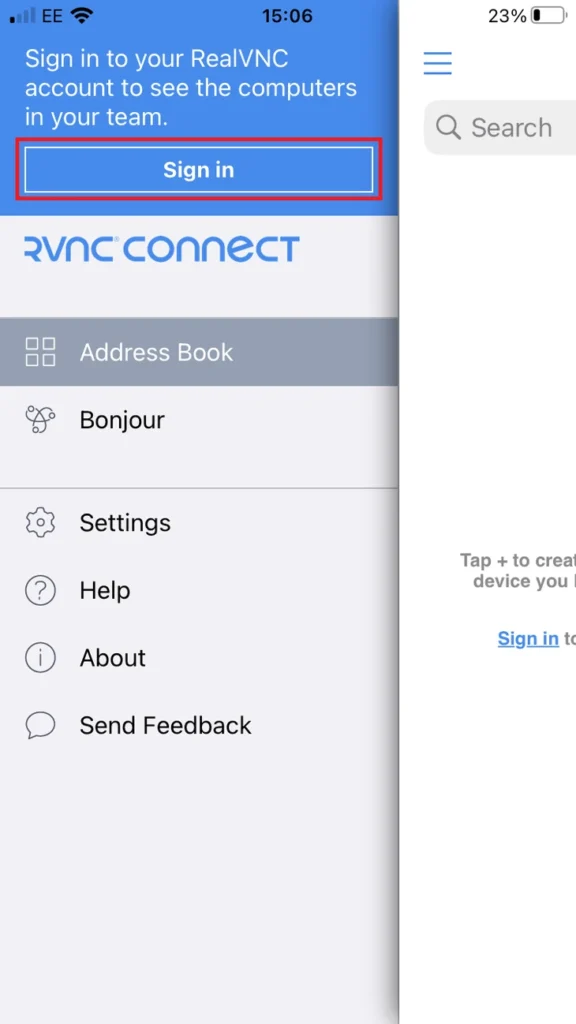
- On your iPad, open the App Store and download the RealVNC Viewer: Remote Desktop app.
- Sign in with your RealVNC account credentials.
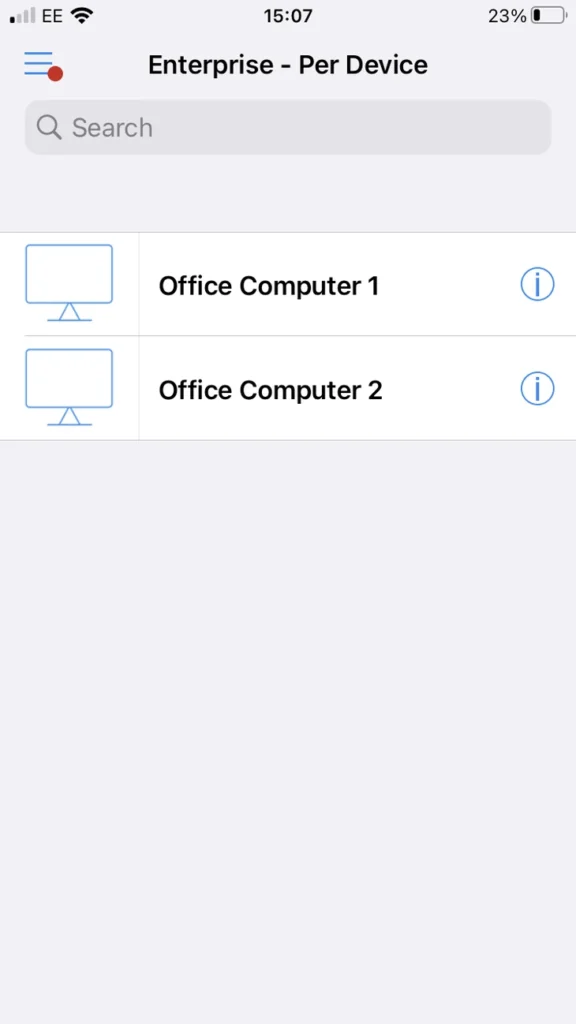
- Your PC will appear automatically in your list of remote computers.
Step 3: Connect to your PC from your iPad
Tap your PC in the list to connect.
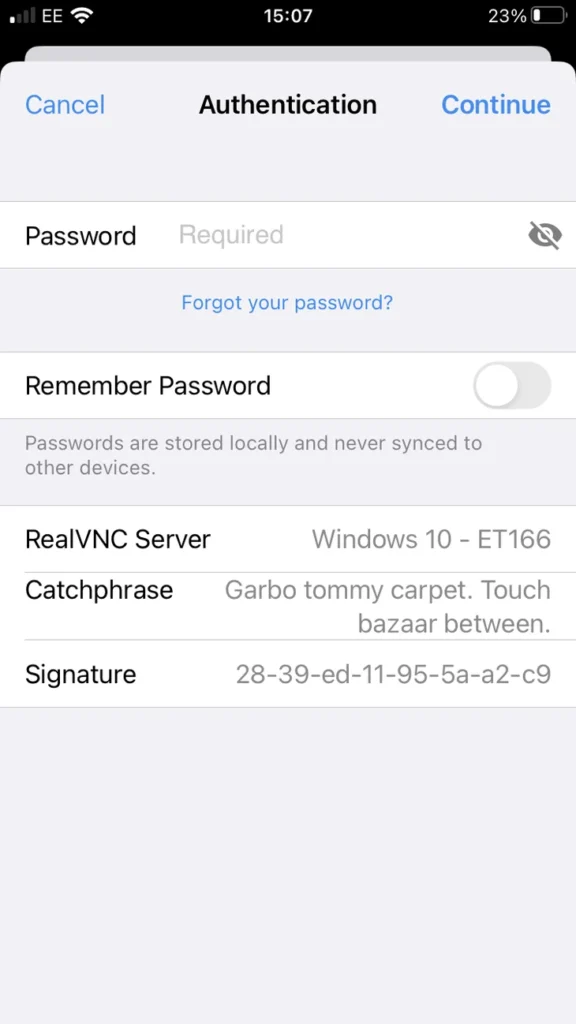
Authenticating
System Authentication is the default: enter the username and password of a Windows user account. If you kept the default VNC Password from setup instead, enter that.
A note on cloud vs. local connections from iPad
Direct (local network) connections aren’t available when connecting from a mobile device, so a connection from your iPad always uses RealVNC’s encrypted cloud connection. Sign in with the same RealVNC account on the PC and the iPad and there’s nothing else to configure.
Controlling who can connect to your PC
If you selected Windows Password authentication, only members of the Administrators group can connect by default. Add other Windows users via Managing users and session permissions for RealVNC Server, or they won’t be able to authenticate even with valid Windows credentials.
Troubleshooting common issues
- PC not listed on iPad: confirm both devices are signed in to the same RealVNC account, and that the PC is switched on with RealVNC Server running.
- Authentication fails: check you’re using a Windows account that has permission to connect remotely.
- Slow or unresponsive session: switch to a stronger Wi-Fi signal or try mobile data – connections from mobile devices rely on RealVNC’s cloud relay rather than a direct local link.
Start controlling your Windows PC from iPad with RealVNC Connect
RealVNC Connect offers a free trial with no credit card required, so you can try accessing your Windows PC from your iPad before subscribing.
FAQs
Can I access a Windows PC from an iPad?
Yes. Install RealVNC Server on the PC and the RealVNC Viewer app on your iPad, then sign in with the same RealVNC account on both.
Do I need to leave my PC switched on?
Yes – the PC needs to be powered on with RealVNC Server running for you to connect to it.
Can I use a keyboard with my iPad to control the PC?
Yes. RealVNC Viewer works with a Bluetooth or connected physical keyboard, as well as the on-screen keyboard.
Is a local Wi-Fi connection required?
No. Connections from mobile devices always use RealVNC’s cloud connection, so it works over Wi-Fi or mobile data.