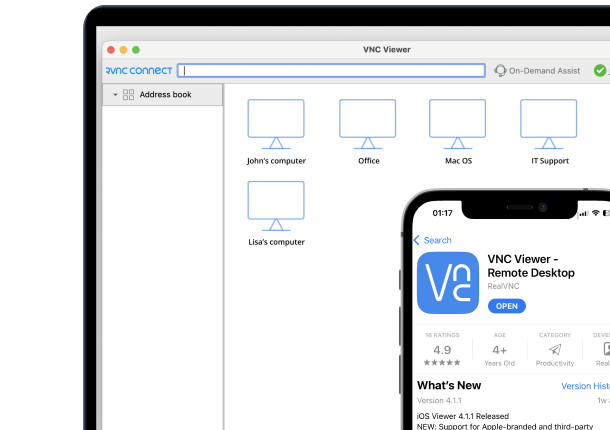




RealVNC Server comes built in to Raspberry Pi OS, which makes a Raspberry Pi one of the easiest devices to reach remotely – including from an Android phone or tablet. Once it’s enabled, you can view and control your Pi’s desktop from wherever you are.
Why access a Raspberry Pi from Android
Many Raspberry Pi projects run headless (no monitor attached) or live somewhere inconvenient to reach, so checking on them from your phone is often more practical than plugging in a screen and keyboard. RealVNC Connect gives you a full graphical desktop, not just a command line, straight from Android. The same Android app can also access a Linux computer from Android. Using an iPad instead? Follow our guide to access a Raspberry Pi from an iPad.
What you’ll need
- A Raspberry Pi running Raspberry Pi OS, connected to a network
- An Android phone or tablet
- A RealVNC Connect account – a free trial is available
- An internet connection on both devices
Step 1: Enable RealVNC Server on your Raspberry Pi
- Boot into the Raspberry Pi’s graphical desktop, then select Menu > Preferences > Raspberry Pi Configuration > Interfaces and make sure VNC is set to Enabled. (Alternatively, run sudo raspi-config, then choose Interface Options > VNC > Yes.)
- Sign up for a RealVNC account, if you don’t already have one.
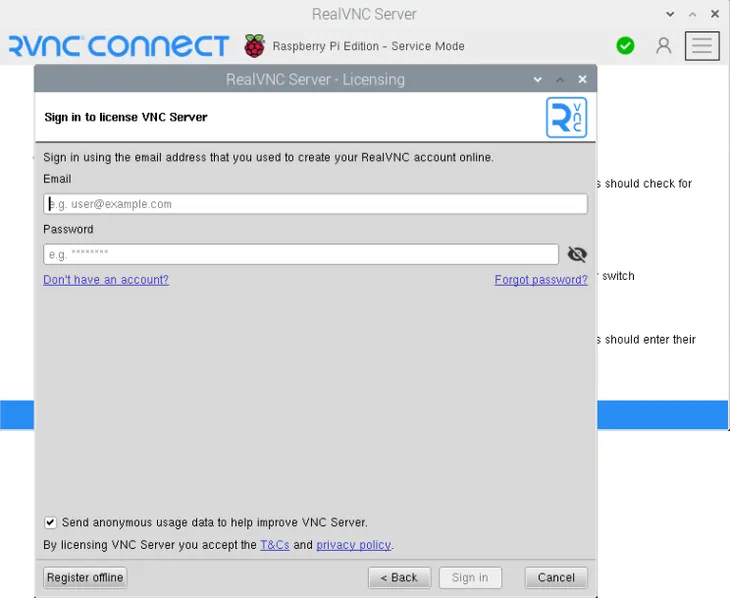
- On the Raspberry Pi, select Licensing from the RealVNC Server status menu, then enter your RealVNC account’s email and password and follow the on-screen instructions.
- Your Raspberry Pi will now appear automatically as a connection in RealVNC Viewer on any device signed in to the same RealVNC account.
Step 2: Install RealVNC Viewer on your Android device
- On your device, open the Play Store and download the RealVNC Viewer: Remote Desktop app.
- Open the app and sign in using your RealVNC account credentials.
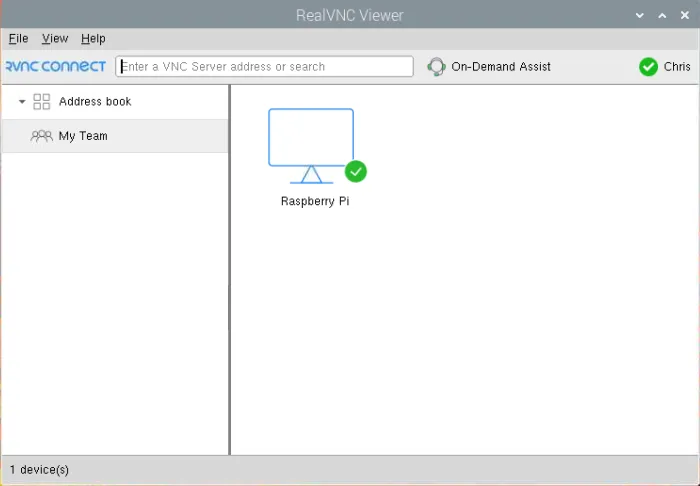
Your Raspberry Pi will appear automatically in your list of remote computers.
Step 3: Connect to your Raspberry Pi from Android
Tap your Raspberry Pi in the list to connect.
Authenticating
You’ll be asked to authenticate. Enter the username and password you normally use to log on to your user account on the Raspberry Pi – not your RealVNC account details.
Once connected, your Raspberry Pi’s desktop appears on your Android screen. Use touch to move the pointer and tap to click, and open the on-screen keyboard whenever you need to type.
A note on cloud vs. local connections from Android
Direct (local network) connections aren’t supported when connecting from mobile devices, so a connection from Android always goes through RealVNC’s encrypted cloud connection. Sign in with the same RealVNC account on the Raspberry Pi and the Android device and there’s nothing else to configure – it works over Wi-Fi or mobile data.
Troubleshooting common issues
- Raspberry Pi not listed in RealVNC Viewer: confirm VNC is enabled in Raspberry Pi Configuration, and that both devices are signed in to the same RealVNC account.
- Can’t authenticate: use your Raspberry Pi user account’s username and password, not your RealVNC account credentials.
- Blank or black screen: make sure the Raspberry Pi is booted into its graphical desktop and not just a command-line session.
Start controlling your Raspberry Pi from Android with RealVNC Connect
RealVNC Connect offers a free trial with no credit card required, so you can try controlling your Raspberry Pi from Android before subscribing.
FAQs
Can I control a Raspberry Pi from an Android phone?
Yes. Enable RealVNC Server in Raspberry Pi Configuration, install the RealVNC Viewer app on your Android device, then sign in with the same RealVNC account on both.
Does my Raspberry Pi need a monitor attached?
No, as long as it’s booted into its graphical desktop. Many Raspberry Pi setups run headless with RealVNC Connect providing the only screen.
Is the RealVNC Viewer app for Android free?
Downloading and installing RealVNC Viewer is free. You need an active RealVNC Connect subscription or free trial to connect to a computer.
Do I need to know my Raspberry Pi’s IP address?
No. Once you’re signed in with the same RealVNC account on both devices, your Raspberry Pi appears automatically in RealVNC Viewer over the cloud connection.