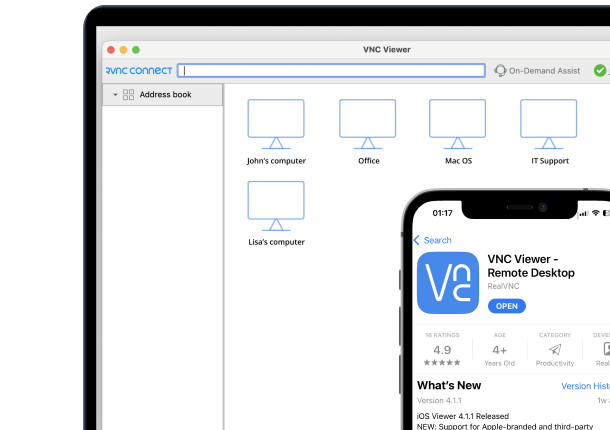




An iPad is light enough to carry everywhere, which makes it a convenient way to check on or control a Linux computer you’ve left behind at your desk. RealVNC Connect turns your iPad into a full remote control for that computer.
Why use an iPad to access a Linux computer
Common reasons include travelling light without a laptop, checking on a long-running task from another room, or giving a colleague a hand with their Linux machine while you’re away from your own desk. Because RealVNC Connect isn’t tied to a single platform, the process works wherever the computer happens to be.
What you’ll need
- A Linux computer with RealVNC Server installed and switched on
- An iPad running a supported version of iPadOS
- A RealVNC Connect account – a free trial is available
- An internet connection on both devices
Step 1: Set up RealVNC Server on your Linux computer
On the Linux computer you want to control:
- Download the RealVNC Connect setup app from the RealVNC website.
- Click Download for Linux.
- Extract the installer in your Downloads folder using your file manager, then run it by double-clicking the RealVNC Connect installer icon.
- Click Accept and Install, and follow the on-screen instructions. If prompted to disable Wayland, accept – this is needed for RealVNC Connect to function correctly.
- Once installation completes, choose Start my free trial if you’re new to RealVNC Connect, or Sign in to continue if you already have an account.
- Your browser will open automatically. Follow the on-screen prompts, then click Open to return to the RealVNC Connect Setup app.
- Review the settings shown, then click Launch. If you keep the default VNC Password, make a note of it – you’ll need it when you connect from another device.
Step 2: Install RealVNC Viewer on your iPad
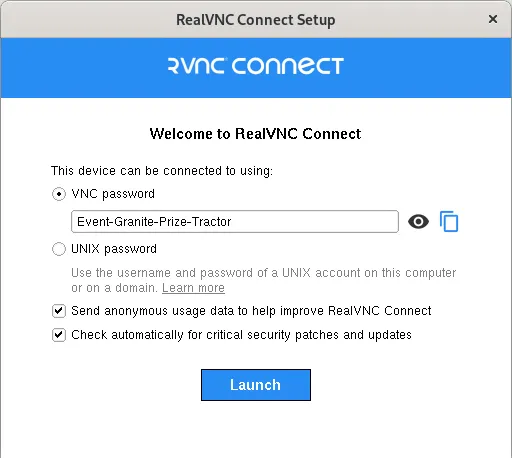
- On your device, open the App Store and download the RealVNC Viewer: Remote Desktop app.
- Open the app and sign in using your RealVNC account credentials.
Your Linux computer will appear automatically in your list of remote computers.
Step 3: Connect to your Linux computer from your iPad
Tap your Linux computer in the list to connect.
Verifying the connection with Identity Check
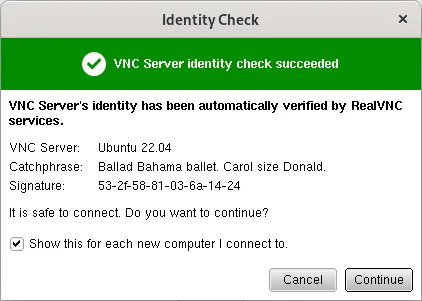
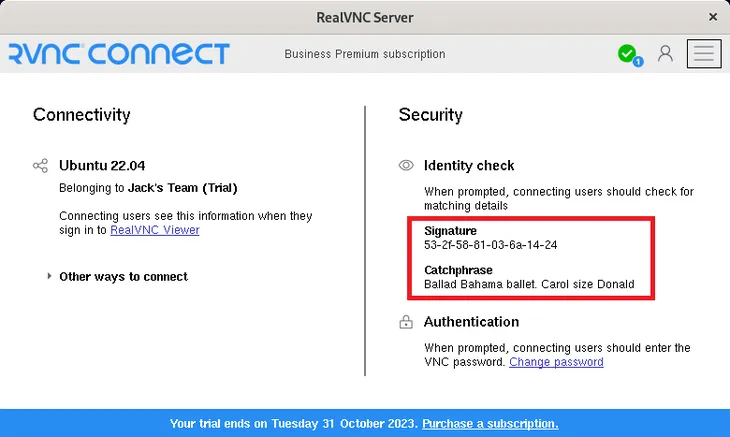
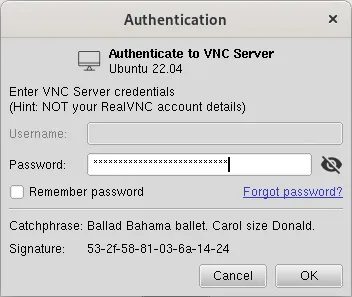
The first time you connect, RealVNC Viewer shows an Identity Check screen with a Catchphrase and Signature. Compare these against the values shown in RealVNC Server on the remote computer to confirm you’re connecting to the right machine.
Authenticating
System Authentication is the default: enter the username and password of an account on the Linux computer. If you kept the default VNC Password from setup instead, enter that.
A note on cloud vs. local connections from iPad
Direct (local network) connections aren’t available when connecting from a mobile device, so a connection from your iPad always uses RealVNC’s encrypted cloud connection. Sign in with the same RealVNC account on the Linux computer and the iPad and there’s nothing else to configure.
Troubleshooting common issues
- Linux computer not listed on iPad: confirm both devices are signed in to the same RealVNC account, and that RealVNC Server is running.
- Authentication fails: check you’re using an account on the Linux computer that has permission to connect remotely.
- RealVNC Connect won’t install: make sure Wayland is disabled when prompted during installation – RealVNC Connect currently requires an X11 session.
Start controlling your Linux computer from iPad with RealVNC Connect
RealVNC Connect offers a free trial with no credit card required, so you can try accessing your Linux computer from your iPad before subscribing.
FAQs
Can I access a Linux computer from an iPad?
Yes. Install RealVNC Server on the Linux computer and the RealVNC Viewer app on your iPad, then sign in with the same RealVNC account on both.
Does my Linux computer need to be switched on?
Yes – it needs to be powered on and logged in to a graphical desktop session, with RealVNC Server running.
Can I use a keyboard with my iPad to control it?
Yes. RealVNC Viewer works with a Bluetooth or connected physical keyboard, as well as the on-screen keyboard.
Is a local Wi-Fi connection required?
No. Connections from mobile devices always use RealVNC’s cloud connection, so it works over Wi-Fi or mobile data.