


Recent workforce data shows remote-capable employees now split roughly 50% hybrid, 26% fully remote, and 20% on-site (according to Gallup research). This means that your supporting infrastructure must span office networks, home environments, and mobile devices simultaneously. And if you’re comparing DameWare vs RealVNC, the question is: which one will do the job?
Or, another question to help you assess the right fit is: do you need deep Windows administration tools with on-premises control, or cross-platform consistency via cloud?
This guide will examine where each remote access solution fits based on platform composition, deployment preferences, and industry standards. Let’s dive in.
Core Comparison of DameWare vs RealVNC Architecture
If you’ve nailed it down to DameWare vs. RealVNC, but you’re not sure which one fits your needs best, let’s go through each of them in depth. After reading this section, you’ll have answers about rach remote solution’s capabilities, features, security, TOC, and more.
How Each Solution Handles Remote Connections
The first question most IT teams ask is how does the software actually connect to remote machines?
- DameWare Remote Support installs on Windows systems and uses a combination of proprietary protocols alongside RDP and VNC. You can deploy it on-premises with a centralized server, or use the SaaS version (DameWare Remote Everywhere) for cloud-based access. When connecting to Mac or Linux computers, DameWare relies on VNC viewers rather than native agents, which means you need VNC enabled on the target machine first.
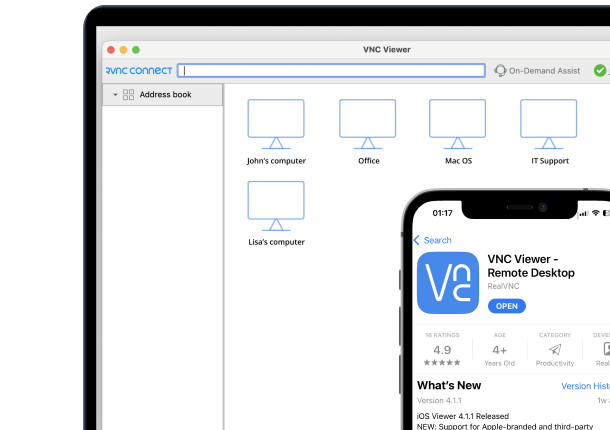
- RealVNC Connect takes a different approach. Built on the RFB protocol, it uses cloud-brokered connections that work through firewalls and NAT without requiring port forwarding or VPN configuration. Native clients run on Windows, macOS, Linux, Raspberry Pi, iOS, and Android with identical functionality across all operating systems.
What does this mean, practically? DameWare gives you deeper access to Windows system tools. RealVNC gives you consistent remote control across every platform your users actually work on.
Capability Comparison
| Capability | DameWare | RealVNC Connect |
|---|---|---|
| Platform Support | Windows-native; Mac and Linux via VNC viewers | Native clients for Windows, macOS, Linux, iOS, Android, Raspberry Pi |
| Core Protocol | Proprietary plus RDP plus VNC | RFB protocol (RFC 6143) |
| Active Directory Integration | Native AD management with GPO deployment | SSO via Azure AD and Okta connectors |
| IT Admin Tools | Registry editor, service manager, event viewer | File transfer, chat, session recording, remote printing |
| Licensing | Perpetual per technician ($370 to $520) | Subscription per concurrent session ($8.25 to $29.75 monthly) |
| Management Console | Centralized server administration | Cloud portal with analytics dashboard |
| Primary Fit | Windows enterprise helpdesk teams | Multi-platform distributed workforces |
Where Each Solution Fits Best
Windows-dominant enterprise with Active Directory
Consider a 500-employee organization running 95% Windows desktops with an established AD infrastructure and a dedicated helpdesk team. DameWare delivers some clear advantages here. Technicians can reset passwords, edit Group Policy, manage services, and troubleshoot remote desktops without leaving the console. The perpetual licensing model means predictable costs for stable teams managing multiple computers across the network.
Mixed-platform distributed workforce
Now consider a 300-employee company with 40% Windows, 35% Mac, and 25% Linux machines plus iOS and Android devices, and no on-premises servers. In this example, users are working from home offices, coworking spaces, and client sites.
RealVNC Connect addresses this environment directly. Native clients provide the same user interface and functionality whether you are connecting to a Windows laptop, a Mac desktop, or a Raspberry Pi. Cloud connectivity means technicians can start remote sessions without asking users to configure their firewall or install complex software.
All in all, the question is not which solution is better. The question is which architecture matches your infrastructure.
Platform Support and Cross-OS Capabilities
Your platform mix determines which solution can reach your devices. The surface-level answer is quite simple. DameWare focuses on Windows depth, RealVNC covers cross-platform breadth. The details matter more.
AboutDameWare’s Windows-native architecture
DameWare Mini Remote Control provides native remote access to Windows 11, Windows 10, Windows Server 2022, Windows Server 2019, and earlier versions back to Windows XP. When connecting to Windows machines, you get the full DameWare protocol with sub-8-second connection times, multiple monitor support, and access to in-session system utilities without a separate RDP session.
This architecture works well if your environment is mostly Windows with occasional Mac or Linux machines that only need basic remote viewing.
About RealVNC Connect’s cross-platform support
RealVNC Connect installs native server and viewer applications on Windows, macOS, Linux, Raspberry Pi, iOS, and Android. The same codebase runs on each platform with platform-appropriate optimizations. When you support a Mac user from a Windows machine, both ends run native RealVNC software communicating via the RFB protocol, which RealVNC authored (RFC 6143).
What does this mean practically? File transfer works the same between any two platforms. Session recording captures macOS desktops just as it captures Windows desktops. The dual-pane file manager shows local and remote directories regardless of operating system combination. Remote printing works from Mac to Windows or Windows to Mac. Chat, clipboard sharing, and multi-monitor support all function identically across platform boundaries.
For mobile devices, RealVNC Server for Mobile runs on Android 8+ and iOS/iPadOS 14+. Deployment requires an MDM like Microsoft Intune, Jamf, or Ivanti to apply cloud connectivity tokens. Connections to mobile devices are view-only on iOS currently, with full remote control available on Android when using fully managed deployment profiles.
Deployment mechanism comparison
DameWare deploys agents using MSI packages built with the DameWare MSI Builder. Technicians configure client agent settings (authentication, notification preferences, logging), generate a custom MSI, then distribute via Group Policy, SCCM, or manual installation. The agent installs automatically when machines join the domain or when pushed through patch management tools. For standalone deployments, the MRC client can remotely install the agent on first connection if the technician has local administrator rights on the target machine.
RealVNC Connect supports multiple deployment paths depending on your infrastructure. For Windows machines managed through Active Directory, Group Policy templates configure RealVNC Server and Viewer settings just as DameWare uses GPO. For Azure AD joined devices without on-premises domain controllers, Microsoft Intune deploys the application using Win32 app packaging (convert MSI to .intunewin format, upload, assign to device or user groups). The cloud connectivity token joins devices to your team automatically during installation, eliminating manual licensing steps.
For organizations using Jamf, Ivanti, or other MDM platforms, RealVNC supports AppConfig for iOS and Android deployment. Upload the AppConfig specfile, configure your cloud connectivity token and group assignments, and devices join your team when the app launches.
IT Administration Tools vs Collaboration
Both solutions use the AES-256 encryption protocol and enhance security through multi factor authentication options. The difference lies in what you can do beyond screen control.
DameWare provides system-level tools accessible without starting a full remote session. Your technicians can troubleshoot without interrupting end users.
| Tool | Capability | Use case |
|---|---|---|
| Registry Editor | View/modify keys in real time | Application config, policy fixes |
| Service Manager | Start/stop/restart services | Resolve hung applications |
| Event Log Viewer | Filter by type, time, source | Diagnose crashes, auth failures |
| Process Viewer | See CPU/memory, terminate processes | Kill unresponsive applications |
| AD Management | Unlock accounts, reset passwords, edit GPO | User administration without separate tools |
| Wake-on-LAN / Intel vPro | Power on sleeping/crashed machines | Out-of-hours maintenance |
DameWare optimizes for IT technician efficiency. Less clicking, more direct system access, ability to resolve issues without disturbing the user’s workflow.
RealVNC
RealVNC Connect optimizes for user interaction during support. AKA when technicians work with end users who need to see and participate.
| Feature | How it works | Use case |
|---|---|---|
| File Transfer | Dual-pane interface, transfer files in either direction | Send patches, retrieve logs during session |
| In-Session Chat | Text communication without leaving remote view | Share instructions, ask questions |
| Session Recording | WebM video saved locally, policy-enforced option | Audit trails, training, compliance |
| Remote Printing | Print from remote machine to local printer | Hardcopy without file transfer workaround |
| Multi-Monitor | Break out each remote monitor to separate window | Support users with complex display setups |
| On-Demand Assist | 9-digit session code, no pre-install required | Quick support for external users, contractors |
Additionally, Code Connect session codes expire after 2 minutes and auto-replace to prevent stale codes from creating security exposure.
Session Management Architecture
| Aspect | DameWare | RealVNC Connect |
|---|---|---|
| Management model | Centralized Server (on-premises) | Cloud portal or On-Prem Console |
| Device organization | Shared host lists | Multi-level device lists, favorites, filtering |
| External access | Internet Proxy in DMZ | Cloud-brokered (no firewall config) |
| API automation | Web Help Desk integration only | RESTful API for all the features |
| User provisioning | AD sync, manual | SSO (Azure AD, Okta), API automation |
Licensing Models and Cost Structures
The licensing question often determines which solution fits your budget over time.
DameWare perpetual licensing, explained
DameWare Remote Support and Mini Remote Control use perpetual per-technician licensing. You purchase a license for each IT administrator or support technician who will use the software. There are no limits on the number of end-user devices supported or endpoints you can connect to.
Pricing:
- DameWare Mini Remote Control: Starting at approximately $370 per technician license
- DameWare Remote Support: Starting at approximately $520 per technician license
Volume discounts apply. As you purchase higher license counts (2-3 technicians, 4-5 technicians, etc.), per-seat pricing decreases. The perpetual license includes first-year maintenance.
You pay the license cost once and own the software indefinitely. If your helpdesk team size is stable and your environment is Windows-dominant, the five-year total cost is lower than ongoing subscription fees. A team of 5 technicians at $520 per license costs $2,600 upfront plus maintenance renewals (cca. 20-25% of license cost annually). Over five years, this might total $4,500-5,500, depending on renewal rates, compared to subscription models that cost that amount every year or two.
RealVNC Connect subscription model
RealVNC Connect uses subscription pricing based on concurrent sessions and included features. Pricing tiers are as follows:
- Essentials: $8.25/month (billed annually) — Includes remote access, file transfer, chat, session recording, device grouping, and high performance cloud connectivity
- Plus: $16.50/month (billed annually) — Adds Windows/Mac/Linux system login, user roles and permissions, and personal user/device groups
- Premium: $29.75/month (billed annually) — Includes 150 devices, unlimited users, 1 concurrent session, all features from lower tiers
- Enterprise: Custom pricing — Adds offline licensing, On-Prem Management Console, API access, SSO integration, priority responsive support, custom deployment options
The concurrent session model means you pay for how many simultaneous remote connections you need, not how many technicians you employ or how many devices you support.
Strategic Use Cases and Deployment Scenarios
DameWare delivers maximum value when your environment centers on Windows Server infrastructure.
| Indicator | Explanation |
|---|---|
| Windows Server + Active Directory | Native credential authentication, GPO deployment |
| Helpdesk in office/NOC | Centralized server model, shared host lists |
| Limited Mac/Linux/mobile needs | DameWare’s Windows tools provide the most value |
| On-premises preference | Self-hosted, perpetual licensing |
| FIPS 140-2 requirement | Validated cryptography via Microsoft providers |
RealVNC Connect addresses environments where platform diversity is daily reality.
| Indicator | Explanation |
|---|---|
| Mixed Windows/Mac/Linux fleet | Native clients with identical functionality |
| Mobile devices in production | iOS/Android support via MDM deployment |
| Remote workers, home networks | Cloud connectivity without VPN or port forwarding |
| Raspberry Pi, embedded Linux | Native Raspberry Pi client |
| ISO 27001/SOC 2 requirements | Certified compliance documentation |
| API integration needs | RESTful API for ITSM sync, automation |
IT Support Workflow Considerations
| Workflow type | Better fit | Reasoning |
|---|---|---|
| Dedicated NOC, internal users | DameWare | Centralized console, AD tools, shared host lists |
| Distributed team, external customers | RealVNC | Cloud portal, On-Demand Assist, session codes |
| 24/7 rotating shifts | RealVNC | Concurrent session licensing vs per-technician |
| Heavy Windows administration | DameWare | Registry, services, event logs without full session |
| User interaction during support | RealVNC | Chat, file transfer, session recording |
Compliance and Security Requirements
| Requirement | DameWare | RealVNC Connect |
|---|---|---|
| FIPS 140-2 validated cryptography | ✓ Via Microsoft CryptoAPI | Uses FIPS-approved algorithms (not CMVP validated) |
| Smart Card / CAC / PIV authentication | ✓ Native support | ✓ Certificate store authentication |
| ISO 27001 certification | ✓ ISO 27001:2022 certified (as part of SolarWinds products) | ✓ ISO 27001:2022 certified |
| SOC 2 Type II attestation | No specific certification fotr this SolarWinds product | ✓ Independently attested |
| HIPAA attestation | Supports compliant config | ✓ Valid HIPAA attestation |
| On-premises only deployment | ✓ Default architecture | ✓ Enterprise subscription option |
Best Practices for Solution Selection
Selecting the wrong remote access tool creates friction that compounds daily. A structured evaluation, like the one below, prevents these outcomes.
Step 1: Document your platform composition with actual numbers.
Count every device type in your environment: Windows desktops and servers (by OS version), macOS workstations, Linux servers and workstations, mobile devices (iOS, Android), and specialty hardware (Raspberry Pi, embedded systems, kiosks). Include devices you support but don’t own, such as contractor machines, customer systems, or BYOD endpoints.
Step 2: Assess your IT team’s capabilities and support model.
Who will use the software? Dedicated helpdesk technicians in a NOC? Field engineers working remotely? Distributed support teams across time zones? Occasional IT administrators who also handle other responsibilities? The answer affects training requirements, concurrent licensing needs, and feature priorities.
Step 3: Determine deployment preference: on-premises or cloud-managed.
Some organizations require all infrastructure on-premises with no external dependencies. Others prefer cloud management to reduce server maintenance. Many need hybrid capabilities. Choose based on your needs.
Step 4: Identify specific capabilities your workflows require.
Remote screen control is baseline. What else? File transfer during sessions? In-session chat without switching applications? Session recording for audit trails? Remote printing? Wake-on-LAN for powered-off machines? Registry access without a full remote session? Active Directory account management? API integration with ticketing systems? Mobile device support?
Step 5: Evaluate Active Directory integration depth.
If your environment runs Active Directory, how deeply does remote access need to integrate? Authentication only (use AD credentials for technician login)? User management (unlock accounts, reset passwords)? Group Policy management? Organizational unit administration?
Step 6: Calculate the five-year total cost of ownership.
License or subscription fees are the obvious cost. Add: maintenance renewals (perpetual licensing), server infrastructure (centralized deployments), training time, deployment labor, and opportunity cost of tool limitations.
Align Your Remote Support Tools with the IT Strategy. Choose the Winner.
DameWare and RealVNC Connect represent two strong approaches to remote support with different architectural assumptions and organizational fits.
- DameWare delivers deep Windows administration through native system tools: registry editor, service manager, event viewer, and Active Directory management accessible without full remote sessions.
- RealVNC Connect delivers cross-platform consistency through native clients on every major operating system. Cloud-brokered connectivity handles network complexity without firewall configuration.
If you’re ready to choose the versatile, enterprise-grade solution, RealVNC offers a 7-day free trial. Get in, whenever you’re ready.