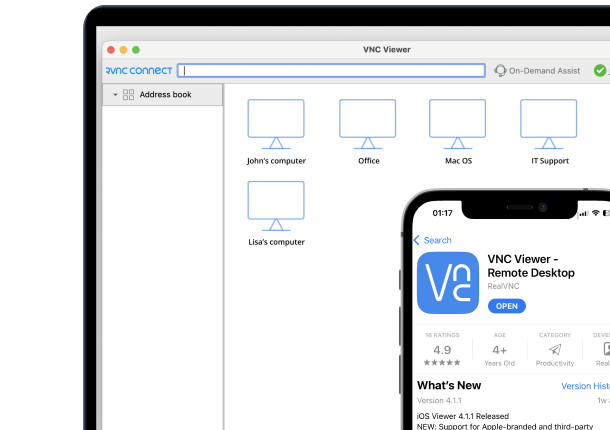




Windows users make up a huge chunk of global enterprise infrastructure across IT support, engineering, and customer operations. As remote work grows into default mode, VNC software allows users to view and control a remote computer’s desktop from anywhere. But not all VNC viewers are built the same, especially on Windows, where compatibility quirks, admin privileges, and enterprise policies matter more than most realize.
In this article, we break down the best VNC viewer for Windows, with a focus on:
- The key features that matter most when choosing a VNC client for Windows
- 6 of the most reliable VNC viewers available
- How to choose the best solution for you
Key Features to Look for in a VNC Viewer for Windows
Too many tools slap “Windows support” on the label without understanding what that really means. Here’s what matters if you’re deploying at scale or supporting complex environments: Supporting Mac users too? Compare the best VNC viewers for Mac.
Full Windows integration
You want a viewer that feels native. That means full support for multi-monitor displays, resolution scaling for 4K/5K screens, and no issues with UAC dialogs or domain login prompts. Bonus if it respects Active Directory group policies or supports installation via MSI for silent deployment.
Enterprise-ready deployment
Look for clients that offer flexible rollout options, like command-line installs, portable versions, and integration with configuration management tools. This matters more than you’d think when scaling across 100+ endpoints.
High-performance protocols
Legacy encoding won’t cut it. Prioritize VNC viewers that support adaptive compression, hardware acceleration, and smooth handling under low-bandwidth or high-latency conditions, especially when you’re working across global sites or on cellular backup.
Layered security
- At minimum: AES 256-bit encryption, MFA, session expiration, and RBAC (role-based access control), and international security protocols ticked.
- At best: auto-logout timers, centralized permission management, and event-based logging that integrates with SIEM tools.
Practical features for real use
The best VNC viewers for Windows also come with the extras that reduce support cycles:
- Secure file transfer and sync with drag-and-drop
- Clipboard sharing and audio forwarding
- Full session recording for compliance and QA audits
- Support for switching between remote sessions or users without disconnecting
Top 6 VNC Viewers for Windows
There are many VNC viewers for Windows on the market, but not all of them get the job done securely, so we’ll focus on the ones worth your attention.
1. RealVNC Connect
RealVNC Connect v8 is purpose-built for enterprise-grade remote desktop needs. It merges the VNC Server and Viewer into a single Windows-native app. RealVNC makes deployment and management easy, without sacrificing security.
Key features
- Unified Server/Viewer application for Windows
- End-to-end encryption, multi-factor authentication (MFA)
- Code Connect for secure, temporary guest sessions (self-expiring every 2 minutes)
- HelpDesk module for on-demand support without pre-installation
- Supports silent MSI installs and policy-driven deployments
- Full session recording, multi-monitor support, drag-and-drop file transfer
RealVNC is best for security-first IT organizations due to its strong compliance and security protocols (e.g., healthcare, finance, public sector) that also need granular control, audit trails, and integration with compliance workflows like ISO 27001 or SOC 2.
2. AnyDesk
AnyDesk is optimized for speed and responsiveness, even over congested or unreliable networks. It stands out with its proprietary DeskRT codec, as it provides high-definition visuals without draining bandwidth.
Key features
- Proprietary DeskRT codec for fast, real-time streaming
- Native Windows application with minimal install footprint
- File transfer, clipboard sync, session recording, multi-monitor support
- Flexible deployment: Cloud-based or On-Prem server options
- Portable version for no-install access
- Custom session permissions and unattended access
AnyDesk is best for design teams, remote workers, or IT departments that need low-latency, high-fidelity remote sessions across geographically dispersed sites.
3. TeamViewer
TeamViewer is an all-in-one, popular solution built for cross-platform support, deep enterprise integration, and layered security. It’s a familiar choice in IT environments that manage large fleets of mixed devices.
Key features
- Windows-native client with UAC, domain, and policy compatibility
- Wake-on-LAN, VPN mode, remote printing, clipboard sharing
- 2FA and conditional access policies
- AI-driven session insights and detailed audit reports
- Integrates with ServiceNow, Intune, Jira, and other ITSM tools
TeamViewer is used by large enterprises or MSPs that need centralized user management, integration with ticketing systems, and tight audit control.
4. TigerVNC
TigerVNC remains true to its Unix/Linux roots but is fully compatible with Windows. It could definitely benefit from a better UI.
Key features
- Secure TLS encryption (standard)
- Lightweight client with low resource consumption
- Clipboard sharing
- Free and open-source for commercial use
- High-resolution remote display support
TigerVNC is best for IT departments running mixed environments (especially Unix + Windows).
5. TightVNC
TightVNC is a lightweight, free, open-source option focused on fast compression and broad Windows support. It’s ideal for those who need basic remote access without complexity.
Key features
- Optimized compression algorithms for low-bandwidth networks
- Cross-platform (Windows and Linux primarily)
- File transfer functionality
- No licensing cost for business or personal use
- Minimal system resource usage
It’s usually used by internal IT teams or small businesses that need a simple remote access solution without enterprise-level compliance requirements.
6. Splashtop
Splashtop offers a performance-first approach with advanced audio/visual fidelity. It supports Windows, Mac, Linux, Android, and iOS, but stands out on Windows thanks to features like remote stylus support, 4:4:4 color accuracy, and multi-monitor control.
Key features
- Ultra-low latency 4K streaming at 60fps
- 4:4:4 color mode for perfect color reproduction
- USB passthrough, microphone passthrough, remote print
- End-to-end encryption, endpoint MFA, session audit logging
- Enterprise option with SSO, IP whitelisting, and SIEM logging
- Remote reboot and Wake-on-LAN support
It’s best for creative industries (media production, design, architecture) and enterprises in need of high fidelity, secure, scalable remote desktop access across hybrid setups.
How to Choose the best VNC viewer for Windows
Start where most teams go wrong: test in real conditions, not demos. Set up the VNC viewer on different types of Windows endpoints, like one machine running 4K multi-monitor, one on bad Wi-Fi, one locked behind corporate firewalls. If a tool stumbles there, it’ll crumble at scale.
Second, treat security features like a checklist isn’t enough. Ask: can you enforce MFA? Does it integrate with your AD group policies without hacks? If it can’t pass your internal audit, move on.
Next, stress-test support. Open a low-priority ticket during trial. How fast, how human, how knowledgeable is the response? If you’re scaling, you’re going to need real humans, not chatbot templates.
Finally, measure operational friction. Can you silently deploy via MSI? Can you manage endpoints from a central dashboard? If not, that tool isn’t built for serious Windows environments—no matter how pretty the interface looks.
Ready to rethink remote access on Windows?
If you’re serious about secure, seamless remote access, you now know what it takes. Here’s a fast recap before you pick your tool:
- Prioritize native Windows compatibility. Smooth UAC prompts, AD integration, and true multi-monitor support save hours of troubleshooting later.
- Stress-test under real-world conditions. Don’t trust the demo; push the VNC viewer on bad Wi-Fi, high latency, and multiple displays.
- Demand layered security as table stakes. End-to-end encryption, MFA, audit logs, and RBAC aren’t extras.
- Support must match your scale. Reliable, human customer support beats flashy features when things get critical.
If you want a solution that already checks all the right boxes, RealVNC Connect is built for exactly these challenges. Try it today for free and see how simple Windows remote access can actually be.
FAQs
What is a VNC viewer, and how does it work on Windows?
A VNC viewer lets you connect to a remote computer’s desktop by reading its screen (framebuffer) and sending keyboard/mouse input back. On Windows, it works through the VNC protocol over TCP/IP, which allows real-time control both inside the same LAN or across the world.
Are VNC viewers secure for Windows systems?
VNC viewers can be secure if built properly. Look for tools offering full end-to-end encryption, multi-factor authentication, and session logging, alongside top security certifications. Solutions like RealVNC Connect meet enterprise-grade security standards for Windows.
Can I use a VNC viewer for free on Windows?
Yes, options like TightVNC and TigerVNC are free and open-source.
Which VNC viewer is best for professional use on Windows?
For professional IT teams, RealVNC Connect offers secure deployments, centralized user management, and compliance support for regulated industries.
How do I set up a VNC viewer on Windows?
First, install the VNC viewer app on your Windows machine. Enter the remote device’s server address and authentication credentials. For secure environments, configure MFA, firewall rules, and session recording before live deployment.