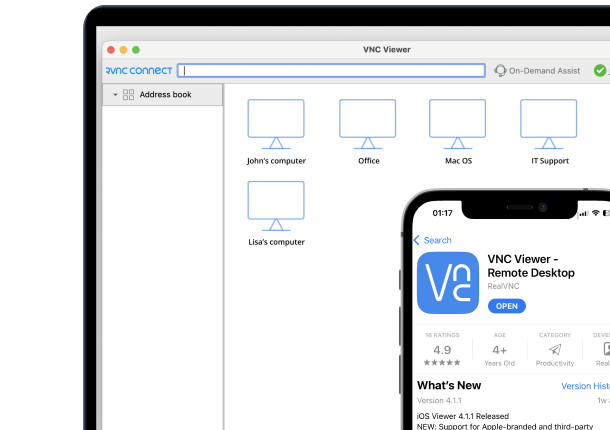




While having VNC server software built with macOS in mind should be the norm, some tools treat it as an afterthought. Others struggle with native compatibility or miss security imperatives. But the best VNC viewer for Mac should feel invisible, fast, secure, and ready to scale across personal MacBooks and virtualized server centers.
For tech leads, sysadmins, and IT teams, choosing the best solution starts with understanding what it looks like. So, in this guide, we’ll talk about:
- What to look for when evaluating VNC client tools for macOS
- The top-performing tools, based on practical use cases from the market
- What to avoid if security, performance, or scale is non-negotiable (as they should be)
Key Features to Look for in a VNC Viewer for Mac
macOS comes with a built-in VNC client via the Screen Sharing app, but for advanced security, cross-platform compatibility, or enterprise-level features, most teams quickly outgrow its limitations.
Most product pages will tell you the same thing: “secure, fast, cross-platform.” That’s not helpful. Here’s what actually matters when you’re selecting a VNC viewer for macOS, especially if you’re deploying at scale:
Mac compatibility
You need a VNC client that’s fully optimized for Retina displays, maps macOS keyboard shortcuts natively, and respects system-level security features like Gatekeeper, Keychain, and Touch ID. Tools like RealVNC Connect and Apple Remote Desktop are built with native macOS support in mind.
Ease of use
For IT teams, ease of deployment matters. But for end users, especially in support scenarios, it’s critical. Look for software that doesn’t require root access to install, has an intuitive interface, and can be launched without hand-holding. Some apps even support zero-install remote sessions or browser-based access.
Performance
A remote desktop session is only as useful as it is smooth. Look for VNC viewer apps that offer hardware acceleration, efficient compression (like DeskRT), and low-latency rendering for high-res workflows. This is especially key for creative professionals, video editors, or developers working with graphical UIs or high-resolution screens.
Security
Security shouldn’t be optional. Choose tools that offer end-to-end encryption, multi-factor authentication, and role-based access control. Bonus points for self-expiring access codes (like Code Connect from RealVNC), built-in session recording, and audit trails for compliance teams. Your VNC server software should align with macOS’s built-in security protocols.
Other features
Don’t underestimate the productivity impact of the extras. The best remote desktop tools for Mac offer:
- Drag-and-drop file transfer with folder sync
- Session recording for documentation or training
- Multi-monitor support (especially on Mac Studios and Pro setups)
- Audio/video redirection and USB passthrough for more immersive support sessions
- Easy switching between controller and controlled roles (ideal for collaboration)
VNC-Based Viewers and Platforms for Mac
If you’re looking for a VNC viewer for Mac, you’re likely trying to solve a bigger challenge: secure, fast, and flexible control of your Mac (or someone else’s). So, let’s explore some of the most popular VNC viewers for Mac on the market, as well as several non-VNC-based remote access solutions.
1. RealVNC Connect
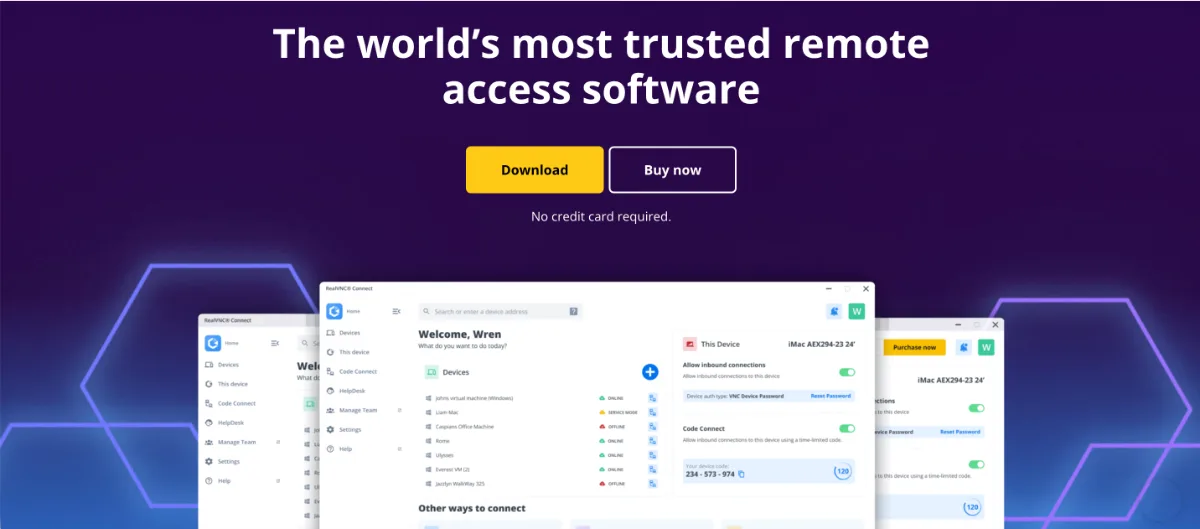
Designed for macOS environments, RealVNC Connect v8 merges viewer and server functionality into a single, unified application. It supports retina displays, streamlined device management, and advanced session control, all while maintaining top security protocols.
Key Features:
- Unified viewer and server app
- Retina display optimization and macOS-native UI
- Code Connect for temporary, secure guest access, with codes that expire after 120 seconds
- On-Demand Assist for zero-install remote support
- A screen sharing app with end-to-end encryption, session recording, multi-monitor support, supports multiple connections
Used for real-time system monitoring and remote diagnostics, RealVNC is built for teams who need secure, auditable support and full compatibility with macOS environments.
2. JollysFastVNC
macOS-native client optimized for VNC and ARD, designed specifically for Apple users on macOS 15 and earlier, with support for connections to Windows and Linux machines via VNC. Great for users who need SSH tunneling and efficient connections within Apple ecosystems or low-latency screen sharing for personal workflows.
Key Features:
- macOS-native with SSH tunneling and SSL
- Compatible with macOS Screen Sharing
- SmartZoom and full-screen multi-monitor support
- Wake-on-LAN and remote screen lock
3. TigerVNC
An open-source VNC viewer focused on simplicity, TigerVNC prioritizes performance over features and works well in Unix-heavy and secure internal networks.
Key Features:
- Cross-platform (Windows, Linux, macOS)
- TLS encryption and Unix authentication support
- Low overhead, minimal GUI
A go-to for academic labs and engineering teams who need reliable remote desktop access.
Non-VNC Remote Access Alternatives
4. TeamViewer
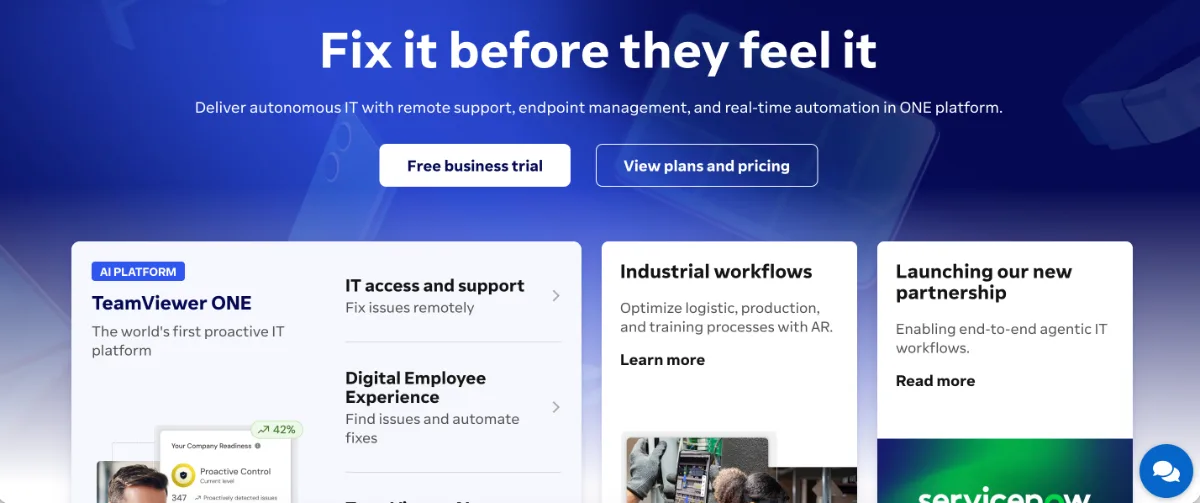
Widely used across industries, TeamViewer now spans several products, from TeamViewer Remote for everyday access and support to the enterprise-focused Tensor. It’s known for its polished UI and broad enterprise integrations.
Key Features:
- Multi-platform (macOS, iOS, Windows, Linux, ChromeOS, Raspberry Pi, Android)
- Drag-and-drop file transfer, clipboard sync
- AI-generated session insights and audit logs
- Support for unattended access and mass deployment
5. Chrome Remote Desktop
A lightweight, browser-based solution offering basic screen sharing and remote desktop control. Best suited for personal use or occasional business needs. Lacks granular access controls or audit features required by most enterprise IT teams.
Key Features:
- Chrome extension-based setup with iOS/macOS support
- One-time session codes, no persistent credentials
- Minimal UI for fast, frictionless access
6. AnyDesk
Known for its speed and low-latency remote desktop sessions, AnyDesk appeals to creative professionals and developers who need high responsiveness. It’s popular among design agencies and startups.
Key Features:
- Proprietary DeskRT codec for HD performance
- Multi-monitor, cross-platform (Windows, macOS, iOS, Linux)
- File transfer, clipboard sync, session recording
- Optional cloud or on-prem server deployment
7. NoMachine
Focused on performance-heavy workflows, NoMachine supports hardware acceleration, media redirection, and strong encryption. Favored by those working with virtual machines, 3D rendering, or high-res remote desktops from macOS devices.
Key Features:
- Hardware-accelerated 4K streaming
- SSH tunneling, USB device redirection, webcam/audio support
- File transfer and port forwarding
How to Choose the Best VNC Viewer (Or Remote Access Platform) for Mac
Most people weighing these tools are solving one of three problems:
→ You need access to a Mac you’re not physically near.
→ You’re supporting someone else remotely.
→ You’re managing endpoints in a professional environment.
The simple viewers that once handled all three now fall short in modern macOS workflows. Here’s how to narrow it down:
- Start with native macOS support. Look for tools that fully integrate with macOS features, such as Retina display, Apple keyboard mappings, multi-monitor support, and built-in security frameworks like SIP and Gatekeeper.
- Check for real-time performance under load. Test the viewer on low-bandwidth or high-latency networks. Features like adaptive encoding, hardware acceleration, and session resume matter more than flashy UI.
- Ensure end-to-end encryption is default, not optional. Confirm support for SSH tunneling, MFA, and user-level permissions. For teams, check if the tool provides session logging, audit trails, and RBAC (role-based access control). Also look for security certifications and guarantees. Tools like TigerVNC or Chrome Remote Desktop lack this out of the box.
- Don’t skip the support test. Contact customer service during your trial and see how fast and competent their response is.
- Finally, prioritize viewers that offer flexible deployment: support for cloud, on-prem, and hybrid setups, especially if you’re scaling or working across multiple networks and environments.
Stop Guessing. Choose the Right VNC for macOS
Don’t chase what’s popular. Chase what performs. That being said, here’s how to move forward with clarity:
- Security is non-negotiable
- Prioritize native macOS integration
- Test for performance under real-world pressure
- Support matters more than you think, so choose wisely
Tired of patching together tools that weren’t built for Mac? RealVNC Connect offers a unified, secure, and user-first experience built with your macOS needs in mind. Try it for free and see the difference.
Frequently Asked Questions
What is a VNC viewer, and how does it work on Mac?
A VNC viewer is a remote desktop app that lets you see and control another machine’s screen from your own. On Mac, you’re essentially “logging into” another computer’s display via a VNC server. macOS comes with a basic built-in VNC client (Screen Sharing), but for anything beyond casual use, like secure remote support or managing large systems, you’ll need something more complex.
Does Mac have a built-in VNC viewer?
Yes. macOS ships with Screen Sharing, a built-in VNC client you’ll find in Sharing settings and through Finder’s Connect to Server. It handles basic screen viewing and control without any extra software.
Where it runs out is everything around the session: no multi-factor authentication, no session recording, no audit logs, and no centralized way to deploy or manage access across a fleet. For occasional Mac-to-Mac access it’s fine. For supporting other people’s machines or meeting compliance requirements, you’ll outgrow it quickly.
Are VNC viewers secure for macOS?
They can be, but not all are. Basic VNC clients leave authentication and access control up to you, so a default setup can be wide open. Modern remote access platforms built on the VNC protocol, like RealVNC Connect, ship with AES-GCM 256-bit end-to-end encryption, MFA, Code Connect for guest access, and audit logs, all optimized for macOS. Don’t assume “password protected” means secure.
Can I use a VNC viewer for free on Mac?
Yes, but with trade-offs. macOS includes Screen Sharing, a basic VNC client, at no cost. Open-source options like TigerVNC go further and ship TLS encryption built in. What free tools generally don’t give you is session recording, secure guest access, centralized management, or audit trails. If you’re managing sensitive systems or handling client data, the free route often isn’t worth the risk.
Which VNC viewer is best for professional use on Mac?
That depends on your use case. If you want something lightweight and free, TigerVNC is the open-source pick. JollysFastVNC is the Mac-native alternative, built around SSH tunneling and Apple Remote Desktop support. Both do the job in controlled environments, but expect manual configuration, a spare interface, and little help with compliance requirements.
For teams that need centralized management, guest sessions, audit logging, and multi-monitor support, RealVNC Connect is the stronger fit. It started as a VNC viewer and became a unified remote access platform built for Mac environments and regulated industries.
How do I set up a VNC viewer on macOS?
It’s usually straightforward:
- Install your preferred VNC client (e.g., RealVNC Connect).
- Get the VNC server address of the machine you want to access.
- Enter credentials when prompted. For secure sessions, use SSH tunneling or a VPN layer, and always test with the correct firewall and network settings.
- For a VNC-based remote access platform like RealVNC Connect, the flow is different:
- Install the unified macOS app, which includes both server and viewer
- Use Code Connect for guest sessions without reconfiguring firewalls
- Support unmanaged Macs with On-Demand Assist, or deploy at scale with silent installs
- Enable MFA, access logs, and compliance settings
Is NoMachine faster than VNC?
Not straightforwardly. NoMachine’s proprietary NX protocol delivers compression optimized for X11 environments, which is where its performance reputation comes from. macOS doesn’t use X11 natively, so that advantage matters less on a Mac than it does on Linux.
Speed also isn’t the only axis. NX is proprietary, while VNC is an open standard published as RFC 6143. Licensing differs too: NoMachine licenses per operating system, where RealVNC Connect covers all platforms in one subscription and publishes ISO 27001:2022 certification and SOC 2 Type II attestation.