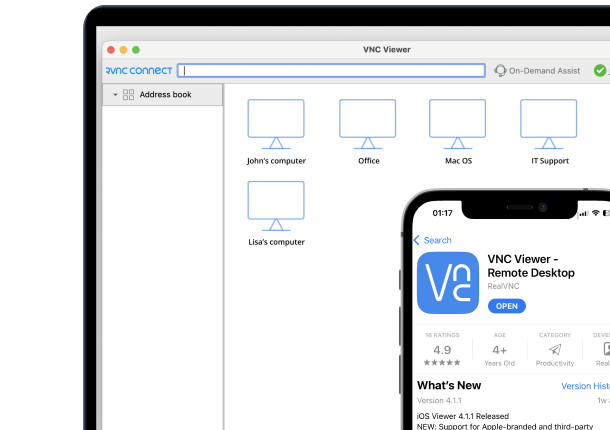




If your phone runs Android, you don’t need a laptop nearby to check on your Mac. RealVNC Viewer for Android puts your Mac’s full desktop on your phone or tablet screen, so you can view and control it from wherever you are.
RealVNC Viewer for Android: control your Mac from your pocket
The RealVNC Viewer app for Android mirrors your Mac’s screen and lets you interact with it using touch, over Wi-Fi or mobile data – the same RealVNC Connect technology used on desktop, adapted for a phone or tablet.
What you’ll need
- A Mac with RealVNC Server installed and running
- An Android phone or tablet
- A RealVNC Connect account – a free trial is available
- An internet connection on both devices
Step 1: Set up RealVNC Server on your Mac
On the Mac you want to control:
- Download the RealVNC Connect setup app from the RealVNC website.
- Click Download for macOS.
- Click Accept and Install, and follow the on-screen instructions.
- Once installation completes, choose Start my free trial if you’re new to RealVNC Connect, or Sign in to continue if you already have an account.
- Your browser will open automatically. Follow the on-screen prompts, then click Allow to return to the RealVNC Connect Setup app.
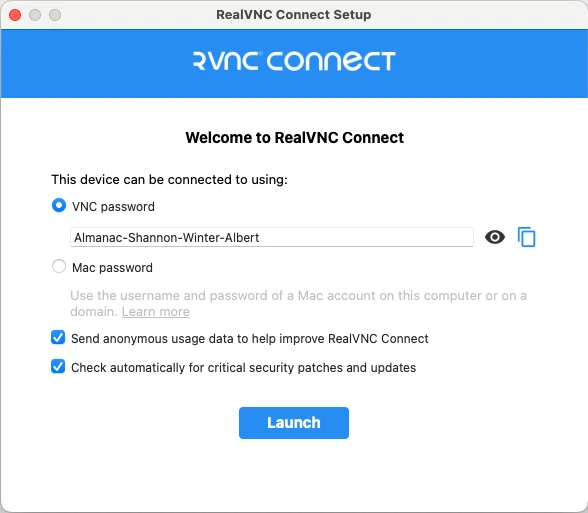
- Review the settings shown, then click Launch. If you keep the default VNC Password, make a note of it – you’ll need it when you connect from another device.
Granting the macOS permissions RealVNC Server needs
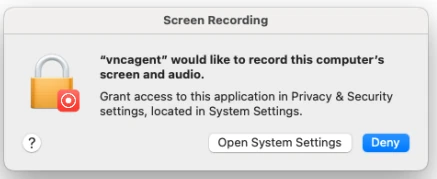
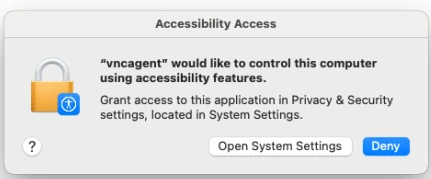
On macOS Mojave and later, RealVNC Server needs Screen Recording and Accessibility permission before it can show and control the Mac’s desktop. Skip this step and RealVNC Viewer will show a blank screen, or you’ll only get view-only access.
- When prompted, click Open System Settings, then click the padlock icon at the bottom left to make changes.
- Enter an administrator’s username and password when asked.
- Enable the option for vncagent under both Screen Recording and Accessibility, then click the padlock icon again to lock the changes.
You’ll also see a monthly prompt asking to allow vncagent to capture your entire screen and audio – this is expected, and approving it keeps the connection working.
Step 2: Install RealVNC Viewer on your Android device
- On your Android device, open the Play Store and download the RealVNC Viewer: Remote Desktop app.
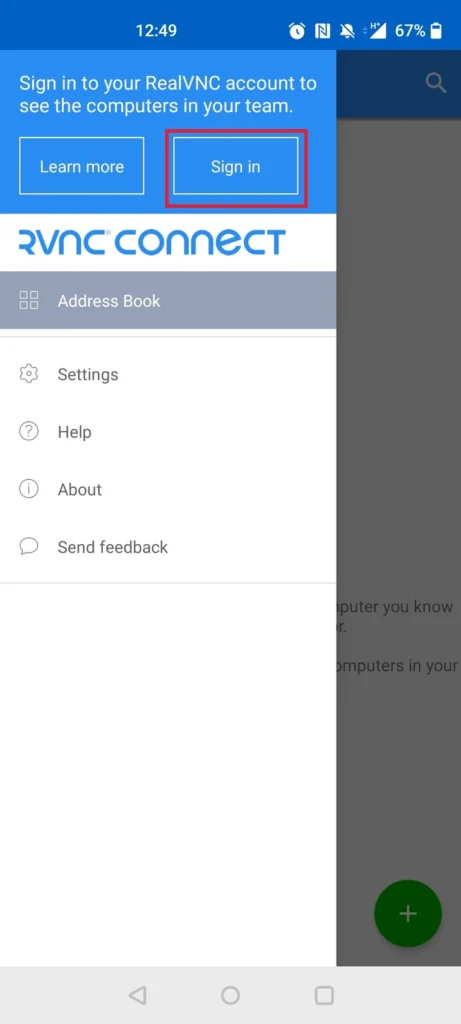
- Sign in using your RealVNC account credentials.
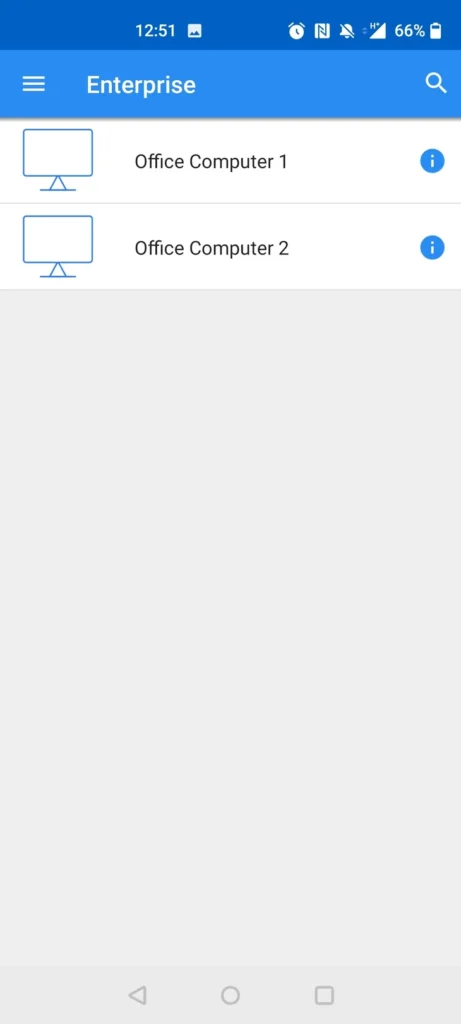
- Your Mac will appear automatically in your list of remote computers.
Step 3: Connect to your Mac from Android
Tap your Mac in the list to connect.
Authenticating
You’ll be asked to authenticate. System Authentication is the default method – enter the username and password of a user account on the Mac. If you set a VNC Password during setup instead, enter that.
Once connected, your Mac’s desktop appears on your Android screen. Use touch to move the pointer and tap to click, and open the on-screen keyboard whenever you need to type.
A note on cloud vs. local connections from Android
Direct (local network) connections aren’t supported when connecting from mobile devices, so a connection from Android always goes through RealVNC’s encrypted cloud connection. Sign in with the same RealVNC account on the Mac and the Android device and there’s nothing else to configure – it works over Wi-Fi or mobile data.
Troubleshooting common issues
- Blank screen or can’t control the Mac: check that Screen Recording and Accessibility permissions are granted to vncagent on the Mac.
- Mac not listed in RealVNC Viewer: confirm you’re signed in to the same RealVNC account on both devices, and that the Mac is switched on with RealVNC Server running.
- Authentication fails: double-check you’re using the correct Mac user account credentials, or the VNC Password set at installation.
Start controlling your Mac from Android with RealVNC Connect
RealVNC Connect offers a free trial with no credit card required, so you can try controlling your Mac from Android before subscribing.
FAQs
Can I control a Mac from an Android phone?
Yes. Install RealVNC Server on the Mac and the RealVNC Viewer app on your Android device, then sign in with the same RealVNC account on both.
Do I need Wi-Fi to connect from Android?
No. Mobile connections route through RealVNC’s cloud service, so mobile data works just as well as Wi-Fi.
Is the RealVNC Viewer app for Android free?
Downloading and installing RealVNC Viewer is free. You need an active RealVNC Connect subscription or free trial to connect to a computer.
Can I type and use the mouse from my Android device?
Yes. RealVNC Viewer maps touch gestures to mouse actions and provides an on-screen keyboard for text entry.