



Download RealVNC® Server and Viewer
Connect securely to your devices with the original remote access solution, trusted by individuals and organizations worldwide.
RealVNC® Viewer for Windows
Install RealVNC Viewer on the device that you want to view and control from.
RealVNC® Viewer for macOS
Install RealVNC Viewer on the device that you want to view and control from.
RealVNC® Viewer for Linux
Install RealVNC Viewer on the device that you want to view and control from.
RealVNC® Viewer for RaspberryPi
Install RealVNC Viewer on the device that you want to view and control from.
RealVNC® Viewer for Android
Install RealVNC Viewer on the device that you want to view and control from.
RealVNC® Viewer for iOS
Install RealVNC Viewer on the device that you want to view and control from.
Thank you for downloading
Your download of The Classic RealVNC VNC Connect for has started.
Looking for RealVNC Server Click here.
By downloading, you accept the Terms of use and Privacy Policy
Looking for RealVNC Viewer or Server All-in-One App?
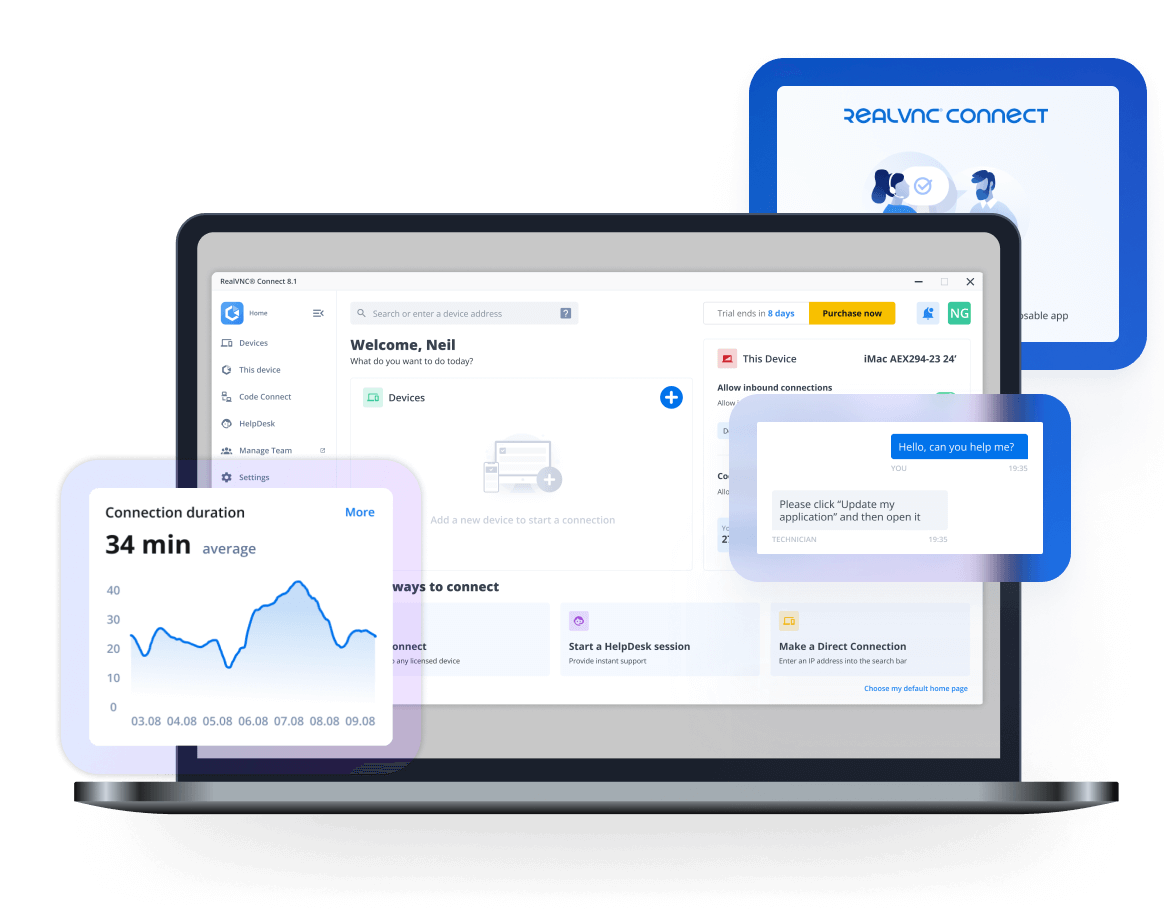
We recommend using RealVNC Connect for the best experience and for access to the latest features.
Streamlining your setup experience with our RealVNC Connect Setup app that helps you install both RealVNC Viewer and RealVNC Server in one go.
Made to work together
For the best experience, reliability, and security, we recommend using our VNC® Viewer with our VNC® Server.
![]() RealVNC Viewer or RealVNC Server + 3rd Party Client |
![]() With RealVNC Connect |
|
|---|---|---|
| Full end-to-end session encryption | No | Yes |
| Session recording | No | Yes |
| Advanced multi-factor authentication | No | Yes |
| Cloud & Direct (LAN) connectivity | No | Yes |
| Granular access and user permission control | No | Yes |
| Remote printing, real-time chat and file sharing | No | Yes |

Get started in three easy steps

1. Download
Download and install VNC Viewer on your desktop.

2. Sign in/up
Sign in or Create an account (and claim a free 14-day trial).

3. Setup and Connect
Add VNC Server to your remote devices and connect.
See how easy RealVNC Connect is to use
-
How to get started
How to get started with RealVNC Connect remote access
In this video, we’ll show you how quick and easy it is to get your first screen sharing session up and running using RealVNC Connect.
Tutorial: How to get started with RealVNC Connect remote access
Starting to use RealVNC Connect couldn’t be easier. You just need to create an account and get a free trial (no credit card required).
This video will show you how to provide unattended access to your Windows, Linux or Mac computer.
You will now be able to control your computer easily from anywhere in the world. If you want to continue to use the software after the 14-day trial, you can continue to do so seamlessly after buying a subscription.
Frequently asked questions
If you can’t find an answer to your question, please visit our Help Center or get in touch with us.
If you’re purchasing a subscription to our Essentials, Plus, or Premium plans then you can pay via credit card, debit card, or using PayPal. If you want to pay via an electronic bank transfer, please contact us.
Our subscriptions are 12-month commitments, billed annually. It isn’t possible to pay on a monthly basis.
If you need to increase the capacity of your subscription or want to upgrade to a higher-tier plan, you can easily make the changes to your account from the RealVNC Connect Portal on your web browser.
By default, RealVNC Connect subscriptions are set to renew automatically. If you don’t want to renew your subscription, please turn off auto-renew on the Billing page of the RealVNC Connect Portal.
Related Downloads
VNC Permissions Creator
Manage users and permissions for VNC® Server.
Policy Template Files for VNC Viewer
Remotely configure and lock down programs using policy.