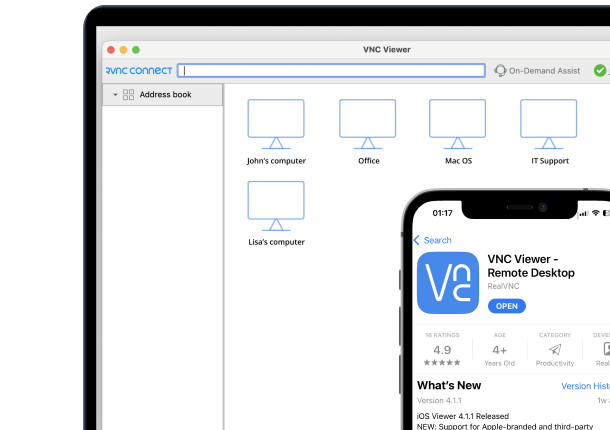




In 2026, your computer could be down the hall or in Antarctica. Either way, getting fast and secure access to it shouldn’t require a support ticket or a degree in network engineering.
Over the years, VNC tools have typically offered a viable and powerful solution for remote machine access. These remote control solutions allow you to connect to other machines, take operational control of them, and get work done like you’re there sitting in front of the screen.
Of all the VNC solutions, two names tend to stand out: RealVNC and UltraVNC. Unlike stripped-down alternatives such as TightVNC, which prioritize minimalism over depth, these two solutions offer powerful and highly configurable features. Whether you’re troubleshooting a Linux desktop on a corporate network, or just trying to keep your home office in sync, RealVNC and UltraVNC both offer impressive levels of depth.
This article explores RealVNC and UltraVNC across core areas like security, features, and performance. It also weighs both options in terms of ease of use and showcases specific use cases so you can choose the right tool for your needs with confidence.
What Exactly is VNC? Understanding the Core Technology
VNC, which is short for “Virtual Network Computing” is a protocol that allows you to remotely view and control another computer over a network and the Internet. It works by transmitting screen data, keyboard strokes, and mouse movements.
VNC was originally developed by the team behind RealVNC Connect and the protocol itself is now maintained under the GNU General Public License.
VNC is platform-agnostic which means it runs happily on Windows, macOS, and Linux. Modern versions like RealVNC Connect can even run on Android and iOS.
For IT professionals and system administrators, VNC is essential for remote support, configuration, and monitoring. It’s been around long enough to support remote access on Windows 3.11 and is backward compatible to the degree that obsolete operating systems are still able to be accessed from modern versions.
Today, the VNC ecosystem includes everything from minimalist tools like TightVNC to full enterprise platforms. While they share a common foundation, modern implementations differ significantly in how they handle encryption standards, session transparency, and compatibility with modern display protocols like Wayland.
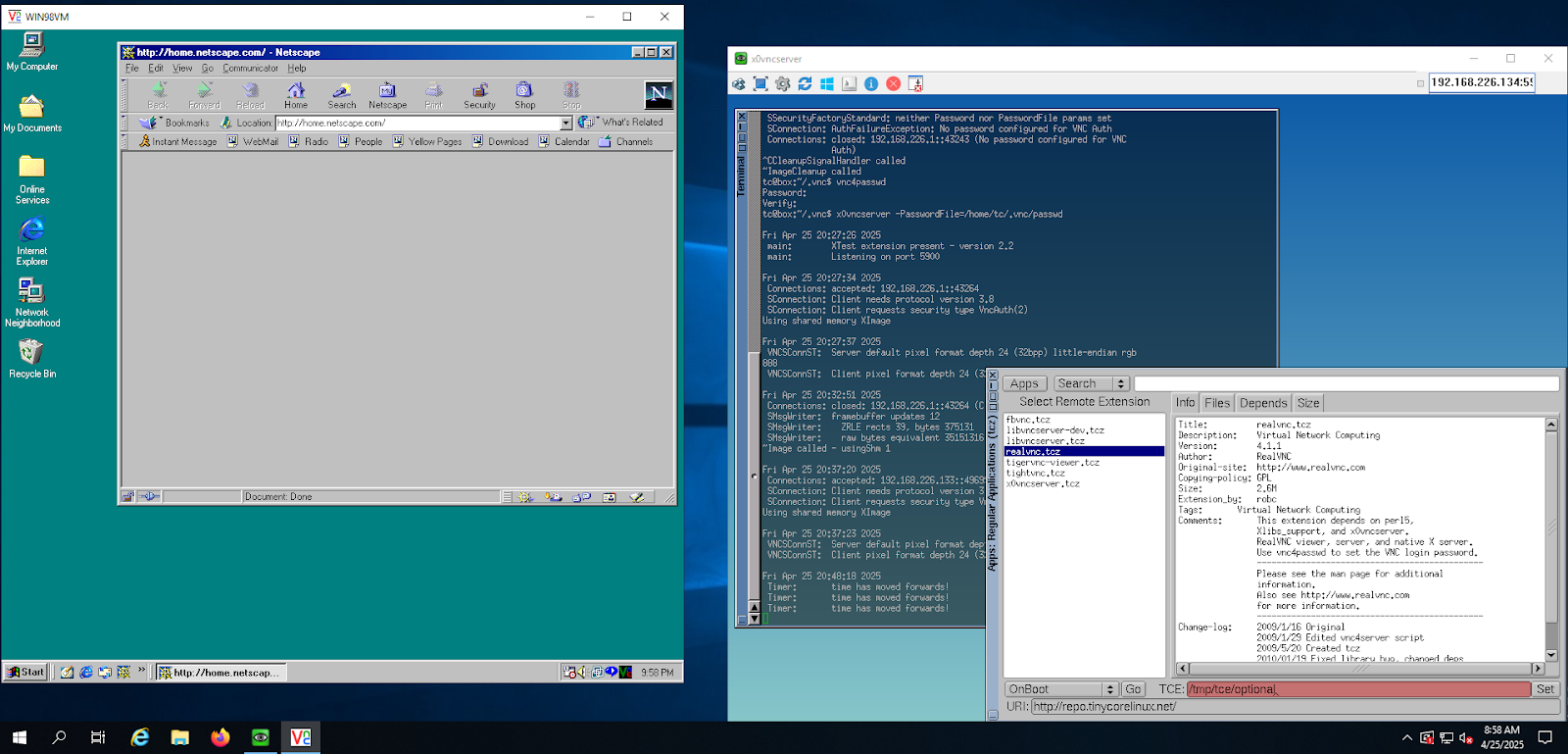
Now that we have covered VNC basics, let’s see how UltraVNC and RealVNC measure up in a real world comparison.
A Quick Overview of RealVNC and UltraVNC: A Historical Perspective
UltraVNC and RealVNC are two of the most prominent options when it comes to VNC remote access. Let’s take a quick look at how they became so popular.
Real VNC Connect – A Modern VNC Solution
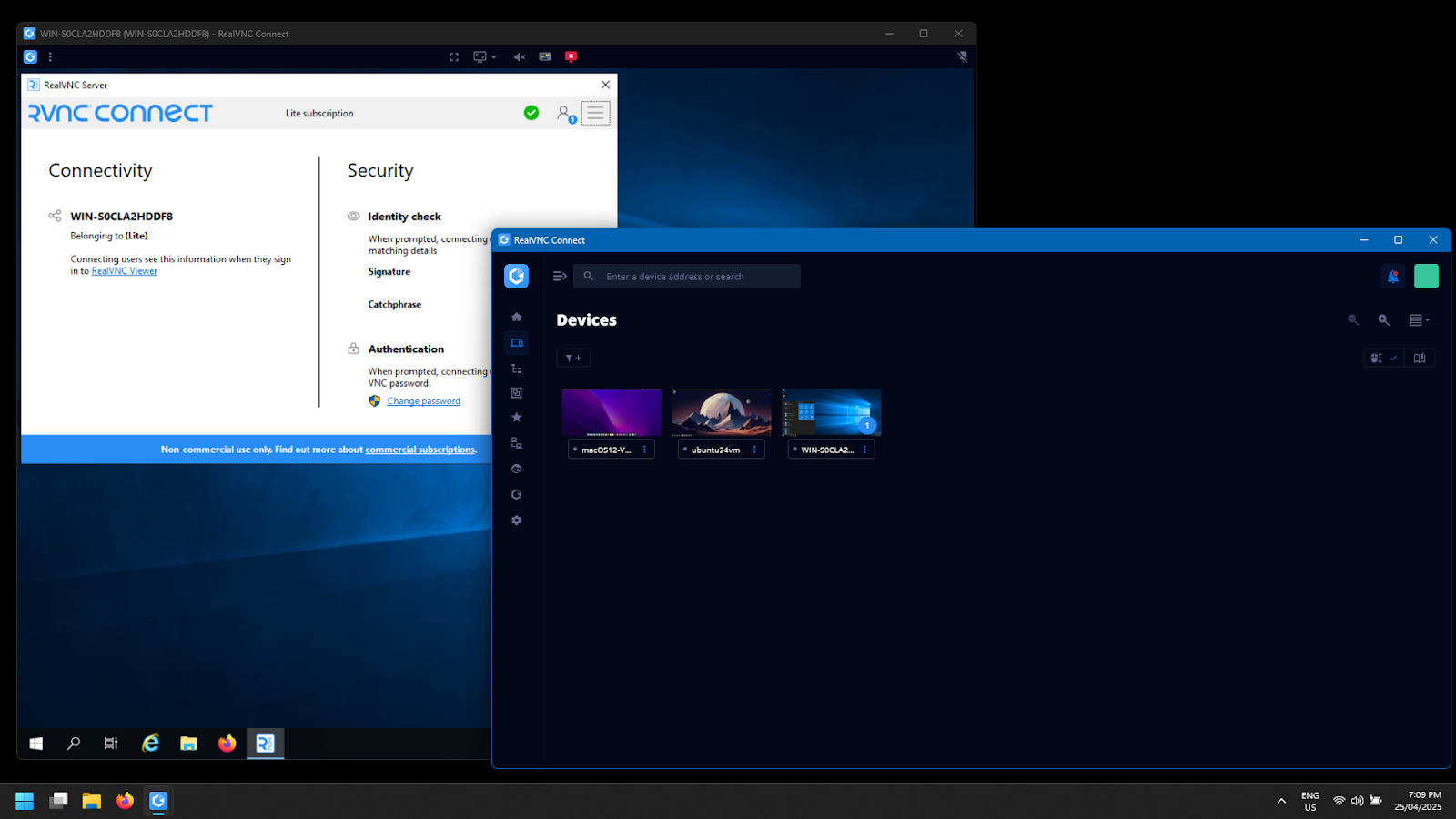
RealVNC has been a leader in the remote access space since its inception in 2002. It was founded by the original developers of the VNC protocol and has been evolving ever since. RealVNC quickly gained recognition for providing secure and reliable remote access, especially for network and computer security.
Nowadays, RealVNC is a trusted solution for businesses and IT professionals. It offers strong security features like up to 256-bit AES-GCM encryption with Perfect Forward Secrecy, multi-factor authentication, and SSO support.
Ultra VNC – A Reliable and Practical VNC Solution

Launched in 2004, UltraVNC is an open-source VNC solution that has become popular due to its cost-effective nature and no-nonsense interface. Its primary appeal lies in its customizability with extensions and plugins.
UltraVNC is also popular in business cases where backward compatibility is important when managing legacy Windows systems. The latest client can still connect with very old versions of the server, making it suitable for lightweight setups. Historically, both of these tools are often compared to TightVNC, another open-source alternative known for low-bandwidth efficiency.
Comparison Criteria for RealVNC and UltraVNC
When making a comprehensive comparison between RealVNC and UltraVNC, five core factors define their real-world value:
- Features: These reveal how much control and flexibility each tool provides.
- Performance: Highlights how fast and stable the connection remains when using it under various network conditions.
- Security: Assesses how well each tool protects your data and credentials at rest and in transit.
- Ease of use: How easy is it to set up and get running out of the box.
- Use cases: Explores which environments the tool is best suited to.
Feature Comparison
When it comes to VNC features, both RealVNC and UltraVNC offer more than basic screen sharing. The differences however are worth noting depending on your environment and goals.
RealVNC: RealVNC Connect brings a refined and enterprise-ready toolkit. It supports multi-platform deployment, including Windows 7-11, Windows Server, macOS, Linux, Raspberry Pi, Android, and iOS. It also offers the ability to connect to machines via a direct connection (LAN or VPN), and a cloud-based platform that can work behind firewalls, NAT, and CGNAT.
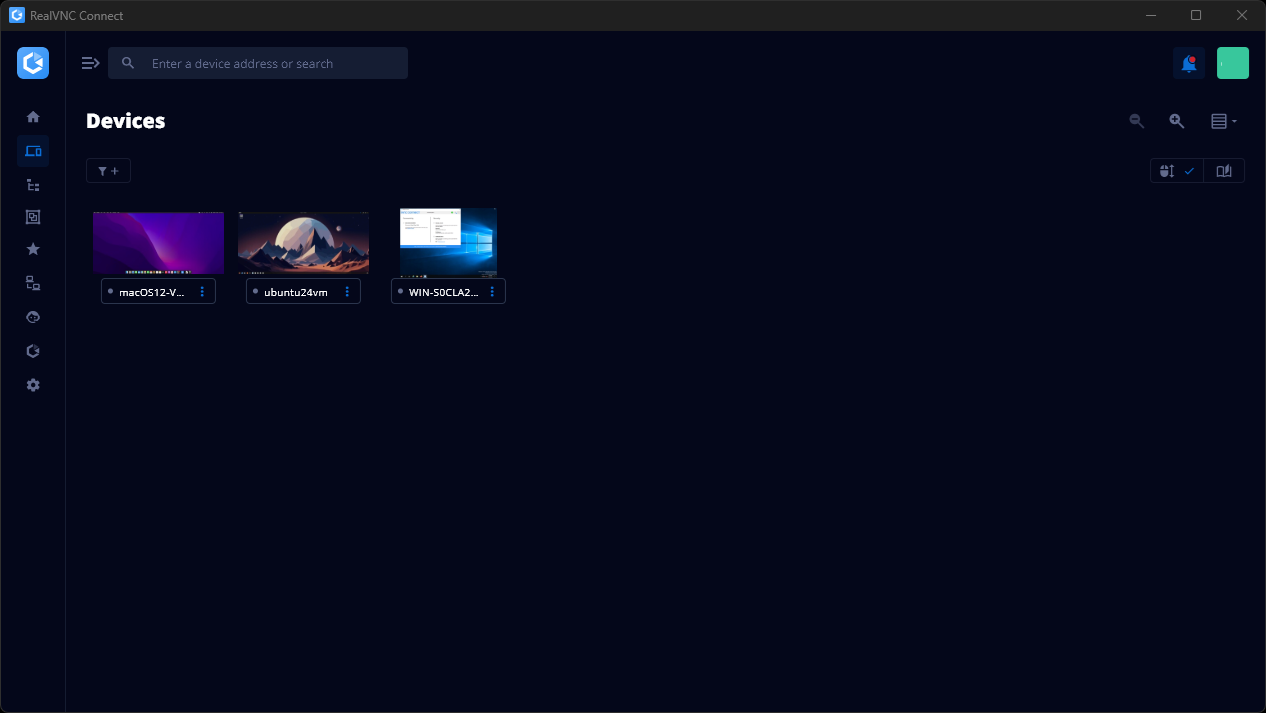
For IT teams who need mass-deployment options, RealVNC Connect makes it easy to deploy across multiple endpoints with centralized control and compatibility across newer and older systems alike.
Other typical VNC solution features are also present:
- Real-time chat
- File Sharing and transfer across multiple platforms
- Session recording
UltraVNC: In contrast, UltraVNC favors flexibility and compatibility. It runs a server on Windows and a viewer on Windows and Linux (with JavaViewer support on any system that supports Java).
Its biggest feature is backward compatibility. It can establish VNC sessions with other VNC servers and retains support for Windows 95 and 98 legacy machines. UltraVNC also supports a plugin and extension market allowing for deep customization.
Performance Comparison
Performance matters. Especially when you’re working with time-sensitive tasks that need fast refresh rates like CAD or terminal work.
RealVNC: Delivers exceptionally fast, stable remote sessions across all supported platforms. When remotely accessing Linux, Windows, and macOS, the experience is seamless with no pixelation or artifacts, even allowing for high-speed video streaming. Adjusting the resolution on the client device is as easy as resizing the window regardless of the host’s aspect ratio and native resolution.
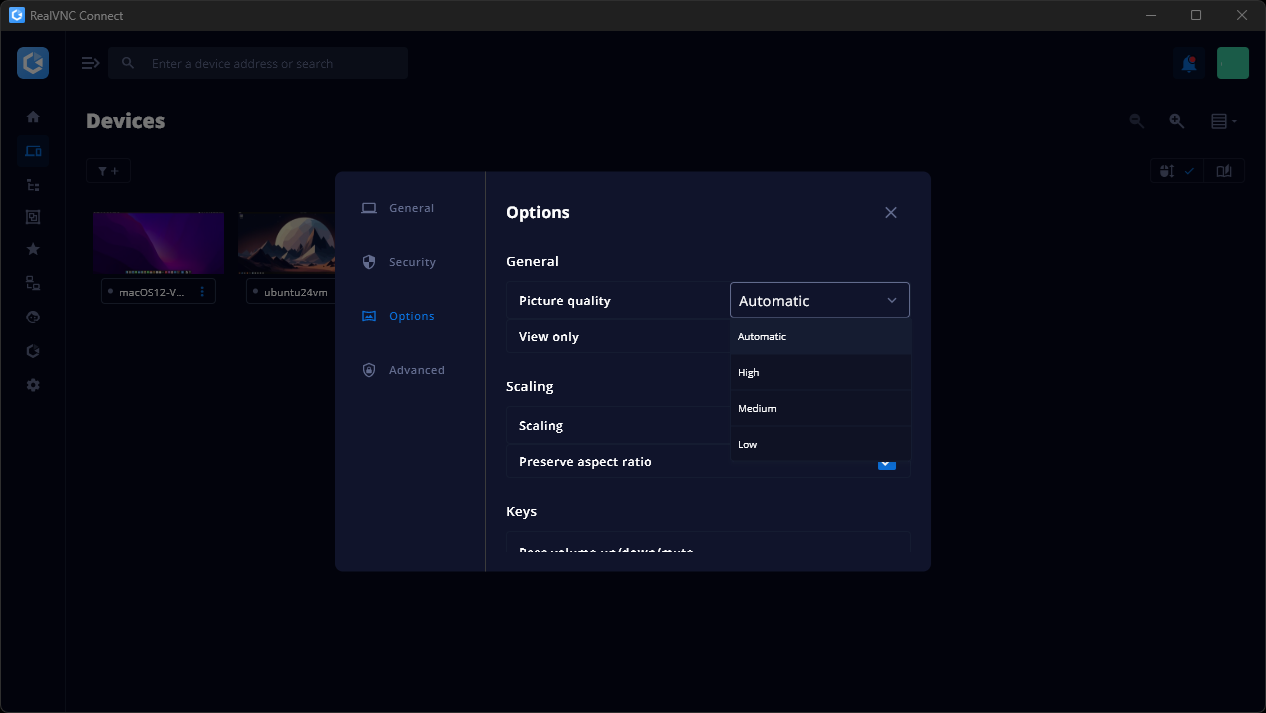
You can allow RealVNC to detect the connection and type and tune performance automatically, or take control with manual appearance settings.
UltraVNC: Performs quite well, particularly on lightweight or older hardware. To improve performance on lower-end machines, it can utilize an optional mirror driver to reduce CPU load. However, its lack of dynamic display scaling can be a problem; if the host resolution is higher than the viewer’s, finding a specific desktop icon can become a frustrating issue. For those on extremely limited bandwidth, the ‘Tight’ encoding found in TightVNC or UltraVNC is often the primary reason to choose these over heavier versions of other remote software.
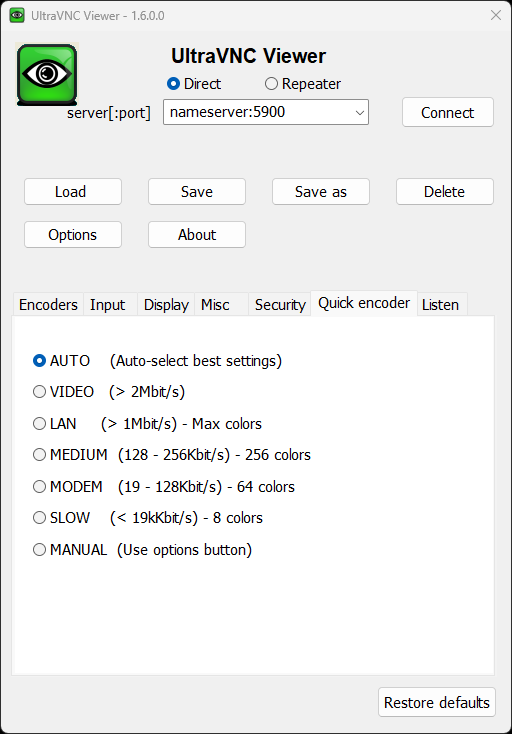
Users can fine-tune aspects such as Zlib compression levels and JPEG quality, which can noticeably improve responsiveness when dealing with resource constraints on either end.
Overall, RealVNC favors consistent performance, while UltraVNC gives tinkerers a few more levers to pull and play with.
Security Comparison
When it comes to security, the stakes are always high. This is especially true for support teams and MSPs managing sensitive data and remote connections.
RealVNC: Security is RealVNC Connect’s strong point. It offers end-to-end encryption by default, meaning that even RealVNC itself can’t see your activities. It supports up to 256-bit AES-GCM encryption with Perfect Forward Secrecy, multi-factor authentication, and Single Sign On (SSO), so even if a session key were ever compromised, past sessions remain protected.
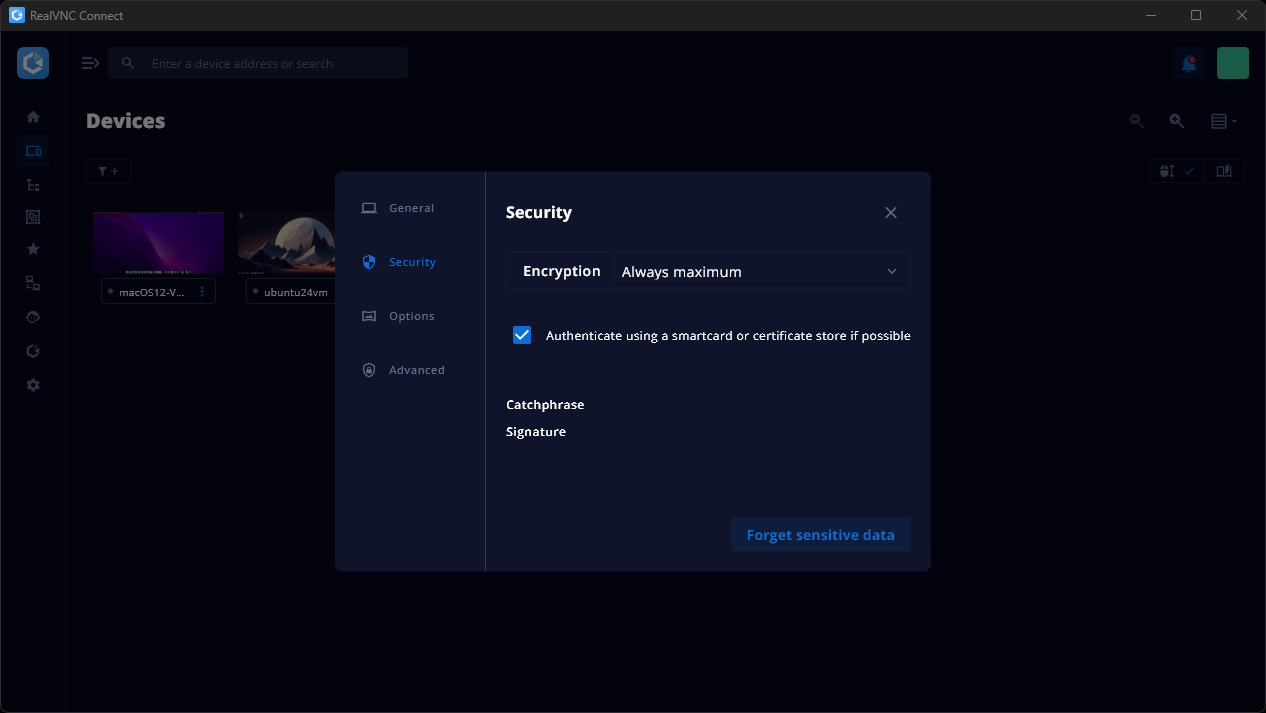
RealVNC Connect’s security and authentication are geared for peace of mind in enterprise environments. It features fine granular access control, you can fine-tune who sees what, adding even more layers of security to an already robust remote access solution.
UltraVNC: Offers decent encryption options, but they require additional setup on both the server and client end. Users must install the VNCSecure plugin and then manually generate the encryption keys and install the .pkey in the executable directory of the installation.

While this is great for personal use and smaller environments, this level of manual setup can become a significant issue for mass deployments.
It’s also worth noting that in March 2026, a high-severity privilege escalation vulnerability (CVE-2026-3787) was identified in UltraVNC 1.6.4.0. This issue stems from an uncontrolled search path in the Windows Service component, potentially allowing an attacker with local access to execute arbitrary code with elevated privileges. Because the vendor did not initially respond to this disclosure, it highlights a potential problem for organizations that prioritize active, business-grade support. This type of privilege escalation issue can allow an attacker to execute malicious code with system-level authority. If you need to connect to endpoints across a public network, the out-of-the-box security in RealVNC is a safer possibility.
Ease of Use
When comparing which solution is the easiest to use, RealVNC Connect definitely stands out. Installation is simple and easy with a combined server and viewer installer. Even on Linux, which is notoriously difficult for getting VNC servers up and running, the installation is clean and simple.
The interface is intuitive and polished, making it easy for anyone to get started without issue. Businesses looking for a hassle-free solution will appreciate how smoothly everything integrates, right out of the box.
In contrast, UltraVNC offers a lot of flexibility, but it comes at the cost of complexity. Setting up encryption or additional features like file transfer requires a fair amount of technical know-how. With so many options to configure, new users will likely be overwhelmed. Advanced users, however, will absolutely appreciate the level of control they have over the setup.
Use Cases
The choice between remote access solutions can come down to what exactly you need it for.
RealVNC is a powerhouse. It’s perfect for enterprise environments, businesses with strict security policies, and remote support teams that need something that scales easily. It excels in situations where ease of deployment is essential, especially in businesses that use SCCM or Endpoint Manager MSI packaging.
UltraVNC is ideal for users who need legacy support more than out-of-the-box security and configuration. If your business is the proud owner of a Windows NT server still humming along in the back office, UltraVNC is definitely your go-to. It’s perfect for those who just want a low-cost and flexible tool, albeit with a bit of extra configuration.
The Pros and Cons: UltraVNC vs RealVNC
Choosing between RealVNC and UltraVNC can also come down to what matters the most to you and your business: security, flexibility, ease of use, and of course cost. Here is a more detailed look at their pros and cons:
| RealVNC | UltraVNC | |
| Pros | Enterprise-grade security | Free and open-source |
| Cross-platform (Windows, macOS, Linux) | Highly customizable | |
| Mobile device access (iOS/Android) | Advanced compression settings | |
| Centralized management tools | Backward compatibility to Windows 95 | |
| Cloud or direct connection options | Minimal system requirements | |
| Intuitive UI and setup | Fine-tuned performance controls | |
| Cons | Paid license required | Fewer update cycles |
| Heavier install size | Windows-only server | |
| Bandwidth usage slightly higher | No dynamic resolution scaling | |
| Some features hidden behind tiers | Limited official support (similar to TightVNC) | |
| Requires internet for cloud mode | GUI less polished | |
| Pricing may deter small teams | Encryption setup is complex |
How to Choose: RealVNC vs UltraVNC
When deciding between UltraVNC, RealVNC, or any remote access solution for that matter, consider your specific needs:
- Security: If secure connections (both in transit and at rest) are a top priority, RealVNC is the clear winner with its enterprise-grade security and encryption.
- Technical expertise: If you prefer a setup that’s simple and straightforward, RealVNC is the easiest option. If you have the technical skills and enjoy customization and tinkering, UltraVNC has you covered, just be prepared for a bit of work.
- Use case: For personal use, or businesses that need legacy system support, UltraVNC is an effective choice. If you need something that is purpose-built for corporate environments, RealVNC Connect is a better fit.
Ultimately it comes down to what problem you need the solution for. RealVNC Connect is a better choice for enterprises and SMBs, while UltraVNC is better suited for enthusiasts or tech professionals needing to remote access legacy, physical Windows servers.
Conclusion: RealVNC vs UltraVNC – Which One Is Right for You?
In the battle of RealVNC vs UltraVNC, both tools have their strengths. RealVNC is your go-to for secure, enterprise-level solutions. It’s perfect for the professional who needs peace of mind and reliability. On the other hand, if you’re a DIY-er, a personal user, or running a small operation that doesn’t need all the bells and whistles, UltraVNC offers plenty of flexibility and value.
So, what’s the difference? It’s simple—if security and ease of use are your top priorities, RealVNC wins. If you’re fine with getting your hands dirty and just need something that works on a shoestring, UltraVNC might be your best bet.
Ready to make a decision? Test out RealVNC free here and see if it’s the VNC solution that’s just right for you.
FAQs
What is the main difference between RealVNC and UltraVNC?
RealVNC has a heavy focus on high-end security, enterprise features, and a UI that looks polished. UltraVNC is open-source and tends to work better for smaller setups or tech enthusiasts.
Is UltraVNC secure enough for business use?
UltraVNC can be made secure, but it does require a fair amount of manual configuration. Out-of-the-box, connections are not secured beyond a simple VNC password.
Does RealVNC support mobile devices?
Yes, RealVNC does support mobile devices like iOS and Android. It allows team members in the field and on the move to fully control a Windows, macOS, or Linux machine.
Which tool is better for beginners, RealVNC or UltraVNC?
With its very user-friendly interface, simple setup, and enterprise-level support, RealVNC is the better tool for absolute remote access beginners.
Can both tools be used for cross-platform remote access?
UltraVNC only supports connections to Windows machines but does support a Linux viewer. RealVNC Connect offers truly cross-platform support with remote access to and from Linux, Windows, macOS, Raspberry Pi, and mobile operating systems.