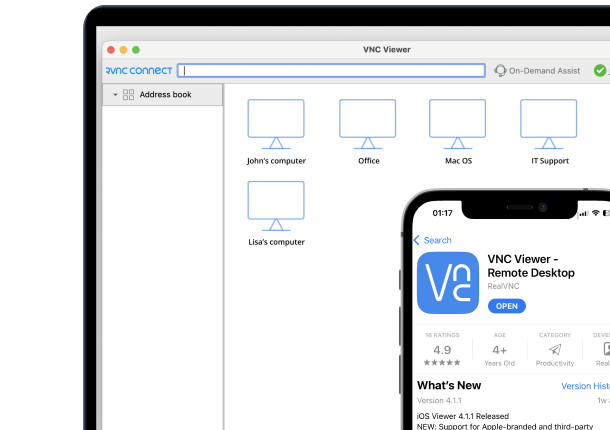




You approve a contract at home on a mobile device, but the team back at the office needs a copy with your signature. The documents sit on the office computer across a different network, and the deadline won’t wait.
You connect to the remote computer, open the document there, and print remotely to your local printer through a secure VNC channel. The job travels from the remote host to your desk, giving you the physical copy to apply your wet signature to.
This guide discusses how to print remotely and the different approaches to setting it up. We’ll also explain the steps involved in setting up remote printing with clear workflows and secure solutions like RealVNC Connect.
What Is Remote Printing?
The simplest form of remote printing means opening the file on the remote computer and sending it to your local printer through a secure session.
You connect to the host, select the VNC virtual printer on that host, and the job routes back to your location. The aim is to enable the same quality and formatting you expect on a nearby device.
After authentication, choose the local target and print. The job appears in your local queue, the status updates, and the page releases beside you.
There are three main methods to achieve remote printing capability:
- Cloud services that require cloud-ready printer hardware.
- VPN mapping that connects you to the office network for the use of a print server or network printer.
- A VNC session that handles the printer driver directly on the host computer.
Next, we’ll go into these three methods in more detail.
Methods for Printing Remotely
These three methods for printing remotely are the most widely used in organizations and businesses. Although they each differ in approach, the goal is the same: printing remotely and securely with minimal burden to the end user. Choose the approach that works best with your current network design and secure access requirements.
1. Remote Desktop Solutions
Remote desktop tools give users the ability to control a host computer and print the remote file to a local printer through a secure session.
Here’s how it works:
- Tools like Microsoft’s Remote Desktop Protocol (RDP) or RealVNC Connect establish a remote control session on the target computer’s desktop.
- Choose your local printer with the option to print via VNC on your computer. It appears as “<printer name> via VNC from <machine>,” which routes output to your local printer.
- The host handles the printer driver, so there is no extra installation on the endpoint. Adjust print settings, select the target, and print.
- The job enters your local queue. Monitor status, resolve errors if needed, and confirm print was successful from the printer beside you.
This method works with any printer and keeps driver management on the host, which helps enable remote print reliably across mixed fleets. With RealVNC Connect’s remote printing, you also get strong encryption that’s compliant with ISO/IEC 27001:2022 and GDPR/CCPA standards.
2. Cloud Printing Services
Cloud printing services route print jobs over the internet to a compatible printer that runs in a vendor ecosystem. This can be as simple as a single printer with a web server, or as complex as a complete printer brokering service that runs in the cloud.
Organizations with protected data policies may prefer the on-premises setup. Teams that want to implement cloud printing services should be cautious and verify support lifecycles. The discontinuation of Google Print back in 2020 is a reminder that services don’t always last.
3. VPN-Based Network Printing
A VPN (Virtual Private Network) creates a secure tunnel so users can access your organization’s network printers and print servers over the same network. The user typically needs to install print drivers locally to access SMB-hosted servers for Windows or CUPS for Linux.
This creates an obvious trade-off for IT teams compared to VNC. VNC sessions centralize printing on the host, while VPN shifts the driver installation work to endpoints.
How to Set Up Remote Printing
Keep both devices online. Confirm your local printer works, and that the remote host has permission to print to it through a secure session. The remote host does not need your local printer driver.
- Install RealVNC Connect by downloading and installing it.
- Connect to the remote desktop using RealVNC Connect.
- Within the remote session, select the printer and initiate a test print job by opening a printable file such as a PDF, selecting “<printer name> via VNC from <machine name>,” then tap or click print.
- Open a printable file, for example, a PDF, on the remote computer
- In the app’s print dialog on the remote host, select the entry that reads “<printer name> via VNC from <machine>,” then tap or click Print to initiate the job to your local printer.
A more detailed explanation of the process is available on our remote printing support page.
What to do if it goes wrong? Explore our remote printing troubleshooting guide to resolve the issue for your specific operating system and environment.
The Benefits of Remote Printing
Remote printing enables businesses to keep output moving across locations while keeping tight control over what’s being printed and by whom. Other benefits include:
- Maintaining productivity from any location: Send urgent print jobs from office devices to your local printer without physically being there.
- Enhance collaboration and document workflows: Preparation of documents for colleagues that are released on arrival.
- Printing to your secure printers: For sensitive documents where the content cannot be legally observed by certain parties, for example, documents covered under an NDA.
- Supports IT operations: Audit logging, status monitoring, and the ability to resolve errors remotely mean fewer site visits.
Best Practices for Secure Remote Printing
When implementing remote printing in your organization, apply these controls to keep it secure and compliant:
- Use enterprise-grade access that’s aligned to ISO/IEC 27001:2022 with end-to-end encryption.
- Use strong authentication with MFA or TOTP, with a preference for SSO to restrict unauthorized printing.
- Configure Roll-Based Access Control (RBAC) and least privilege, audit access with session logs, and disable inactive accounts.
- Maintain secure networks, update firewalls, and segment any sensitive printers.
- Train staff in the secure operation of remote printers and create failure guidelines.
- Use secure remote access solutions like RealVNC Connect for remote printers.
Your Next Step to Secure Printing
Remote printing delivers predictable, secure output across locations. RealVNC Connect gives enterprises the capability to enable remote printing with secure methods and dependable support.
Download and install RealVNC Connect today for remote printing that’s simple and secure straight out of the box.
FAQs
Can I use any printer for remote printing?
Yes, if the host computer has the correct driver and the printer is connected and confirmed to be working.
Is remote printing secure?
Remote printing with secure remote access solutions like RealVNC Connect uses enterprise-grade encryption and access controls to keep files protected.
What if my remote print job fails?
Check that the print spooler service is running on the host computer. Check the queue, confirm print status, and review errors.