





Thank you for downloading RealVNC Connect!
Watch this quick getting started video and start your free trial with RealVNC Connect.
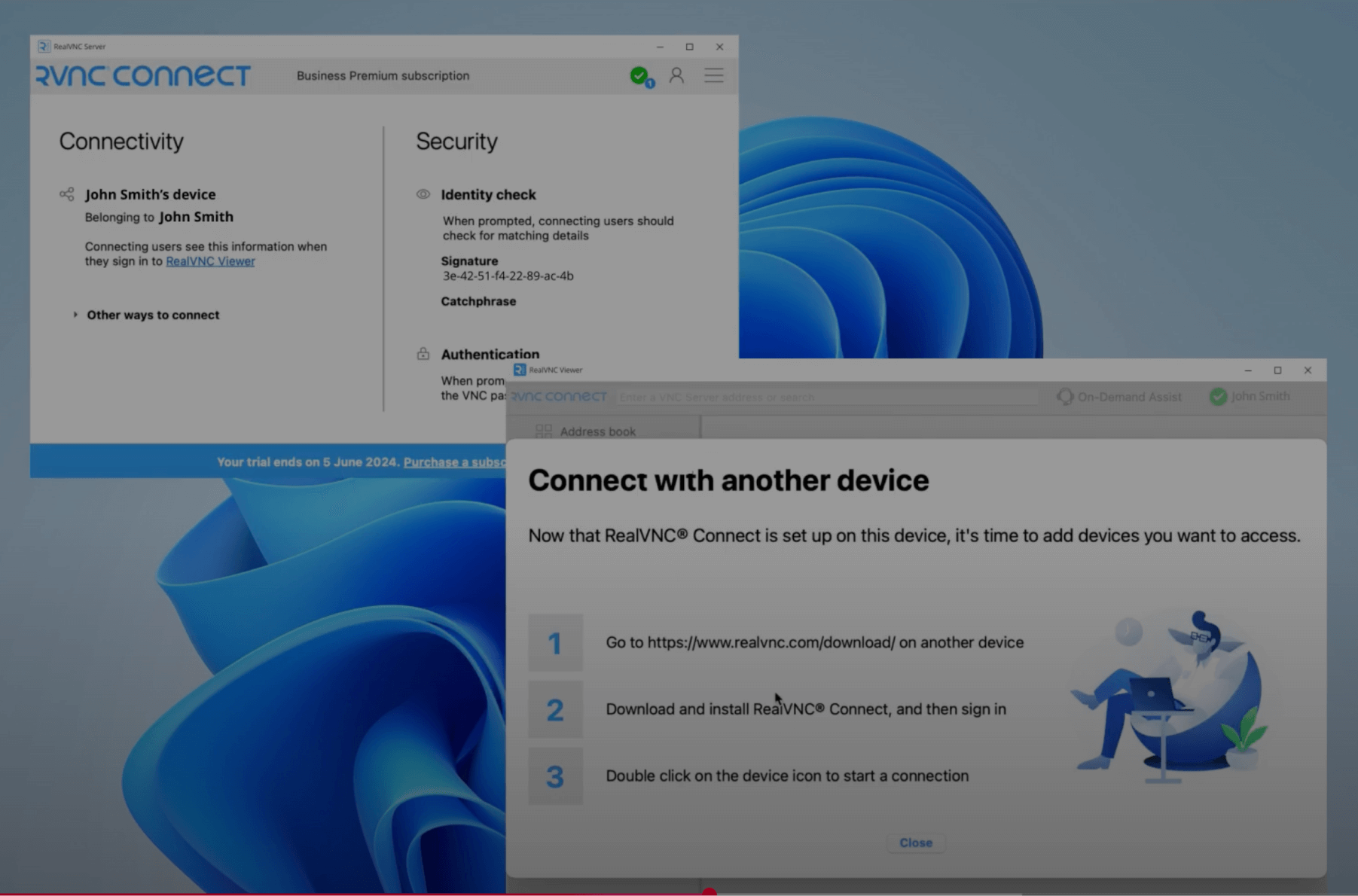
Thank you for downloading RealVNC Connect!
Follow the three steps below to start a free trial and connect to another device.
Step One
Install, sign up for a free 7-day trial, then set a ‘VNC Device Password’ to access your device securely.
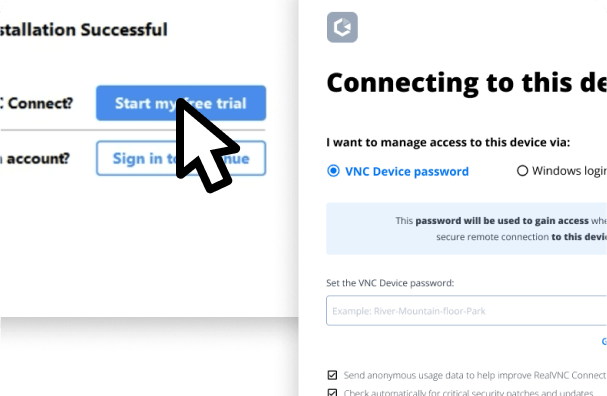
Step Two
Repeat the process on any other devices you want to add to your RealVNC® Connect Team.
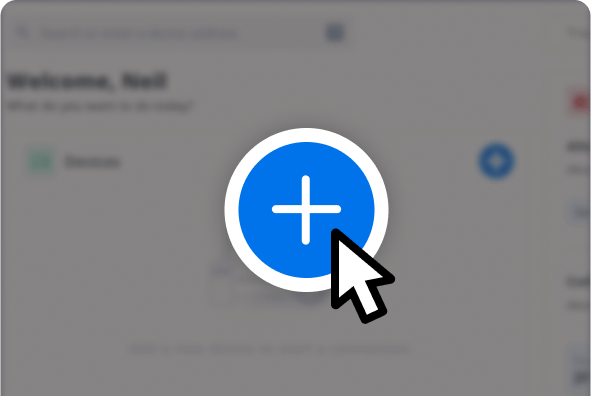
Step Three
Choose a device to connect to and enter its 'VNC Device Password' to authorize the connection.
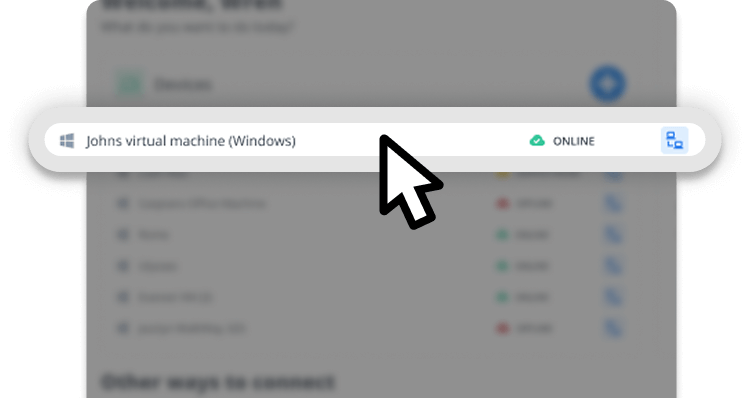
More How To Videos
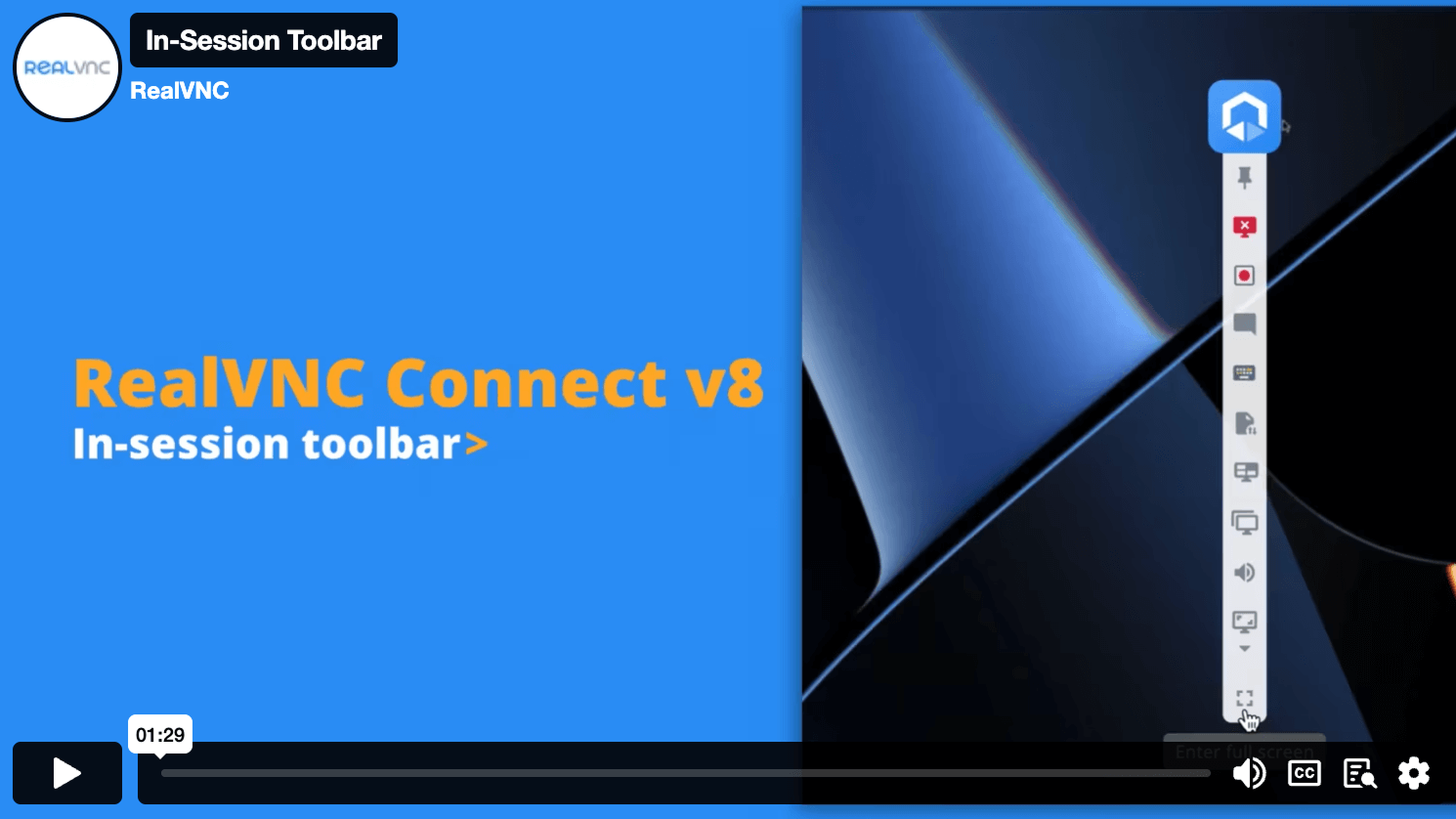
In-Session Toolbar
Learn about the improved in-session toolbar available in RealVNC Connect v8.
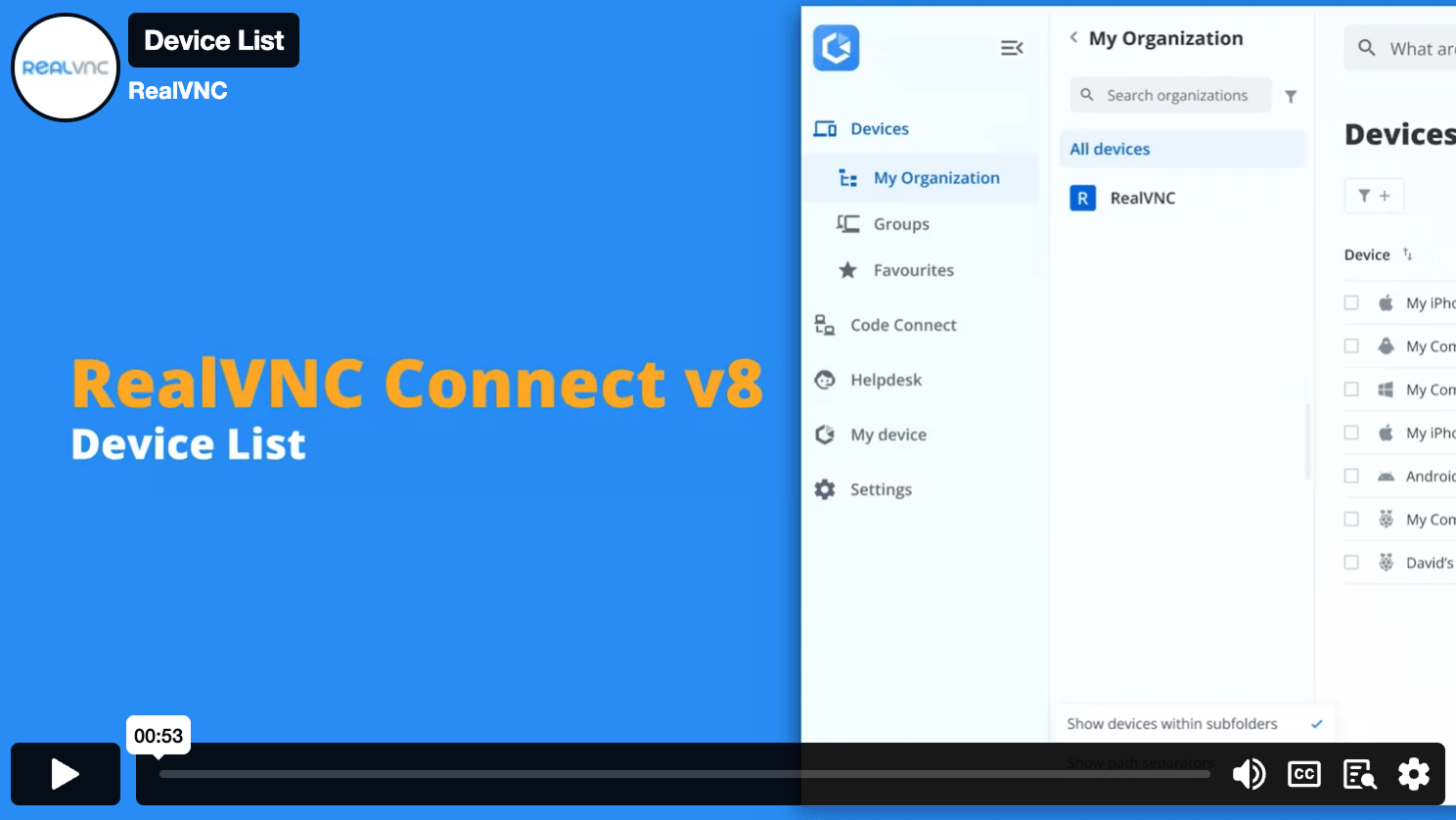
Device List
The Device List lets you find, sort, and connect to all of your remote devices.
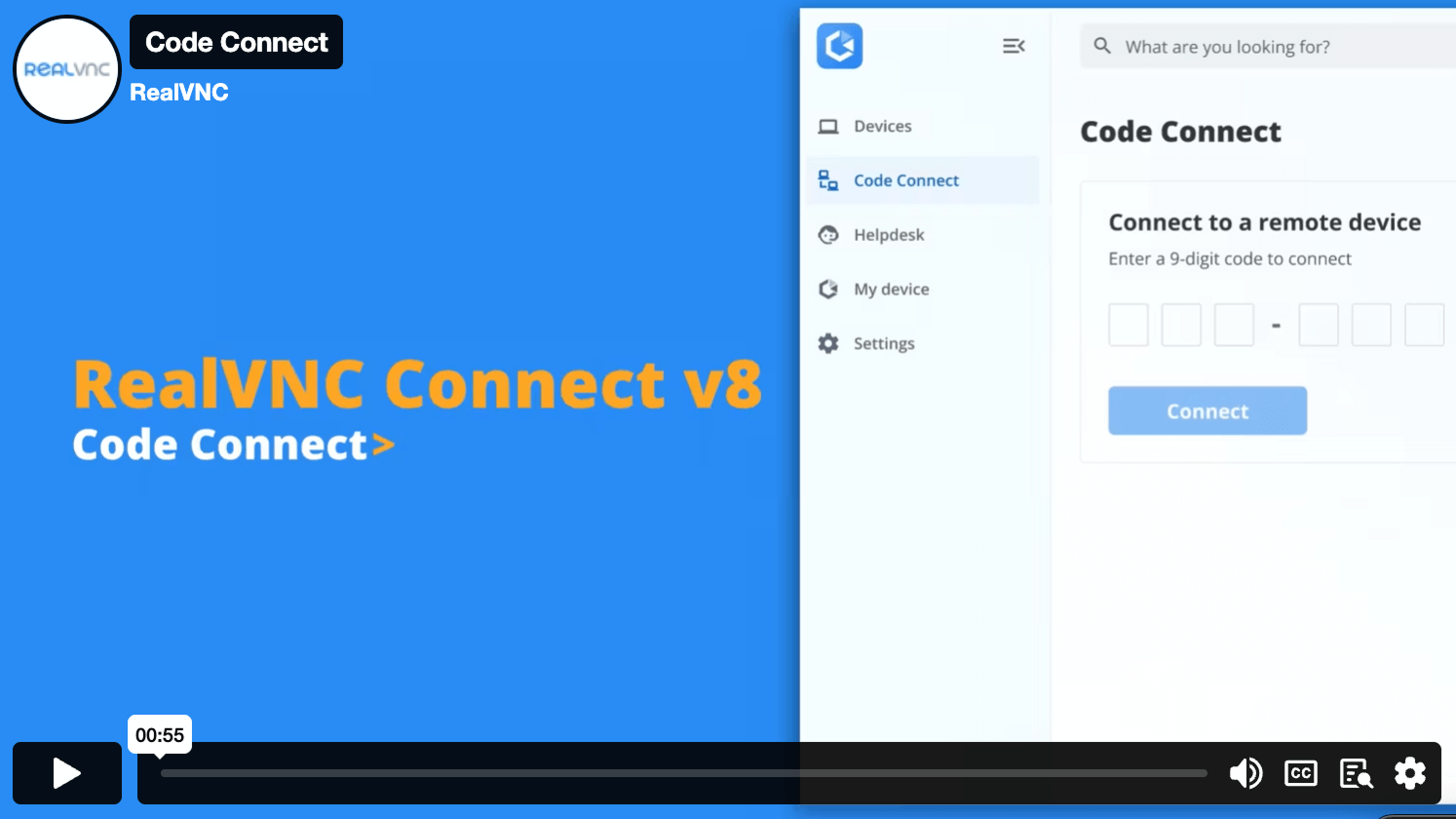
Code Connect
Quickly give guest users one-time access to your devices with a secure code.
Personalize your plan and pricing
Compare plans and features
동시에 실행할 수 있는 원격 세션 수에 따라 요금을 지불합니다.
Let us help you find the best planOpen calculator |
Essentials
/월 (활성 연결당)
|
Plus
최저
월 (활성 연결당)
|
Premium
최저
/월 (활성 연결당)
|
영업 팀에 문의하기 |
|---|---|---|---|---|
|
활성 연결 수
The total number of connections that you can make from a RealVNC Viewer to a RealVNC Server at any one time, across your RealVNC Connect Team. |
활성 연결 최대 1개 | 활성 연결 1개 포함 최대 3개까지 구매가능 | 활성 연결1개 포함최대 5개까지 구매가능 | 활성 연결 무제한 |
| 사용자 수 | 사용자 1명 | 무제한 사용자 | 무제한 사용자 | 무제한 사용자 |
|
관리 기기 수
Managed devices are those licensed to a Team within RealVNC® Connect. Unattended access is only possible to managed devices and some features, such as screen blanking and direct connectivity, are only available when connecting to managed devices. |
관리 기기 3대 | 관리 기기 50대 | 관리 기기 150대 | 관리 기기 150대 이상 |
|
오프라인 라이선싱
Deploy RealVNC® Server to devices that aren't connected to the internet. Requires using direct connectivity and offers increased privacy and security for ultra-sensitive networks. |
||||
|
연결 방식: 직접 연결 (LAN)
Make a direct TCP/IP connection to your remote computer. Requires static IP addresses or hostnames to be made available to connecting users and for intermediate firewalls and routers to be reconfigured |
||||
|
최대 256 비트 AES 종단간 암호화
Secure sessions end-to-end with up to 256-bit AES-GCM encryption. Every session is encrypted at a minimum of 128-bit AES-GCM. |
||||
| Windows, macOS, Linux, PiOS 다중 플랫폼 지원 | ||||
|
다국어 지원
RealVNC® Connect can be configured to display in English, Spanish, German, Brazilian Portuguese, and French. |
||||
|
계정 보안: 2단계 인증(2FA) 및 로그인 알림
Set up two-factor authentication to protect against unwarranted access to your RealVNC® Connect account. Users also receive an authorization request via an email link for any new login from a new device. |
||||
|
연결 방식: 클라우드
Connect securely to remote devices over the internet using our private cloud servers. No firewall or router reconfiguration needed. Exclusive to RealVNC® Connect. |
||||
|
다중 모니터 지원
Work seamlessly across devices that have multiple monitors connected. |
||||
|
원격 기기 오디오 스트리밍
Stream audio from remote Windows, Mac, and Linux devices for a more immersive desktop experience. |
||||
|
원격 인쇄 및 파일 전송
Print directly from a remote device to a local or remote printer, transfer files between connected computers. |
||||
|
화면 차단(Screen blanking)
Allow users to blank the physical screen on Windows and Mac devices when remotely accessing them |
||||
|
세션 채팅
Chat to other users within a session. |
||||
|
표준 권한 관리
Assign users to one of the pre-defined permission profiles |
||||
|
세션 녹화
Keep a video record of remote access sessions to assist with auditing, quality control and training capabilities. |
||||
|
API 액세스를 통한 계정 관리
Create custom programs that extend the capabilities of RealVNC® Connect, helping to automate tasks and streamline processes. |
||||
|
가상 디스플레이 드라이버(VDD)
Add virtual displays on a Windows device that you can then access as remote monitors. |
||||
| 이메일 및 라이브 채팅을 통한 주 5일 24시간 고객 지원 | ||||
|
HelpDesk: On-Demand Assist
Start a remote session with an end-user using a secure session code and either our zero-install On-Demand Assist desktop app or the RealVNC® Server mobile app. |
||||
|
커스텀 브랜딩 (HelpDesk)
Customize the look of HelpDesk On-Demand Assist with your company name, logo, app icon, and custom download link so that your users see a brand that they know and trust. |
||||
|
재부팅 후 자동 재연결 (On-Demand Assist)
Perform a reboot and automatically resume an On-Demand session without requiring a new session code. |
||||
|
세분화된 사용자 권한
Specify what users can do within a remote session (e.g. give them full keyboard control, disable file transfer, or limit them to view-only access). |
||||
|
감사(Audit)
Monitor user and session activity across your Team with key event logs. |
||||
|
고급 권한 관리
Granular control over user permissions with the ability to grant or deny access to individual features within RealVNC® Connect. |
||||
|
세션 연결용 MFA(다중 요소 인증)
Safeguard your systems with a range of MFA options such as digital certificates stored on smartcards, or integrate with an identity management provider such as Duo or RSA SecurID via the RADIUS protocol. Combine authentication factors to create a custom scheme. |
||||
|
온프레미스 관리 콘솔
The On-Prem Management Console gives you centralized control and visibility of your on-premise deployment, letting you see which devices are licensed, know when connections were made to which devices, and effortlessly manage your licensing. |
애드온 사용 가능 | |||
| 전화 고객 지원 | ||||
|
계정 SSO(단일 로그인)
Users can sign into RealVNC®️ Connect using their corporate credentials via Microsoft Entra ID or Okta. |
||||
|
우선 순위 지원
Receive prioritised support from the RealVNC Customer Support team. |
||||
|
그룹 정책 개체(GPO)를 통한 권한 배포
Remotely configure RealVNC® Server using policy , and simultaneously lock down deployments to prevent change. |
||||
|
대규모 배포 (MSI 패키지 활용)
Deploy RealVNC® Server to multiple computers remotely, at once, using MSI packages on Windows. Signed package apps are available for MacOS. |
||||
|
모바일 기기 원격 액세스 (iOS/iPadOS 및 Android)
Connect to your mobile devices (iOS and Android) using the RealVNC® Server mobile app to view them. |
-
Users in my team
1
-
Devices
1
-
Add Helpdesk
No
-
Active Connections
1
-
Offline Licensing
-
Features
No
You've selected Enterprise
Our Sales team will provide you with a quote that's tailored to your needs.
Frequently asked questions
If you can’t find an answer to your question, please visit our Help Center or get in touch with us.
If you’re purchasing a subscription to our Essentials, Plus, or Premium plans then you can pay via credit card, debit card, or using PayPal. If you want to pay via an electronic bank transfer, please contact us.
Our subscriptions are 12-month commitments, billed annually. It isn’t possible to pay on a monthly basis.
If you need to increase the capacity of your subscription or want to upgrade to a higher-tier plan, you can easily make the changes to your account from the RealVNC Connect Portal on your web browser.
By default, RealVNC Connect subscriptions are set to renew automatically. If you don’t want to renew your subscription, please turn off auto-renew on the Billing page of the RealVNC Connect Portal.
Download RealVNC® Server
Windows용 RealVNC®Server
원격으로 화면을 보고 제어하려는 대상 기기에 RealVNC Server를 설치합니다.<
macOS용 RealVNC® Server
원격으로 화면을 보고 제어하려는 대상 기기에 RealVNC Server를 설치합니다.
Linux용 RealVNC® Server
원격으로 화면을 보고 제어하려는 대상 기기에 RealVNC Server를 설치합니다.
Raspberry Pi용 RealVNC® Server
원격으로 화면을 보고 제어하려는 대상 기기에 RealVNC Server를 설치합니다.
안드로이드용 RealVNC® Server
원격으로 화면을 보고 제어하려는 대상 기기에 RealVNC Server를 설치합니다.
iOS용 RealVNC® Server
제어하려는 iOS 기기에는 레거시(구버전) RealVNC Server를 설치할 수 있습니다.


다운로드해 주셔서 감사합니다
전용 VNC Server 다운로드가 시작되었습니다.
다운로드하면 이용 약관 및 개인정보 처리방침에 동의하게 됩니다
macOS Tahoe 사용자 안내: 현재 macOS Tahoe에서 RealVNC Server 기능에 영향을 주는 버그가 확인되어 수정 작업을 진행 중입니다. 자세한 정보는 여기에서 확인하실 수 있습니다.