



Marchio RealVNC®

RealVNC Viewer

Produttività

icona chiudi cerchio

Download RealVNC® Server
The Most Secure Remote Access Host

Download RealVNC® Server, the crucial remote access host that allows you to share control of your devices with remote users securely.

Installing RealVNC® Server on the devices you want to access remotely enables seamless remote control and collaboration using RealVNC® Viewer or the complete RealVNC® Connect solution.

  • Desktop
  • Mobile

IOS Logo

iOS

Scan me for the App Store

android-download-icon

Android

Scan me for the Play Store

Grazie per il download

Il download di VNC Server per è iniziato.

Looking for RealVNC Viewer and RealVNC Server?

Streamline your setup experience with our RealVNC Connect Setup app
that helps you install both RealVNC Viewer and RealVNC Server in one go.

RealVNC Connect combines the best VNC viewer and client server.

Get the full VNC® Connect experience

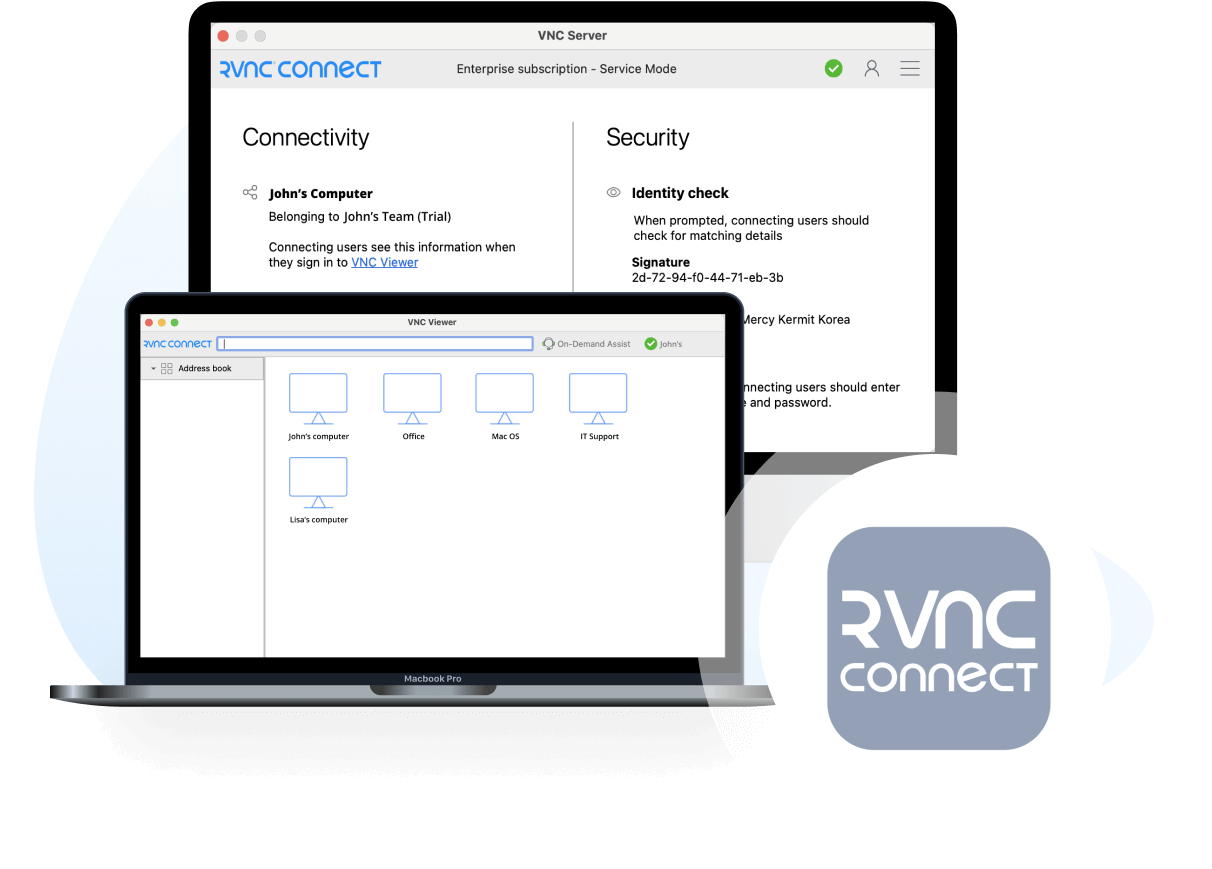
VNC Viewer and VNC Server are designed to work best together. Use them both to experience enhanced security, more reliable connections, and access to exclusive features within VNC Connect.

VNC Server with
3rd Party Client

VNC Server with
VNC Viewer

Download VNC Viewer
Connect to both desktop and mobile devices No Yes
Full end-to-end session encryption No Yes
Session recording No Yes
Advanced multi-factor authentication No Yes
Cloud & Direct (LAN) connectivity No Yes
Granular access and user permission control No Yes
Remote printing, real-time chat and file sharing No Yes

Get started in three easy steps

step1

1. Download

Install VNC Server on your remote devices.

step2-150x150

2. Sign in/up

Sign in or Create an account (and claim a free 14-day trial).

step 3

3. Setup and Connect

Install VNC Viewer on your device and connect.

See how easy VNC Connect is to use

  • How to get started

Come iniziare con l'accesso remoto di RealVNC Connect

In questo video ti mostreremo quanto sia facile e veloce avviare la tua prima sessione di condivisione dello schermo con RealVNC Connect.

Tutorial: come iniziare con l'accesso remoto di RealVNC Connect

Iniziare a usare RealVNC Connect® non potrebbe essere più facile. Devi solo creare un account e ottenere una prova gratuita (nessuna carta di credito richiesta).

Questo video ti mostrerà come fornire un accesso non presidiato al tuo computer Windows, Linux o Mac.

Ora potrai controllare facilmente il tuo computer da qualsiasi parte del mondo. Se vuoi continuare a usare il software dopo i 14 giorni di prova, puoi continuare a farlo senza problemi dopo aver acquistato un abbonamento.

Domande frequenti

Non hai trovato la risposta che cercavi? Dai un’occhiata al nostro centro assistenza per trovare altre domande frequenti, documenti tecnici e guide.

Consulta il nostro centro assistenza per l’elenco delle checksum SHA256

VNC® Connect è l’ultima versione del nostro software di accesso remoto per uso personale e commerciale. È composto da un’applicazione VNC® Server per il computer che vuoi controllare, che deve disporre di licenza, e da un’applicazione VNC® Viewer che puoi scaricare liberamente su tutti i dispositivi da cui vuoi controllare.

La procedura più semplice è eseguire il programma di installazione sul computer che vuoi controllare e seguire le istruzioni. Per gli amministratori di sistema con un abbonamento Enterprise, sono disponibili diverse opzioni di distribuzione.

Accedi a VNC® Server utilizzando le credenziali del tuo account RealVNC® per attivare il tuo abbonamento, oppure avvia una prova gratuita di 14 giorni. Se hai un abbonamento Enterprise, puoi attivare una chiave offline da riga di comando o da remoto.

Sì. Contatta il supporto per maggiori dettagli.

Try VNC Connect today for free